
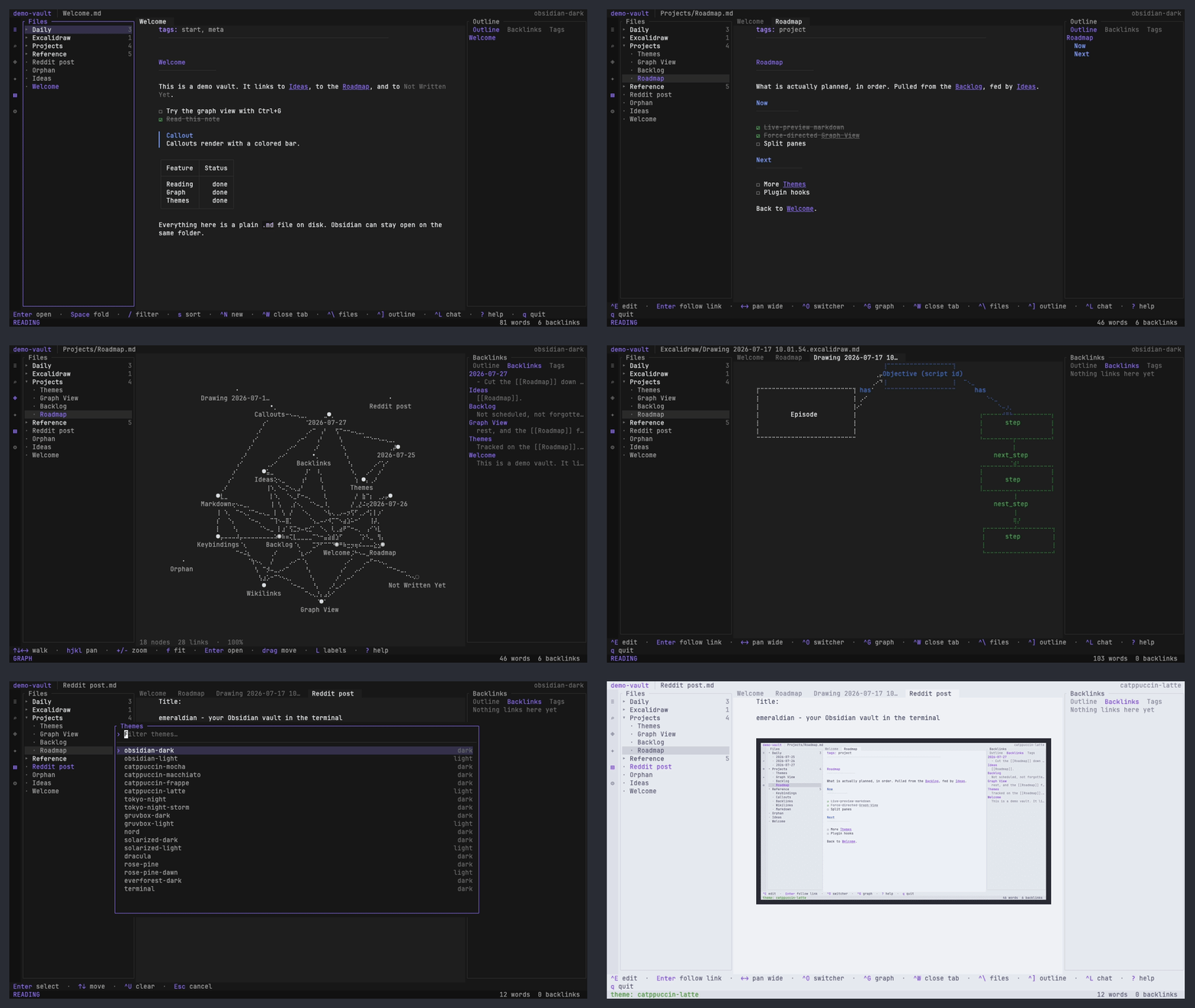
The best TUI for Obsidian. Your vault, the way you already know it: the three-pane layout, live-preview Markdown, backlinks, a force-directed graph, 18 themes. Except it lives in your terminal, and it's built for the keyboard you already have your hands on.
Point it at a vault you already have. There's no import step, no database, no lock-in: it reads the same plain folder of Markdown files Obsidian does, and you can leave Obsidian open on that folder the whole time. Close this and your notes are exactly the files they were before.
It also comes with an AI assistant that works on your notes through the very same commands you do, so you can watch what it did instead of taking its word for it.
The one-liner is the easiest way in. It works out which build fits your machine, downloads it, and checks it against its published checksum before anything moves:
curl -fsSL https://emeraldian-tui.github.io/install.sh | shmacOS and Linux. Set OTUI_BIN_DIR to choose where it lands, or OTUI_VERSION
to pin a release. Piping a script into a shell is always worth a look first;
here it is in full,
and it's a readable 150-odd lines.
Or use whichever package manager you already trust.
Homebrew (macOS and Linux):
brew install iamrohithrnair/tap/emeraldiannpm — coming soon. npx emeraldian is not published yet. The commands
are left out rather than listed, because one that looks right and then fails is
worse than one that is plainly missing.
Cargo (needs Rust 1.90 or newer):
cargo install emeraldianManual download. Grab an archive from the latest release:
tar -xzf emeraldian-<target>.tar.gz
shasum -a 256 -c emeraldian-<target>.tar.gz.sha256   # optional but cheap
sudo mv emeraldian-<target>/emeraldian /usr/local/bin/
xattr -d com.apple.quarantine /usr/local/bin/emeraldian   # macOS only
Prebuilt for aarch64-apple-darwin (Apple silicon),
x86_64-unknown-linux-gnu, aarch64-unknown-linux-gnu and
x86_64-pc-windows-msvc. Intel Macs build from source with cargo.
From a clone:
git clone https://github.com/iamrohithrnair/emeraldian
cd emeraldian
cargo install --path crates/emeraldian --locked   # installs to ~/.cargo/bin
cargo build --release # or just build itemeraldian ~/Notes # a specific vault
emeraldian # the vault Obsidian last had open
emeraldian --list-vaults # what Obsidian knows aboutEmeraldian accepts ordinary flags and the obsidian:// URIs the desktop app
registers, so a link or script that opens Obsidian also opens this:
emeraldian ~/Notes --note "Project Ideas"
emeraldian ~/Notes --search "quarterly"
emeraldian ~/Notes --daily
emeraldian ~/Notes --graph
emeraldian 'obsidian://open?vault=Notes&file=Ideas'Obsidian ships an official CLI, enabled under Settings → General → "Command line interface". The two do different jobs:
obsidian |
emeraldian |
|
|---|---|---|
| Is | a remote control for the app | the interface itself |
| Talks to | the running desktop app | the vault's files |
| Needs an Obsidian instance | yes, and launches one if none is running | no |
| On a machine with no display | needs --ozone-platform=headless or Xvfb |
runs as it is |
So they complement each other rather than compete. When the obsidian binary is
on your PATH, Emeraldian uses it for the one thing only the app can do,
which is handing a note to the GUI:
/obsidianin the assistant panel reports the CLI's status and the vaults the app knows about./obsidian open, or "Open this note in Obsidian" in the command palette, opens the current note in the desktop app.
If the CLI isn't enabled, or Obsidian isn't running, Emeraldian says so and carries on; nothing else depends on it.
Obsidian's shortcuts where it has them, the conventions other TUIs use where it
doesn't. ? shows the full list in the app.
? |
Keyboard shortcuts |
q |
Quit (asks first; Ctrl+Q works while editing too) |
Ctrl+O |
Quick switcher |
Ctrl+P |
Command palette |
Ctrl+Shift+F |
Search all notes |
Ctrl+E |
Toggle reading / editing |
Ctrl+N / Ctrl+D |
New note / today's daily note |
Ctrl+G / Ctrl+Shift+G |
Graph / local graph |
Ctrl+L |
Assistant panel |
Ctrl+\ / Ctrl+] |
Toggle the sidebars |
Tab |
Move between panes |
hjkl, g, G |
Move within a pane |
Enter |
Open / follow a link |
F3 / F4 |
Close the tab / vim mode on / off |
In the editor: ↑/↓, Home and End follow the rows on screen, so a wrapped
paragraph moves through a line at a time as it looks rather than as it is stored.
Enter carries a list marker onto the next line and ends the list when you press
it on an empty item; Tab/Shift+Tab nest and unnest a list item, and are still
a tab in prose. Ctrl+B/Ctrl+I wrap the selection, Ctrl+Space starts one
without holding Shift, and Ctrl+Shift+K deletes the line.
In the file explorer: / filters by name, s changes the sort order, Space
folds a folder, and H/L collapse or expand every folder at once.
In the graph: hjkl pans, +/- zooms, f fits the whole graph on screen,
Tab/Shift+Tab steps between nodes, c recentres on the selection, L
toggles labels, u unresolved links, t tags, and r rebuilds the layout.
q never quits from somewhere you might be typing: in the editor, the chat box
or a search field it types a q, and Ctrl+Q is the way out.
A context-sensitive hint bar sits above the status bar showing the keys that
apply where you are; Ctrl+P → "Toggle shortcut hints" turns it off.
F4 switches the editor between emeraldian mode — the default, described
above — and vim mode. It works from anywhere, including from inside vim's
own Normal mode, so it is always the way back out. /vim on, :set vim and
Ctrl+P → "Toggle vim mode" do the same thing.
Unlike every other setting, this one is written to config.toml the moment you
change it. It decides what every key on the keyboard does, and having that
quietly reset on the next launch would be a poor trade for consistency.
modes     Normal · Insert · Visual · V-Line, named in the status bar
motions   h j k l   gj gk   w W b B e E ge   0 ^ $   gg G   { }
          f F t T  and  ; ,  to repeat the last one
counts    3j  2dd  d3w  5x
operators d c y > <   over any motion, or doubled for the line: dd cc yy >> <<
objects   iw aw  i" a"  i( a( ib ab  i[ a[  i{ a{ iB aB
edits     i I a A o O   x X s S   D C Y   r   J   ~   u   Ctrl+R
numbers   Ctrl+A / Ctrl+X to increment and decrement
visual    v  V  then  d  y  c  >  <
scroll    Ctrl+D / Ctrl+U   Ctrl+F / Ctrl+B
j and k move by source line, as they do in vim, so one press crosses a
wrapped paragraph; gj and gk move by the row on screen, which is what the
arrow keys do in both modes. The cursor is drawn as a block in Normal mode and a
bar in Insert, on terminals that support it.
Outside Insert mode, the Ctrl keys vim defines take vim's meanings rather than
the app's: Ctrl+R redoes, Ctrl+D/Ctrl+U and Ctrl+F/Ctrl+B scroll,
Ctrl+A/Ctrl+X adjust a number, and Ctrl+O/Ctrl+I walk back and forward
through the notes you've visited. They keep their usual meanings in Insert mode,
in every other pane, and whenever vim mode is off. Shifted combinations are left
alone, so Ctrl+Shift+F still searches the vault.
Esc in Insert returns to Normal, and Esc again leaves for the reading view,
which is where one press used to take you.
The app's own commands move onto a Space leader, and its panes onto Ctrl+W —
the two things an nvim user's hands already expect:
Ctrl+W h/j/k/l   explorer / note / sidebar      Ctrl+W w  cycle
Ctrl+W c   /  F3  close the tab (Ctrl+W alone is the prefix now)
[b  ]b           previous / next tab

Space ff  find a note      Space e  explorer     Space g  graph
Space fg  grep the vault   Space p  palette      Space G  local graph
Space n   new note         Space w  save         Space a  assistant
Space d   daily note       Space x  close tab    Space o  outline
Space t   theme            Space r  reload       Space ?  help
Pressing Space draws that menu on screen and the next key picks from it, so
none of it has to be memorised. Ctrl+W is claimed by some terminals and
multiplexers before the app sees it; Tab still cycles panes if so.
Vim mode applies to the editor, not to reading. A note you are reading has
no buffer to act on, so the reading pane keeps every key it always had — j/k
to scroll, g/G for top and bottom — and Ctrl+E is still the way in. Only
the two navigation keys above, Ctrl+W and Ctrl+O/Ctrl+I, reach outside the
editor, because moving between panes and notes is not editing.
: and / type along the bottom row, where every editor this is imitating puts
them:
:w  :wq  :x       save, and close the tab      :q   :q!   close the tab
:qa :qa!          quit the app                 :42        jump to a line
:e <name>         open a note, creating it     :e         reload the vault
:set nu           nonu wrap nowrap et noet ts=4 novim
:mkconfig         write the current settings to config.toml
/pattern  ?pattern    search; n and N step, :noh clears the highlight
.                     repeat the last change, including the text typed
Search is a plain substring rather than a regular expression, and ignores case
unless the pattern contains a capital — vim's smartcase. Every match on screen
is highlighted, not just the one jumped to.
:q closes the note, the way it closes a window in vim; :qa quits the app.
With vim mode off, every key in this README behaves exactly as it always has.
One thing worth knowing: editor.auto_save is on by default, so a note mangled
by a mistyped command is written to disk when you switch tabs or close it. u
undoes as far back as you like while the tab is open.
The ribbon icons are buttons, and most of the UI is clickable:
| Ribbon icons | Files, search, graph, assistant, palette |
| A note in the explorer | Opens it |
| A folder in the explorer | Folds it |
| A tab | Switches to it |
| Outline / Backlinks / Tags | Switches panel |
| A graph node | Selects it |
| Text in the editor | Places the cursor; drag to select |
| Scroll wheel | Scrolls the pane under the pointer, not the focused one |
Notes. Live-preview Markdown with Obsidian's dialect: [[wikilinks]]
(dimmed when they don't resolve yet), #tags, - [ ] tasks, > [!note]
callouts, tables, and fenced code with syntax highlighting. Frontmatter is
optional: a Markdown file dropped in from anywhere shows up.
Editing. Long lines wrap, so nothing is ever cut off at the edge of the pane,
and the arrow keys follow the rows you can see. Markdown is styled as you type it
— headings coloured, bullets drawn as •, tasks as [☑], quotes as ▎ — but
nothing is hidden and nothing moves: each glyph is exactly as wide as the
character it stands for, so the cursor is always on the character it looks like
it's on. The line you're editing shows its syntax at full contrast. Because both
modes lay prose out in the same column at the same width, Ctrl+E restyles the
page instead of reflowing it. Set editor.wrap = false to pan sideways instead.
Pictures. ![[chart.png]] and  are drawn in the
reading pane — real pixels in Kitty, Ghostty, WezTerm, iTerm2 and anything that
speaks sixel, and half-block mosaics everywhere else. Obsidian's |400 width
works. Decoding happens off the draw loop, and the space a picture needs is
worked out before it is decoded, so nothing jumps as it appears. A picture that
can't be drawn leaves its alt text where it was.
Excalidraw. A .excalidraw.md note opens as the drawing, not as the wall of
compressed base64 it is stored as. Shapes, arrows, freehand strokes and labels are
drawn as vectors on a braille canvas, so a diagram reads the same in every
terminal whether or not it can show pictures. Scaled to the pane's width and
scrolled vertically, like the prose it replaces.
Explorer. The file tree opens with your most recently edited notes at the
top, which is usually where you left off. s steps through the other orders:
modified, created and file name, each in both directions. Folders stay
alphabetical throughout, and the choice is written to the config file, so it's
still there next time you start.
Links. A backlinks pane with the line each link sits on, an outline pane, and a tag browser. Following a link to a note that doesn't exist creates it, as Obsidian does. Renaming a note rewrites every wikilink pointing at it.
Graph. A force-directed graph with Barnes-Hut repulsion, so it stays
interactive on large vaults and stops burning CPU once it settles. Notes that
are only linked to appear as hollow nodes, usually the most useful thing on
the screen, since they're the notes you meant to write. Ctrl+Shift+G shows the
neighbourhood of the open note.
Themes. Obsidian's own light and dark, plus Catppuccin, Tokyo Night,
Gruvbox, Nord, Solarized, Dracula, Rosé Pine, Everforest, and a terminal theme
that inherits your terminal's palette. Drop a TOML file in the themes directory
to add your own; unset colours inherit from whichever theme it extends.
Assistant. A chat panel that operates on the vault through the same commands you use. It can search, read, create, edit, rename, link and delete notes, and open them or the graph on your screen. Every tool call is shown in the transcript, so you can see what it did rather than trusting a summary.
Set it up without leaving the app: Ctrl+L opens the panel, then
/provider— pick from Anthropic, OpenAI, Ollama, LM Studio, OpenRouter, Groq, a custom endpoint, or off. Choosing one sets its address for you./key— type a key into a masked prompt. Kept inauth.jsonbeside the config, mode0600, never inconfig.toml./model— asks the provider which models it has and offers the list, rather than making you remember a name. Local servers answer with whatever you've pulled.
The panel's title says which model is answering, or what is still missing.
If you'd rather use the environment, that still works and takes precedence:
export ANTHROPIC_API_KEY=sk-ant-... # or OPENAI_API_KEY, GROQ_API_KEY, …Or configure it by hand:
[agent]
provider = "ollama"                      # or any OpenAI-compatible server
base_url = "http://localhost:11434/v1"   # Ollama, LM Studio, vLLM, OpenRouter…
model = "llama3.1"
With no key configured the panel still opens and explains how to set one up; nothing else in the app depends on it.
Scripted use, without the TUI:
emeraldian ~/Notes --prompt "which notes mention the Q3 migration?"Set allow_writes = false under [agent] to give it search and read only.
Type / in the chat box for the list, ↑/↓ to walk it, Tab or Enter to
take one, Enter again to run it. Esc abandons what you were typing.
Commands are handled locally and never reach the model: /model changes the
model rather than asking the current one to.
/help |
List the commands |
/new, /compact |
Start over, or trim older turns to free up context |
/save, /resume, /sessions |
Keep a conversation and pick it up later |
/provider, /model |
Choose a backend and a model, from menus |
/key, /base-url |
Store an API key; point at another endpoint |
/login, /logout, /status |
Credentials and what the next turn will do |
/writes, /context, /reasoning |
Toggle what the agent may do and see |
/tools, /vault, /obsidian |
What's available: tools, index, Obsidian CLI |
/sort |
Change how the explorer orders notes (/sort list shows them) |
/config |
Write the current settings to the config file |
/keys, /quit |
Shortcut reference, and leave |
Sessions are stored as JSON next to the config file, not in the vault, so a vault stays a plain folder of Markdown.
Emeraldian makes no network connections unless you use the assistant.
There is no telemetry, no analytics and no update check. Only the emeraldian-agent
crate has an HTTP dependency at all; the vault, editor and graph cannot reach
the network.
When you do send a message, what leaves your machine is:
- the message you typed,
- the note you have open, if
include_active_noteis on (it is by default), - and whatever notes the assistant reads with its tools while answering.
That goes to whichever provider you configured, under that provider's own terms. Nothing else is transmitted, and nothing is sent in the background.
To keep everything local, point it at a model running on your own machine:
[agent]
provider = "openai"
base_url = "http://localhost:11434/v1"
model = "llama3.1"
Or turn the assistant off entirely with provider = "offline". To keep the
vault out of messages while still using it, set include_active_note = false;
to stop it reading notes on its own, set allow_writes = false. That leaves
search and read, which still read note contents, so use a local model if that
matters to you.
Your API key comes from the environment (ANTHROPIC_API_KEY, OPENAI_API_KEY
and so on) or, if you'd rather type it once, from auth.json beside the config
file — written mode 0600, never in config.toml, never logged, and never
included in an error message. The environment wins when both are set, so a key
exported for one run takes effect without editing anything.
Managed networks usually terminate TLS at a proxy and re-sign it with the company's own certificate authority. That CA is in your machine's trust store but not in the root list compiled into this binary, so requests would fail with "unknown issuer" and no hint as to why.
A CA bundle named in the environment is used instead, the same way curl and everything built on OpenSSL do it — the first of these that is set wins:
OTUI_CA_BUNDLE  SSL_CERT_FILE  REQUESTS_CA_BUNDLE
CURL_CA_BUNDLE  NODE_EXTRA_CA_CERTS  CARGO_HTTP_CAINFO  SSL_CERT_DIR
On a laptop already set up for such a network one of these is usually exported
already, so there is nothing to do. The bundle replaces the built-in roots, as
it does for curl, so it needs to be a complete one — which an IT-provided bundle
normally is. A named bundle that can't be read leaves the built-in roots in place
rather than trusting nothing, and /status says so.
Proxies are read from HTTPS_PROXY, ALL_PROXY and NO_PROXY with no
configuration. /status reports both, which is the fastest way to tell a missing
CA from a missing proxy:
network roots 146 from $SSL_CERT_FILE (/etc/ssl/corp.pem), via proxy.corp:8080
Written on first run, with every default spelled out:
- macOS:
~/Library/Application Support/emeraldian/config.toml - Linux:
~/.config/emeraldian/config.toml - Windows:
%APPDATA%\emeraldian\config.toml
Custom themes go in a themes/ directory beside it.
Which folders you left open is remembered per vault in state.json, alongside
the config — not in it, since it isn't something you'd type by hand. Set
OTUI_STATE_FILE to keep it somewhere else, or delete it to start with every
folder collapsed again.
Vim mode lives under [editor], and is the one key written as soon as it is
toggled rather than when settings are saved:
[editor]
vim = false               # F4, /vim on, or :set vim
Pictures can be turned off, and capped, under [images]:
[images]
enabled = true
max_height_percent = 66   # tallest one picture may be drawn, as a share of the pane
protocol = "auto"         # auto, kitty, iterm2, sixel or halfblocks
auto asks the terminal, which is right almost everywhere. Name a protocol
when the terminal's answer is wrong — a recorder or a multiplexer that claims
one it doesn't actually paint, which leaves a blank hole rather than a bad
picture. halfblocks is the useful answer there: coarse, but drawn out of
ordinary text cells, so it survives anything that can show text at all.
crates/
  emeraldian-core    vault discovery, indexing, markdown, search, graph engine
  emeraldian-theme   the theme model and presets
  emeraldian-agent   provider connectors, streaming, and the tool-calling loop
  emeraldian         the terminal application
Thread names are the one place that does not follow: they read emerald-agent
rather than emeraldian-agent, because Linux caps a thread name at 15 bytes and
refuses anything longer, which would leave the thread nameless in a debugger.
The OTUI_ environment variables keep their old prefix on purpose. OTUI_BIN_DIR,
OTUI_VERSION, OTUI_STATE_FILE and OTUI_CA_BUNDLE may already be set in
someone's shell profile, and renaming them would not fail loudly, it would
silently start ignoring what they had configured.
emeraldian-core and emeraldian-agent have no dependency on the terminal, and
emeraldian-agent has no dependency on the vault: the tools are supplied by the
application, which is what lets the assistant and the user act on exactly the
same state.
cargo test --workspace          # 722 tests
cargo clippy --workspace --all-targets
cargo fmt --all --check
Behind a corporate proxy that re-signs TLS, point cargo at your CA bundle:
CARGO_HTTP_CAINFO="$SSL_CERT_FILE" cargo buildReleases are cut by tagging. Pushing a v* tag builds every target, publishes
a GitHub release with checksums, updates the Homebrew formula in the tap, and
publishes to npm and crates.io. CHANGELOG.md becomes the release notes, so
update it first.
| Secret | Used for |
|---|---|
TAP_GITHUB_TOKEN |
Pushing the formula to iamrohithrnair/homebrew-tap |
NPM_TOKEN |
Not set, and not the way forward. See below. |
Without a secret the job it gates still reports success and simply does nothing, so a green release does not by itself mean every artefact shipped. Check the tap and the registry, not just the tick.
npm is not published yet. npm revoked classic tokens in December 2025, and
from January 2027 a token that bypasses 2FA cannot publish directly at all,
so NPM_TOKEN is a dead end rather than a missing step. The route is OIDC
trusted publishing, which needs no secret.
crates.io uses that same model already, in .github/workflows/crates-io.yml:
the runner proves which repository and workflow it is, and gets a token good
for thirty minutes. There is no secret to store or rotate.
Neither registry can bootstrap itself, and for the same reason. A trusted publisher is configured on a package, so the package has to exist before it can be set up, which means the first version of each one is published by hand:
cargo login                  # once, interactively
cargo publish -p emeraldian-core
cargo publish -p emeraldian-theme
cargo publish -p emeraldian-agent
cargo publish -p emeraldian  # last: it depends on the other three
Then add a trusted publisher to each crate on crates.io, pointing at this
repository and crates-io.yml, and later releases publish themselves. Note
that a published version is immutable: metadata mistakes cannot be corrected
in place, only in the next version.
To check that configuration without waiting for a release, run the workflow by
hand with verify_only set:
gh workflow run crates.io -f tag=v0.4.1 -f verify_only=trueIt authenticates and stops. A release where every crate is already published skips the OIDC exchange entirely, so a green release does not on its own prove the trusted publisher still works; renaming this file or the repository breaks it silently.
Packaging lives in packaging/. The Homebrew formula is generated by
packaging/homebrew/update-formula.sh, which can be run by hand against a
directory of .sha256 files.
# bump the version in Cargo.toml, update CHANGELOG.md, then:
git tag -a v0.3.0 -m "v0.3.0"
git push origin v0.3.0This project exists because four other people published their work first. None of their code is in here (Emeraldian is written from scratch), but every one of them showed me something I'd otherwise have had to guess at, and the good ideas are theirs.
shiki by Omar (MIT). A personal notebook TUI, and the reason the three-pane layout and the theme model look the way they do. It's the clearest demonstration I found that a note-taking TUI can be genuinely nice to look at.
clin (GPL-3.0). An Obsidian-vault TUI with a graph view. Reading how it handles nodes, edges and viewport maths taught me most of what I know about drawing a graph in a terminal, and sent me down the braille-canvas route in the first place.
basalt by Erik Juhani (Apache-2.0 / GPL-3.0). A TUI for managing Obsidian vaults and notes. The prior art for treating a vault as nothing more than the folder it already is, and for how to find the vaults Obsidian knows about.
pi by Mario Zechner (MIT). A coding-agent harness. The assistant's architecture follows its shape closely: the streaming tool-calling loop, and the idea that slash commands are handled by the client and never reach the model. Reimplemented in Rust; the design credit is pi's.
glry by uherman (MIT). A terminal image gallery. Where I learned that the terminal has to be asked what it can draw before the alternate screen is entered, and that encoding belongs off the draw loop. Pictures here are drawn by ratatui-image (MIT).
Licensing note, since two of these are copyleft: nothing was copied, so the choice of licence here was a free one rather than an obligation. It went to the GPL anyway. The debt is one of ideas, and it's a real one.
Emeraldian is an independent, community-made tool. It is not affiliated with, endorsed by, or sponsored by Obsidian or Dynalist Inc. Obsidian is a trademark of Dynalist Inc., used here only to describe what this tool works with.
Copyright (C) 2026 Rohith Nair.
Emeraldian is free software: you can redistribute it and/or modify it under the terms of the GNU General Public License as published by the Free Software Foundation, either version 3 of the License, or (at your option) any later version. See LICENSE.
It is distributed in the hope that it will be useful, but WITHOUT ANY WARRANTY; without even the implied warranty of MERCHANTABILITY or FITNESS FOR A PARTICULAR PURPOSE.
In plain terms: use it for anything, including at work. If you distribute a modified version, its source has to stay available under these same terms, so whatever you improve stays improvable by everyone else.