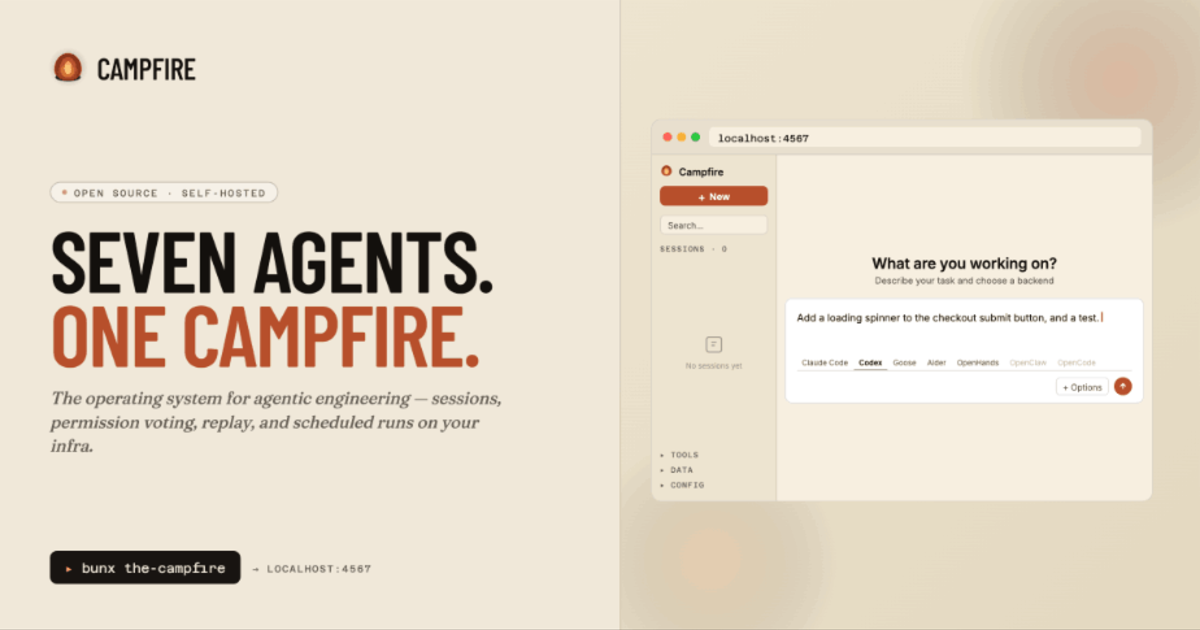
The collaborative web platform for AI coding agents.
A collaborative web platform for AI coding agents. Run Claude Code, Codex, Goose, Aider, OpenHands, OpenClaw, and OpenCode sessions side by side — with real-time collaboration, multi-agent orchestration, permission voting, session replay, scheduled tasks, and 30+ integrations.






- Quick Start
- Features
- Multi-Agent Sessions
- Real-Time Collaboration
- Permission Control & Voting
- Session Replay
- Fork & Branch
- Session Gallery
- Prompt Library
- Linear Integration
- Webhooks
- Scheduled Tasks (Cron)
- Adapter Registry
- Cost Dashboard
- Environment Profiles
- Git Integration
- Embedded Terminal
- Protocol Recording
- Docker Containers
- PWA & Mobile
- Auto-Naming
- Collective Intelligence
- Copy Output Button
- Voice Input
- Workspace File Tree
- Mermaid Diagram Rendering
- Orchestrator Pipelines
- Multi-Agent Orchestration
- Message Queue
- Kanban Task Board
- Authentication
- Thinking Effort (Codex)
- Skills & Plugins Management
- Drag & Drop Upload
- Session Folders
- Permission Mode Selector
- Session Pulse (Background Activity)
- Agent System
- Provider Settings
- Model & Provider Switcher
- Session Launch Progress
- Onboarding Wizard
- Monaco Code Editor
- Files Panel
- Recording Hub
- Protocol Monitor
- Commands Discovery
- Proactive Keepalive
- Security Headers & Rate Limiting
- WebSocket Authentication
- Architecture
- Docker Deployment
- CLI Reference
- REST API Reference
- WebSocket Protocol
- Development
- License
There are four ways to run Campfire: from npm, from source, with Docker, or as a native macOS app.
If you just want to run Campfire without cloning the repo:
# Install Bun if you don't have it
curl -fsSL https://bun.sh/install | bash

# Run Campfire (downloads and starts automatically)
bunx the-campfire
Open http://localhost:4567. That's it.
To run on a different port:
bunx the-campfire --port 8080Clone the repository and run directly with Bun:
# 1. Clone the repo
git clone https://github.com/stretchcloud/campfire.git
cd campfire

# 2. Install dependencies
cd web
bun install

# 3. Build and start
bun run build
bun run start
Open http://localhost:4567. That's it.
Contributing? Use
bun run devfor hot reload during frontend development. See the Development section for details.
Pull the pre-built image from the GitHub Container Registry (no clone, no build):
docker run -d \
  --name campfire \
  -p 4567:4567 \
  -v campfire-data:/home/campfire/.campfire \
  --restart unless-stopped \
  ghcr.io/stretchcloud/campfire:latest
Open http://localhost:4567. Pin a specific version by tag instead of latest, e.g. ghcr.io/stretchcloud/campfire:0.2.1.
Or build and run from source with Docker Compose (no Bun installation needed):
# 1. Clone the repo
git clone https://github.com/stretchcloud/campfire.git
cd campfire

# 2. Build and start the container
docker compose up

# Or build and run in the background
docker compose up -d
Open http://localhost:4567.
To build the Docker image manually without Compose:
# Build the image
docker build -t campfire:latest .

# Run the container
docker run -d \
  --name campfire \
  -p 4567:4567 \
  -v campfire-data:/home/campfire/.campfire \
  --restart unless-stopped \
  campfire:latest
To stop and remove:
# Docker Compose
docker compose down

# Or manual
docker stop campfire && docker rm campfire
See Docker Deployment for advanced configuration (mounting agent CLIs, reverse proxy, environment variables).
A native desktop app for Macs with Apple Silicon. It bundles the full Campfire server and the Bun runtime — no Bun install needed, every feature included.
- Download
Campfire-<version>-arm64.dmgfrom the latest release - Drag Campfire into Applications
- First launch: right-click the app → Open (the build is not notarized with Apple; if macOS still refuses, run
xattr -cr /Applications/Campfire.apponce)
The app stores its data in the same ~/.campfire directory as the CLI, so sessions, recordings, and settings are shared. If a Campfire server is already running on port 4567 (for example the the-campfire background service), the app attaches to it instead of starting a second one. Agent CLIs (claude, codex, …) still need to be installed on your machine.
To build the DMG from source:
make dmg # stages the backend, then packages desktop/dist/Campfire-<version>-arm64.dmgFor native (npm or source):
- Bun >= 1.0
- At least one agent CLI installed and on your
PATH:- Claude Code —
npm install -g @anthropic-ai/claude-code - Codex —
npm install -g @openai/codex - Goose —
brew install gooseor see docs - Aider —
pip install aider-chat - OpenHands — see docs
- OpenClaw —
openclawbinary onPATH, setOPENCLAW_GATEWAY_TOKENandOPENCLAW_GATEWAY_URL - OpenCode —
opencodebinary onPATH
- Claude Code —
For Docker:
- Docker >= 20.0
- Agent CLIs are not included in the Docker image — see Running with Agent CLIs for how to mount or install them
Run parallel sessions across seven agent backends from a single browser tab. Each session streams output, tool calls, and results in a unified timeline. The frontend is completely backend-agnostic — it renders the same UI regardless of which agent is running.
Supported backends:
| Backend | Protocol | How it connects |
|---|---|---|
| Claude Code | NDJSON over WebSocket | Spawned with --sdk-url flag |
| Codex | JSON-RPC over stdio | Spawned as codex app-server |
| Goose | JSON-RPC 2.0 (ACP) over stdio | Spawned as goose acp --with-builtin developer --with-builtin memory |
| Aider | stdout parsing over stdio | Spawned as aider --no-pretty --yes --no-auto-commits |
| OpenHands | JSON-RPC 2.0 (ACP) over stdio | Spawned as openhands acp |
| OpenClaw | JSON-RPC 2.0 (ACP) over stdio | Spawned as openclaw acp; requires OPENCLAW_GATEWAY_TOKEN + OPENCLAW_GATEWAY_URL |
| OpenCode | JSON-RPC 2.0 (ACP) over stdio | Spawned as opencode acp; model set via OPENCODE_MODEL |
Creating a session:
- Click New Session in the sidebar
- Choose a backend (Claude Code, Codex, Goose, Aider, OpenHands, OpenClaw, or OpenCode)
- Select a model (backend-specific model lists)
- Set the working directory for the session
- Optionally choose a permission mode, environment profile, or git branch
- Click Create
Session options:
| Option | Description |
|---|---|
| Backend | Which agent CLI to use |
| Model | AI model to run (e.g. claude-sonnet-4-5-20250929, o3, gpt-4.1) |
| Permission mode | default, bypassPermissions, oneTouchApprovals, manualApprovals |
| Working directory | Folder the agent operates in |
| Environment profile | Pre-saved set of environment variables to inject |
| Git branch | Check out a specific branch before starting |
| Use worktree | Create an isolated git worktree (keeps branches separate) |
| Create branch | Create the branch if it doesn't exist |
| Docker container | Run the session inside a Docker container (Claude only) |
| Internet access | Enable web search for Codex |
| Allowed tools | Restrict which tools the agent can use |
Session lifecycle:
- Running — agent is processing, streaming output
- Idle — agent is waiting for input
- Compacting — agent is compacting context (Claude Code)
- Exited — agent process has stopped
Sessions persist to disk and survive server restarts. When the server restarts, running CLI processes are detected by PID and given a grace period to reconnect. If they don't, they're killed and relaunched with --resume.
Managing sessions:
- Rename — click the session name in the sidebar to edit inline
- Kill — stop the running agent process
- Relaunch — restart a stopped session (uses
--resumefor Claude Code) - Archive — hide the session from the active list while preserving history
- Delete — permanently remove the session (also cleans up worktrees and containers)
Share any session with teammates using invite links. Multiple people can watch and interact with the same session simultaneously.
How to share a session:
- Open a running session
- Click the Share button in the top bar
- Choose a role for the invited user:
- Collaborator — can send messages and vote on permissions
- Spectator — watch-only (cannot send messages or vote)
- Copy the generated link and share it
The invite link looks like http://localhost:4567/#/join/<token>. When someone opens it, they join the session with the assigned role. Invite links expire after 24 hours — they are bearer credentials that bypass password auth, so generate a fresh one when you need to re-share.
Presence indicators:
Connected users appear as colored avatars in the top bar:
- Blue — Owner (the person who created the session)
- Green — Collaborator (can interact)
- Gray — Spectator (watch-only)
Presence updates are broadcast in real time — you see when someone joins or leaves.
Roles and permissions:
| Capability | Owner | Collaborator | Spectator |
|---|---|---|---|
| View session output | Yes | Yes | Yes |
| Send messages | Yes | Yes | No |
| Approve/deny permissions | Yes | Yes | No |
| Vote on tool calls | Yes | Yes | No |
| Interrupt the agent | Yes | Yes | No |
| Change model or mode | Yes | Yes | No |
| Configure MCP servers | Yes | Yes | No |
The first browser to connect to a session becomes the Owner. Subsequent connections default to Collaborator unless they join via a spectator invite link.
Every risky tool call (file writes, bash commands, etc.) surfaces a permission banner at the top of the chat. The banner shows what the agent wants to do and lets you approve, deny, or apply a permission rule.
Permission banner displays:
| Tool | What you see |
|---|---|
| Bash | The exact command with $ prefix |
| Edit | Side-by-side diff showing old vs new content |
| Write | The full file content being written |
| Read | The file path being read |
| Glob / Grep | The search pattern and path |
| AskUserQuestion | Multiple-choice options with a custom text input |
Actions available:
- Allow — approve this specific tool call
- Deny — reject this tool call
- Permission suggestions — apply a broader rule (e.g. "Allow for session", "Allow always", "Trust directory")
Voting (collaborative sessions):
When multiple viewers are connected, permission requests become votes. The voting behavior is configurable:
| Policy | How it works |
|---|---|
majority-rules |
Action is allowed if more than half vote "allow" (default) |
any-deny-blocks |
A single "deny" vote blocks the action |
owner-decides |
Only the owner's vote counts |
Configure the voting policy via the UI or API:
# Get current policy
curl http://localhost:4567/api/voting-policy

# Change policy
curl -X PUT http://localhost:4567/api/voting-policy \
  -H "Content-Type: application/json" \
  -d '{"policy": "any-deny-blocks"}'
Votes have a 30-second deadline. If the deadline passes, the vote resolves based on collected votes. The UI shows a countdown timer, current vote tally, and voter avatars.
Scrub through completed sessions at 1x / 2x / 4x / 8x speed. Every tool call, permission decision, and streaming token is preserved in protocol recordings.
How to use replay:
- Open a completed session from the sidebar
- Click the Recordings section to see available recording files
- Click a recording to open the replay player
- Use the playback controls to play, pause, and change speed
Replay controls:
- Play / Pause toggle
- Speed selector: 1x, 2x, 4x, 8x
- Progress scrubber for seeking
Recording format:
Recordings are stored as JSONL (newline-delimited JSON) files in ~/.campfire/recordings/. Each line captures the exact raw message as it was sent or received:
{"ts": 1771153996875, "dir": "in", "raw": "{\"type\":\"system\",...}", "ch": "cli"}ts— Unix timestamp in millisecondsdir—"in"(received by server) or"out"(sent by server)ch—"cli"(agent process) or"browser"(frontend)raw— exact original message string, never re-serialized
Recording management:
# List all recordings
curl http://localhost:4567/api/recordings

# Check if a session is being recorded
curl http://localhost:4567/api/sessions/:id/recording/status

# Start/stop recording for a specific session
curl -X POST http://localhost:4567/api/sessions/:id/recording/start
curl -X POST http://localhost:4567/api/sessions/:id/recording/stop
Recording is enabled by default. Disable globally with CAMPFIRE_RECORD=0. Files auto-rotate when total lines exceed 100,000 (configurable with CAMPFIRE_RECORDINGS_MAX_LINES).
Fork any session at any point in its conversation to explore a different path. Forks create a new session with the message history up to the fork point, optionally on a new git worktree.
How to fork:
- From the top bar — click the Fork button to fork at the current point
- From any message — hover over a message and click the fork icon to fork from that specific point
What happens when you fork:
- The message history is copied up to the selected point
- If the session is in a git repository, a new worktree is created for isolation
- A new session is launched with the copied history
- The forked session shows a "forked from" indicator linking back to the original
Fork options:
curl -X POST http://localhost:4567/api/sessions/:id/fork \
  -H "Content-Type: application/json" \
  -d '{
    "messageIndex": 5,
    "model": "claude-sonnet-4-5-20250929",
    "permissionMode": "bypassPermissions",
    "branch": "experiment/new-approach"
}'| Field | Description |
|---|---|
messageIndex |
Fork after this message (0-indexed). Omit to fork at the end. |
model |
Override the model for the forked session |
permissionMode |
Override permission mode |
branch |
Git branch name for the worktree |
Publish your best sessions to a gallery that anyone on your Campfire instance can browse. Gallery entries include session metadata, cost, duration, and a direct link to replay.
How to publish:
- Navigate to the Gallery page from the sidebar
- Click Add to Gallery
- Select a completed session
- Add a name, description, and tags
- Click Publish
Browsing the gallery:
The gallery supports filtering and sorting:
| Filter | Example |
|---|---|
| Backend | Show only Claude Code sessions |
| Cost range | Sessions between $0.01 and $1.00 |
| Tags | Filter by migration, refactor, bugfix, etc. |
| Featured only | Show only featured entries |
| Sort by | Description |
|---|---|
| Votes | Most upvoted first |
| Recent | Newest first |
| Cost | Cheapest or most expensive first |
| Duration | Shortest or longest first |
Voting and featuring:
- Click the up/down arrows on any gallery card to vote (anonymous, IP-deduplicated)
- Admins can toggle the Featured star to highlight exceptional sessions
Gallery entry metadata:
Each entry captures a snapshot of the session at publish time: backend type, model, total cost, duration, lines added/removed, and number of turns. Click View Replay on any card to watch the session.
Public share links:
Generate a tokenized public replay link for any gallery entry (POST /api/gallery/:id/public-link). Anyone with the link can watch the session replay at #/public-replay/<token> — no login required, no app chrome, read-only.
ClawHub export:
Gallery entries can be exported as ClawHub-compatible skills (SKILL.md with stats and a replay link) and published via the clawhub CLI. Browse and install shared skills from the ClawHub page (#/clawhub) in the sidebar.
Moltbook posting:
Entries can also be posted as "molts" to Moltbook, a social network for AI agents (POST /api/gallery/:id/post-moltbook; configure the agent account in Settings).
# List gallery entries with filters
curl "http://localhost:4567/api/gallery?backend=claude&sortBy=votes&featured=true"

# Publish a session
curl -X POST http://localhost:4567/api/gallery \
  -H "Content-Type: application/json" \
  -d '{
    "sessionId": "abc-123",
    "name": "Migrated auth to OAuth2",
    "description": "Full migration from session-based auth to OAuth2 with PKCE",
    "tags": ["migration", "auth", "oauth"]
  }'

# Vote on an entry
curl -X POST http://localhost:4567/api/gallery/:id/vote \
  -H "Content-Type: application/json" \
  -d '{"direction": 1}'

# Toggle featured status
curl -X POST http://localhost:4567/api/gallery/:id/featureSave reusable prompt snippets and insert them into any message with @ in the composer. Prompts can be scoped globally or to a specific project directory.
How to create a prompt:
- Navigate to the Prompts page from the sidebar
- Click + New Prompt
- Enter a name and the prompt text
- Choose scope: Global (available everywhere) or Project (scoped to a path prefix)
- Click Save
Inserting prompts in the composer:
Type @ in the message box to open the prompt picker. Start typing to filter by name or content. Use Arrow keys to navigate, Tab or Enter to insert.
The full content of the selected prompt replaces the @query in your message, so you can mix prompt snippets with your own text.
CWD-scoped loading:
The prompt picker automatically filters prompts based on the current session's working directory. When you switch sessions with different working directories, the prompt list refreshes to show only prompts relevant to that project. Global prompts are always available regardless of the working directory.
REST API:
# List prompts (optionally filtered by cwd)
curl "http://localhost:4567/api/prompts?cwd=/home/user/my-project"

# Create a prompt
curl -X POST http://localhost:4567/api/prompts \
  -H "Content-Type: application/json" \
  -d '{
    "name": "Code review checklist",
    "content": "Please review for: 1) correctness, 2) edge cases, 3) performance, 4) test coverage",
    "scope": "global"
  }'

# Update a prompt
curl -X PUT http://localhost:4567/api/prompts/:id \
  -H "Content-Type: application/json" \
  -d '{"name": "Updated name", "content": "Updated content"}'

# Delete a prompt
curl -X DELETE http://localhost:4567/api/prompts/:id
Prompts are stored at ~/.campfire/prompts.json.
Connect your Linear workspace to manage issues end-to-end: browse and search issues, link them to sessions, auto-generate branch names, map projects to repositories, and auto-transition issue state when work begins.
Setup:
- Navigate to Integrations → Linear from the sidebar
- Create a personal API key at
linear.app/settings/api - Paste your key and click Connect
What it enables:
- Browse and search Linear issues when creating a new session
- Auto-generate a recommended git branch name from the issue (e.g.
feat/eng-123-add-auth) - Link issues to sessions — track which issue each session is working on
- Map Linear teams/projects to git repositories for automatic filtering
- Auto-transition issues to "In Progress" when a linked session starts
Project-repo mapping:
When you first use Linear in a git repository, Campfire prompts you to link the repo to a Linear team. Once linked, issue searches are automatically filtered to that team. Mappings are stored in ~/.campfire/linear-projects.json.
Issue-session workflow:
- Open the New Session page in a git repo with a linked Linear team
- The Linear Issues section appears automatically
- Search for an issue by title or identifier
- Select an issue — a branch name is auto-generated (e.g.
feat/ENG-123-add-oauth-flow) - The worktree toggle activates with the generated branch name
- Create the session — the issue is linked and transitions to "In Progress"
REST API:
# Check connection status
curl http://localhost:4567/api/linear/connection
# → {"connected": true, "viewer": {"name": "...", "email": "..."}, "teams": [...]}

# Search issues (cached, deduplicated)
curl "http://localhost:4567/api/linear/issues?query=auth&limit=10"

# List teams
curl http://localhost:4567/api/linear/teams

# Get workflow states for a team
curl http://localhost:4567/api/linear/team/:teamId/states

# Project-repo mapping
curl http://localhost:4567/api/linear/project-mapping?repoRoot=/path/to/repo
curl -X POST http://localhost:4567/api/linear/project-mapping \
  -H "Content-Type: application/json" \
  -d '{"repoRoot": "/path/to/repo", "teamId": "...", "teamKey": "ENG", "teamName": "Engineering"}'
curl -X DELETE http://localhost:4567/api/linear/project-mapping \
  -H "Content-Type: application/json" \
  -d '{"repoRoot": "/path/to/repo"}'

# Link an issue to a session
curl -X POST http://localhost:4567/api/linear/session/:sessionId/link-issue \
  -H "Content-Type: application/json" \
  -d '{"issueId": "...", "identifier": "ENG-123", "title": "Add OAuth", "url": "...", "state": "Todo", "teamKey": "ENG"}'

# Get linked issue for a session
curl http://localhost:4567/api/linear/session/:sessionId/issue

# Transition an issue's state
curl -X POST http://localhost:4567/api/linear/issues/:issueId/transition \
  -H "Content-Type: application/json" \
  -d '{"stateId": "..."}'
Caching:
Linear API responses are cached with a 60-second TTL to reduce API calls. Concurrent identical requests are deduplicated — only one GraphQL call is made, and all callers receive the same result.
Data storage:
| File | Contents |
|---|---|
~/.campfire/settings.json |
Linear API key (never exposed via GET) |
~/.campfire/linear-projects.json |
Repo → team/project mappings |
~/.campfire/linear-session-issues.json |
Session → issue links |
Receive HTTP POST notifications when events happen in your sessions. Configure webhooks with event filters, HMAC-SHA256 signing, and automatic retries.
Inbound (OpenClaw): Campfire also accepts inbound calls — POST /api/webhooks/openclaw (token-guarded) spawns an OpenClaw session from an external trigger, and POST /api/openclaw/inbound delivers agent messages from the OpenClaw channel plugin into an existing session.
How to set up a webhook:
- Navigate to the Webhooks page from the sidebar
- Click Create Webhook
- Enter the destination URL
- Select which events to subscribe to
- Optionally add a signing secret and session filters
- Click Create
Available events:
| Event | When it fires |
|---|---|
session.created |
A new session starts |
session.completed |
A session finishes successfully |
session.failed |
A session exits with an error |
permission.requested |
An agent requests permission for a tool call |
permission.resolved |
A permission request is approved or denied |
turn.completed |
An agent completes a turn (each back-and-forth) |
cost.threshold |
Session cost crosses a threshold |
Payload format:
{
  "event": "session.completed",
  "timestamp": 1771153996875,
  "sessionId": "abc-123",
  "data": {
    "backendType": "claude",
    "model": "claude-sonnet-4-5-20250929",
    "totalCostUsd": 0.42,
    "numTurns": 12,
    "durationMs": 180000
  }
}
HMAC-SHA256 signing:
If you provide a secret, every delivery includes an X-Campfire-Signature header:
X-Campfire-Signature: sha256=<hex-encoded-hmac>
Verify the signature on your server by computing HMAC-SHA256(secret, request_body) and comparing.
Retry behavior:
Failed deliveries are retried 3 times with exponential backoff: 1s, 5s, 15s. Delivery stats (total, failed, last delivery time) are tracked per webhook.
Session filters:
Narrow a webhook to specific sessions by backend type or working directory:
{
  "sessionFilter": {
    "backendType": "claude",
    "cwd": "/home/user/my-project"
  }
}
Slack integration:
Webhook payloads include Slack-compatible formatting. Point a webhook at a Slack incoming webhook URL and events will render as formatted messages.
Testing:
Click the Test button on any webhook to send a test payload and verify your endpoint is receiving events correctly.
# Create a webhook
curl -X POST http://localhost:4567/api/webhooks \
  -H "Content-Type: application/json" \
  -d '{
    "name": "Slack Alerts",
    "url": "https://hooks.slack.com/services/...",
    "events": ["session.completed", "session.failed", "cost.threshold"],
    "secret": "my-signing-secret",
    "enabled": true
  }'

# Test delivery
curl -X POST http://localhost:4567/api/webhooks/:id/test

# Toggle enable/disable
curl -X POST http://localhost:4567/api/webhooks/:id/toggleRun autonomous agent sessions on a schedule — daily test suites, nightly code reviews, weekly dependency updates, or one-shot migration scripts.
How to create a scheduled task:
- Navigate to the Scheduled page from the sidebar
- Click Create Job
- Fill in the form:
- Name — human-readable label (e.g. "Nightly Test Suite")
- Prompt — the instruction to send to the agent
- Schedule — cron expression (
0 2 * * *) or ISO datetime for one-shot - Backend — which agent to use
- Model — which model to run
- Working directory — where to run
- Permission mode — typically
bypassPermissionsfor autonomous execution - Environment profile — optional API keys and variables
- Click Create
Cron expression examples:
| Expression | Meaning |
|---|---|
0 2 * * * |
Every day at 2:00 AM |
0 9 * * 1 |
Every Monday at 9:00 AM |
*/30 * * * * |
Every 30 minutes |
0 0 1 * * |
First day of every month at midnight |
One-shot tasks:
Set recurring: false and provide an ISO datetime as the schedule (e.g. 2025-12-31T23:59:00Z). The job runs once at that time and auto-disables.
Execution tracking:
Each execution creates a session and tracks:
- Start time and completion time
- Success or failure status
- Cost incurred
- Link to the session for full replay
Jobs auto-disable after repeated consecutive failures to prevent runaway costs.
Managing jobs:
# List all jobs
curl http://localhost:4567/api/cron/jobs

# Create a recurring job
curl -X POST http://localhost:4567/api/cron/jobs \
  -H "Content-Type: application/json" \
  -d '{
    "name": "Nightly Tests",
    "prompt": "Run the full test suite and fix any failures",
    "schedule": "0 2 * * *",
    "recurring": true,
    "backendType": "claude",
    "model": "claude-sonnet-4-5-20250929",
    "cwd": "/home/user/my-project",
    "permissionMode": "bypassPermissions"
  }'

# Manually trigger a job
curl -X POST http://localhost:4567/api/cron/jobs/:id/run

# Enable/disable
curl -X POST http://localhost:4567/api/cron/jobs/:id/toggle

# View execution history
curl http://localhost:4567/api/cron/jobs/:id/executionsInstall community agent adapters from npm to add new backends to Campfire. Adapters are npm packages with a campfireAdapter field in their package.json.
Related: you can also run MetaHarness-generated agent harnesses inside Campfire sessions — their MCP servers attach at runtime and their tool calls go through Campfire's permission-voting UI. See docs/integrations/metaharness.md.
Installing an adapter:
# Via CLI
the-campfire install-adapter @campfire/example-adapter

# Via API
curl -X POST http://localhost:4567/api/adapters/install \
  -H "Content-Type: application/json" \
  -d '{"npmPackage": "@campfire/example-adapter"}'
Once installed, the adapter appears as a new backend option when creating sessions.
Managing adapters in the UI:
- Navigate to the Adapters page from the sidebar
- View installed adapters with their metadata (name, version, protocol, models)
- Install new adapters by entering the npm package name
- Uninstall adapters with the remove button
Adapter metadata:
Each adapter's package.json must include:
{
  "campfireAdapter": {
    "name": "my-agent",
    "displayName": "My Agent",
    "binaryName": "my-agent-cli",
    "protocol": "stdio",
    "models": [
      { "value": "model-v1", "label": "Model V1" }
    ],
    "modes": [
      { "value": "default", "label": "Default" }
    ]
  }
}
Writing your own adapter:
See web/server/ADAPTERS.md for a step-by-step guide. Adapters implement the AgentAdapter interface with methods for sending/receiving messages, session metadata, and disconnection handling.
# List installed adapters
curl http://localhost:4567/api/adapters

# Uninstall
curl -X DELETE http://localhost:4567/api/adapters/my-agentEvery session tracks API costs in real time. The cost is displayed in the top bar during a session and in the session details panel.
What's tracked:
- Total cost in USD per session
- Number of turns (back-and-forth exchanges)
- Context usage percentage (how much of the context window is used)
- Lines added and removed
- Session duration
Shareable cost cards:
When a session completes, a cost card is generated as a downloadable PNG image containing the session name, cost, duration, turns, model, and backend type — with Campfire branding. Share these cards to show off your results.
Cost information in the UI:
- Top bar — live cost ticker during active sessions
- Task panel — detailed stats (cost, turns, context %, lines changed, duration)
- Gallery cards — cost displayed on each published session
Save named sets of environment variables and inject them into agent sessions. This is useful for managing API keys, database URLs, and other secrets across different projects.
How to use:
- Navigate to the Environments page from the sidebar
- Click Create Profile
- Enter a name (e.g. "Production", "Staging")
- Add key-value pairs for your environment variables
- Click Save
When creating a session, select an environment profile from the dropdown. All variables from that profile are injected into the agent's environment.
Profile structure:
{
  "name": "Production",
  "slug": "production",
  "variables": {
    "ANTHROPIC_API_KEY": "sk-ant-...",
    "DATABASE_URL": "postgres://prod-host/db",
    "REDIS_URL": "redis://prod-redis:6379"
  }
}
Profiles are stored as individual JSON files in ~/.campfire/envs/.
# List profiles
curl http://localhost:4567/api/envs

# Create a profile
curl -X POST http://localhost:4567/api/envs \
  -H "Content-Type: application/json" \
  -d '{
    "name": "Staging",
    "variables": {
      "API_KEY": "sk-staging-...",
      "DEBUG": "true"
    }
  }'

# Update a profile
curl -X PUT http://localhost:4567/api/envs/staging \
  -H "Content-Type: application/json" \
  -d '{"variables": {"API_KEY": "sk-new-key", "DEBUG": "false"}}'

# Delete a profile
curl -X DELETE http://localhost:4567/api/envs/stagingCampfire tracks git state for every session and provides tools for branch and worktree management.
What's tracked per session:
- Current branch name
- Ahead/behind counts relative to the remote
- Whether the session is in a worktree
- Total lines added and removed (from tool calls)
- Repository root path
This information is displayed in the sidebar next to each session and updated in real time.
Worktrees:
Worktrees let you run multiple sessions on different branches without switching branches in your main repo. Each worktree is a separate checkout of your repository.
When creating a session with "Use worktree" enabled:
- A new worktree is created for the selected branch
- The session runs in the worktree directory
- A
CLAUDE.mdfile is injected with guardrails (e.g. "Stay on this branch") - When the session is deleted, the worktree is cleaned up if there are no uncommitted changes
GitHub PR status:
If the gh CLI is installed and authenticated, Campfire polls for PR metadata on the session's branch:
- PR title, number, state (open/closed/merged)
- Draft status
- Review decision (approved/changes requested/pending)
- CI check status (passing/failing/pending)
- Review thread counts (resolved/unresolved)
PR status is displayed in the task panel and updates automatically.
# Get repository info
curl "http://localhost:4567/api/git/repo-info?path=/home/user/project"

# List branches
curl "http://localhost:4567/api/git/branches?repoRoot=/home/user/project"

# Create a worktree
curl -X POST http://localhost:4567/api/git/worktree \
  -H "Content-Type: application/json" \
  -d '{
    "repoRoot": "/home/user/project",
    "branch": "feature/new-feature",
    "createBranch": true
  }'

# Fetch and pull
curl -X POST http://localhost:4567/api/git/fetch \
  -H "Content-Type: application/json" \
-d '{"repoRoot": "/home/user/project"}'A full PTY terminal is available alongside your sessions. Use it for git operations, running tests, or any other command-line tasks without leaving Campfire.
How to use:
- Click Terminal in the sidebar footer
- A terminal spawns in the configured working directory
- Type commands as you would in any terminal
- The terminal supports full ANSI colors, cursor movement, and resize
The terminal connects via WebSocket (/ws/terminal/:id) and supports all standard terminal operations.
# Spawn a terminal
curl -X POST http://localhost:4567/api/terminal/spawn \
  -H "Content-Type: application/json" \
  -d '{"cwd": "/home/user/project", "cols": 120, "rows": 40}'

# Kill the terminal
curl -X POST http://localhost:4567/api/terminal/killThe server automatically records all raw protocol messages to JSONL files. This captures the exact bytes exchanged between the agent CLI and the server, and between the server and browser clients.
Configuration:
| Variable | Default | Description |
|---|---|---|
CAMPFIRE_RECORD |
1 |
Set to 0 or false to disable |
CAMPFIRE_RECORDINGS_DIR |
~/.campfire/recordings |
Output directory |
CAMPFIRE_RECORDINGS_MAX_LINES |
100000 |
Auto-rotation threshold |
File format:
File naming: {sessionId}_{backendType}_{ISO-timestamp}_{randomSuffix}.jsonl
{"ts":1771153996875,"dir":"in","raw":"{\"type\":\"system\",\"subtype\":\"init\",...}","ch":"cli"}
{"ts":1771153996900,"dir":"out","raw":"{\"type\":\"session_init\",...}","ch":"browser"}
Recordings are useful for debugging protocol issues, building replay-based tests, and understanding how agents communicate.
Optionally sandbox sessions inside Docker containers for isolation. When enabled, the agent runs inside a container with the working directory mounted at /workspace.
How it works:
- When creating a session, click the Container toggle in the toolbar
- Choose a Docker image (default:
campfire-dev:latest) in the text field that appears - Click Create — a progress overlay appears showing each step
- The session runs inside the container with authentication automatically seeded
Creation progress overlay:
When launching a container session, a step-by-step progress modal appears:
| Step | What happens |
|---|---|
| Checking image | Verifies if the Docker image exists locally |
| Pulling image | Downloads the image if not found (with progress bar showing layer download %) |
| Creating container | Creates and starts the Docker container with mounted volumes |
| Seeding authentication | Copies ~/.claude/ (for Claude Code) or ~/.codex/ (for Codex) into the container |
| Launching agent | Starts the agent process inside the container |
If any step fails, the overlay shows an error with Retry and Cancel buttons.
Authentication seeding:
Campfire automatically copies authentication credentials into containers so agents can authenticate without manual setup:
- Claude Code sessions:
~/.claude/is copied to/root/.claude/inside the container - Codex sessions:
~/.codex/is copied to/root/.codex/inside the container
Image pull management:
Images are checked locally before pulling. Recently pulled images are cached for 30 minutes to skip redundant checks. During a pull, the progress overlay shows per-layer download progress with a percentage bar.
Git info inside containers:
Campfire resolves git information (branch, ahead/behind, worktree status) from inside the container via docker exec, so sidebar session metadata stays accurate even for containerized sessions.
SSE creation endpoint:
Container session creation uses Server-Sent Events (SSE) for real-time progress reporting:
# Create a container session with progress (returns text/event-stream)
curl -N -X POST http://localhost:4567/api/sessions/create-with-progress \
  -H "Content-Type: application/json" \
  -d '{
    "backend": "claude",
    "model": "claude-sonnet-4-5-20250929",
    "cwd": "/home/user/project",
    "container": {"image": "campfire-dev:latest"}
  }'
# event: step
# data: {"step":"checking_image","message":"Checking image campfire-dev:latest..."}
# event: step
# data: {"step":"pulling_image","message":"Pulling campfire-dev:latest...","percent":45}
# event: done
# data: {"sessionId":"abc-123","session":{...}}
Requirements:
- Docker must be installed and running on the host
- The Docker socket must be accessible to the Campfire process
# Check Docker availability
curl http://localhost:4567/api/containers/status
# → {"available": true, "version": "24.0.7"}

# List available images
curl http://localhost:4567/api/containers/imagesCampfire is a Progressive Web App (PWA) — installable on mobile devices with push notifications for permission requests.
To install on mobile:
- Open Campfire in your mobile browser
- Tap "Add to Home Screen" (or the browser's install prompt)
- The app launches in standalone mode with its own window
Push notifications:
When a permission request arrives and you're not actively viewing the tab, a push notification appears with the tool name and action buttons to allow or deny directly from the notification.
Touch optimization:
Permission buttons are enlarged on mobile (min-height: 36px) for easy tap targets. Tool blocks default to collapsed on small screens.
Sessions automatically receive descriptive names after their first turn completes. This uses OpenRouter to generate a short title based on the user's first message.
Setup:
- Go to Settings in the sidebar
- Enter your OpenRouter API key
- Optionally choose a model (default:
openrouter/free)
Auto-naming only runs if:
- An OpenRouter API key is configured
- The session doesn't already have a manual name
- A first turn has completed
Manual renames always take precedence. You can rename any session by clicking its name in the sidebar.
When multiple agent sessions are running simultaneously, Campfire's Collective Intelligence layer lets them share knowledge, coordinate decisions, and route tasks to the best-suited agent — without changing how agents communicate with each other.
It operates as a non-blocking observer: no agent message is ever delayed by it, and no existing behavior changes if the feature is unused.
Four layers:
| Layer | What it does |
|---|---|
| Semantic Memory | Stores observations, decisions, and patterns from each session in a local LanceDB database, scoped by namespace (global / repo / session / agent). Memories decay over time unless reused, and relevant ones are auto-recalled into a session's next prompt. See Semantic Memory below. |
| Deliberation Engine | Proposes structured decisions across sessions (e.g. "which approach should we use?"). Connected viewers and agents can respond; the engine aggregates votes with role-weighted majority and resolves to approved, rejected, or synthesized. |
| Capability Discovery | Each session self-reports its strengths, available tools, and context usage. When routing a task, the engine scores all connected sessions and picks the best fit. Confidence probes can be sent to agents in real time to verify self-reported capabilities. |
| Shared Context Stream | A live think-aloud stream where agents can inject thoughts and observations. The engine detects semantic links (agrees, disagrees, builds on, contradicts) between fragments and tracks consensus scores across the session group. |
How it works end-to-end:
- When an agent produces output, the CI layer extracts observations, decisions, and patterns and stores them as
MemoryFragmentrecords in the right namespace (with vector embeddings if an embedding provider is configured). Thinking-block content is scrubbed before anything is stored. - When a user sends a message, the CI layer recalls the most relevant memories from the repo, agent, and global namespaces (under a 250 ms budget so chat is never blocked) and prepends them to the message. The recalled items are shown to the user as a collapsible "recalled context" chip on that message.
- Browser clients can send
memory_query,memory_store,deliberation_respond,route_task, andinject_thoughtmessages over WebSocket. The server handles them and broadcasts results back to all connected viewers. - Episodic fragments are consolidated into distilled
ConsolidatedKnowledge— triggered on turn boundaries, idle, session end, or manually — via a JUDGE → DISTILL → CONSOLIDATE pipeline (see below).
Embedding providers:
Vector search requires an embedding provider. Configure one in Settings:
| Provider | Model | Dimensions | Notes |
|---|---|---|---|
openai |
text-embedding-3-small (default) |
1536 | Requires OpenAI API key |
ollama |
nomic-embed-text (default) |
768 | Requires local Ollama instance |
none |
— | — | Fragments stored without embeddings; metadata-only search |
Without an embedding provider, memory still works — recall falls back to a recency- and confidence-ranked scan over the relevant namespaces (so recent repo decisions still surface, just without semantic similarity).
How Semantic Memory works:
- Namespaces — every memory lives in a scope:
global(cross-repo conventions),repo:<hash>(one repository),session:<id>(one session's episodic notes), andagent:<backend>(backend-specific quirks). Recall for a session draws from repo, agent, and global scopes with per-namespace depth limits. - Decay & reinforcement — memories lose weight over time on a per-namespace half-life; being recalled reinforces a memory and extends its life (capped, so nothing becomes immortal). Low-weight, consolidated memories are eventually evicted. You can pin a memory so it never decays.
- Consolidation (JUDGE → DISTILL → CONSOLIDATE) — raw fragments are filtered and clustered locally, then distilled into durable knowledge by an LLM (via your configured OpenRouter key). If no key is set, it falls back to a simple concatenation, badged as such in the UI — consolidation is never blocked on configuration.
- UI — the Memory panel shows per-namespace counts and decayed-weight bars with pin/unpin controls; Settings → Memory exposes per-namespace decay half-lives, reinforce multipliers, and recall depths.
Storage:
All CI data is stored locally under ~/.campfire/memory/ — no external service required. Schema is versioned via meta.json and migrated automatically from earlier versions.
| Table | Purpose |
|---|---|
fragments_v2 |
Episodic memory fragments (namespace-scoped, with embeddings when available) |
consolidated_v2 |
Distilled knowledge synthesized from fragments |
Capability data is stored as JSON in ~/.campfire/capabilities/ and learning history is appended to ~/.campfire/capability-learning.jsonl.
Quick setup:
# 1. Configure an embedding provider in Settings (optional but recommended)
#    OpenAI: enter your API key, set provider = "openai"
#    Ollama: ensure ollama is running, set provider = "ollama"

# 2. Start multiple sessions — CI activates automatically

# 3. Query shared memory via the REST API
curl "http://localhost:4567/api/sessions/:id/memory/query?q=authentication+pattern&limit=5"

# 4. Route a task to the best agent
curl -X POST http://localhost:4567/api/sessions/route-task \
  -H "Content-Type: application/json" \
  -d '{"taskDescription": "Refactor the TypeScript authentication module"}'
REST API summary:
| Group | Endpoints |
|---|---|
| Memory | GET/POST /sessions/:id/memory, GET /sessions/:id/memory/query, GET /sessions/:id/memory/overview, POST /sessions/:id/memory/consolidate, POST /memory/pin, GET /memory/global |
| Deliberation | GET /sessions/:id/deliberations, GET /sessions/:id/deliberations/:proposalId, POST .../respond, POST .../resolve |
| Capabilities | POST /sessions/route-task, GET /capabilities, GET /capabilities/history, POST /capabilities/feedback |
| Shared Context | GET /sessions/:id/context/stream, GET /sessions/:id/context/consensus, GET /sessions/:id/context/thread/:fragmentId |
Architecture details are documented in CLAUDE.md. The full semantic-memory design (namespaces, decay, retrieval scoring, and the consolidation pipeline) is written up in docs/design/semantic-memory-v2.md.
Hover over any user or assistant message to reveal a copy button. Copies the full text content to your clipboard with a checkmark confirmation animation. Uses the Clipboard API with a textarea fallback for insecure contexts (e.g. HTTP without TLS).
Dictate messages using the Web Speech API. Click the microphone button in the composer or press Ctrl+Shift+M (Cmd+Shift+M on macOS) to toggle voice input. Features include:
- Real-time interim text display while speaking
- Auto-restart on silence for continuous dictation
- Pulsing red indicator when active
- Transcript is appended to the composer textarea so you can edit before sending
Note: Requires a browser that supports the Web Speech API (Chrome, Edge, Safari).
A collapsible file tree in the right-side TaskPanel showing the session's working directory. Features include:
- Lazy-loading — subdirectories load on expand, keeping the initial render fast
- File preview — click a file to see its contents inline (up to 10KB)
- Hidden files toggle — show/hide dotfiles and system directories
- Refresh — re-scan the directory tree on demand
Powered by the GET /api/fs/list-entries endpoint which filters out .git, node_modules, and __pycache__ by default.
When an assistant returns a fenced code block with the mermaid language tag, Campfire renders it as an interactive SVG diagram instead of raw text. Supports all Mermaid diagram types: flowcharts, sequence diagrams, class diagrams, state diagrams, ER diagrams, Gantt charts, and more.
- Toggle between diagram and source code views
- Error handling with automatic fallback to source display
- Lazy-loaded via
React.lazy()to avoid impacting initial bundle size
A multi-stage automation engine for chaining sequential AI sessions into workflows. Access it at #/orchestrator in the sidebar.
How it works:
- Create a pipeline — define a name, working directory, and a series of stages
- Each stage has a prompt, backend (Claude/Codex), and model selection
- Run the pipeline — stages execute sequentially, each creating a real agent session
- Context passing — output from one stage feeds into the next via
{{previous_output}} - Monitor — real-time status timeline with per-stage duration and cost tracking
Example use cases:
- Analyze → Review → Write Tests → Create PR
- Scaffold → Implement → Lint → Deploy
- Research → Plan → Execute → Verify
REST API:
| Method | Endpoint | Purpose |
|---|---|---|
GET |
/api/orchestrator/pipelines |
List all pipelines |
POST |
/api/orchestrator/pipelines |
Create a new pipeline |
PUT |
/api/orchestrator/pipelines/:id |
Update a pipeline |
DELETE |
/api/orchestrator/pipelines/:id |
Delete a pipeline |
POST |
/api/orchestrator/pipelines/:id/run |
Execute a pipeline |
GET |
/api/orchestrator/runs |
List all runs |
GET |
/api/orchestrator/runs/:id |
Get run status and details |
POST |
/api/orchestrator/runs/:id/cancel |
Cancel a running pipeline |
Pipeline and run data is persisted to ~/.campfire/orchestrator/.
Campfire can now coordinate agents as a group instead of only running independent sessions. The orchestration layer lets lead agents delegate one-turn subtasks to other backends, runs parallel "agent races" in isolated worktrees, and detects project environment integrations before a session starts.
Agent-to-agent delegation:
- Lead Claude Code and Codex sessions can receive an internal
campfire_agentsMCP server. - The MCP server exposes
ask_codex,ask_goose,ask_aider,ask_openhands, andask_claudetools, excluding the lead session's own backend. - Each
ask_*tool launches a temporary sub-session in the same working directory, injects the subtask prompt, waits for the result, collects changed files and cost, then returns the result to the lead agent. - Sub-agent progress is streamed back to the parent session through
sub_agent_updateevents and appears in the session activity UI. - Set
CAMPFIRE_ENABLE_AGENT_MCP=0to disable automatic agent MCP injection.
Agent races:
Open Agent Races at #/races from the sidebar to run the same prompt across multiple backends in parallel.
- Choose a repository root and task prompt.
- Select at least two backends. The UI currently offers Claude, Codex, Goose, Aider, and OpenHands; the REST API also accepts OpenClaw and OpenCode.
- Campfire creates one git worktree and branch per backend, launches a session in each worktree, and sends the same prompt to every agent.
- The comparison view shows status, wall-clock time, cost, changed file count, line changes, output summary, and a loadable diff for each entry.
- Click Merge on the winning entry to merge its race branch into the repository root and clean up the other race worktrees.
Cost cascade mode: check "Cost cascade — run backends in order, stop at first success" to run the selected backends sequentially in the order you listed them (put the cheapest first) instead of in parallel. The race stops at the first entry that completes with a non-empty change set; failures, timeouts, and empty patches escalate to the next backend, and never-started entries are marked skipped. Pass cascade: true in the REST payload for the same behavior.
Race results are saved to ~/.campfire/races/ so completed comparisons remain available after a server restart.
Environment detection:
Every launched session scans its working directory for project signals such as Supabase, Stripe, Vercel/Next.js, Prisma, Docker, Fly.io, GitHub Actions, and database configuration. Detected rules appear in the TaskPanel environment card with required environment variables marked as configured or missing. For Claude and Codex sessions, detected MCP servers are injected automatically unless CAMPFIRE_AUTO_INJECT_ENV_MCP=0 is set.
MCP injection policy: auto-injected servers are governed by a default-deny policy (web/server/mcp-policy.ts) — only servers that exactly match Campfire's curated environment-rules catalog and pass a static scan (shell metacharacters, inline-eval flags, plaintext http:// URLs to non-local hosts) are admitted; everything else is blocked and logged. Servers you add explicitly through the MCP panel are never blocked, but the same scan runs in warn-only mode for visibility. Set CAMPFIRE_MCP_AUTO_INJECT_POLICY=permissive to restore scan-free auto-injection (findings are still logged).
REST API:
| Method | Endpoint | Purpose |
|---|---|---|
POST |
/api/races |
Start a race with { prompt, repoRoot, backends, baseBranch?, modelByBackend?, cascade? } |
GET |
/api/races |
List saved races |
GET |
/api/races/:id |
Get race status and entries |
GET |
/api/races/:id/entries/:entryId/diff |
Load a race entry's git diff |
POST |
/api/races/:id/pick |
Merge the winning entry by sessionId |
POST |
/api/races/:id/cancel |
Cancel a running race and clean up worktrees |
DELETE |
/api/races/:id |
Delete a saved race record |
When the agent is busy processing a request (status "running"), new messages are queued instead of being dropped. Features include:
- Queue indicator — a badge shows the number of queued messages with a clear button
- Auto-send — queued messages are sent one at a time when the agent becomes idle
- System notification — a "Queued: ..." message appears in the chat timeline so you know the message was captured
- Works seamlessly with all backends (Claude Code, Codex, Goose, Aider, OpenHands, OpenClaw, OpenCode)
A full-page Kanban board at #/kanban (also accessible via the sidebar or the "board" button in the TaskPanel) that visualizes tasks extracted from agent tool calls (TaskCreate, TaskUpdate, TodoWrite).
Three columns:
- To Do — pending tasks
- In Progress — tasks the agent is actively working on (with animated pulse indicator)
- Done — completed tasks
Task cards show:
- Subject and description
- Owner (agent name)
- Active form (what the agent is currently doing)
- Blocked status with warning badge
- Task ID for reference
A progress bar at the top shows overall completion percentage.
Token-based authentication to protect your Campfire instance. When enabled, all API routes and WebSocket connections require a valid session token.
Setup:
# Set a password via environment variable
CAMPFIRE_PASSWORD=your-secret bunx the-campfire

# Or configure through the UI on first visit
Features:
- Password-based login with salted scrypt hashing (legacy unsalted SHA-256 hashes are migrated automatically on the next successful login)
- 7-day rotating session tokens stored in
~/.campfire/auth.json - Auth middleware protects all
/api/*routes - WebSocket connections validated on upgrade
- Environment variable override for headless/CI deployments
API endpoints:
GET /api/auth/status— Check if auth is enabled and user is logged inPOST /api/auth/login— Authenticate with passwordPOST /api/auth/logout— Invalidate session tokenPOST /api/auth/setup— Initial password setupPOST /api/auth/disable— Remove authentication
Control the reasoning effort level for Codex o-series models. This maps to Codex's reasoningEffort parameter on thread/start and thread/resume calls.
Three levels:
- Low — Faster responses, less deliberation
- Medium — Balanced (default)
- High — Maximum reasoning depth
Usage: When creating a new session with the Codex backend, a segmented control appears on the Home page. Your selection persists in localStorage across page reloads.
Browse and manage Claude Code plugins and skills from a dedicated UI page at #/skills (accessible via the sparkle icon in the sidebar).
Features:
- Lists all installed plugins from
~/.claude/plugins/installed_plugins.json - Expandable cards showing each plugin's skills, commands, install path, version, and author
- View SKILL.md content for any skill by clicking its name
- Enable/disable plugins in Campfire without uninstalling them (stored in
~/.campfire/skills-config.json) - Blocked plugin detection from
~/.claude/plugins/blocklist.json
API endpoints:
GET /api/skills— List all plugins with enriched statusGET /api/skills/:id— Get a single plugin's detailsGET /api/skills/:id/skill/:name— Read a skill's SKILL.md contentGET /api/skills/:id/command/:name— Read a command's contentPOST /api/skills/:id/toggle— Enable/disable a plugin in Campfire
Drag image files directly onto the Composer to attach them to your message. A visual overlay with a dashed border appears when dragging over the input area, confirming the drop target.
Supported: Any image format (PNG, JPG, GIF, WebP, etc.). Images are converted to base64 and sent as attachments with your message.
Organize sessions into named, color-coded folders in the sidebar.
Features:
- Create folders with a name and optional color
- Move sessions into folders via context menu
- Collapse/expand folders (state persists in localStorage)
- Remove sessions from folders
- Delete empty folders
Storage: Folder data persists in ~/.campfire/session-folders.json.
API endpoints:
GET /api/folders— List all foldersPOST /api/folders— Create a folderPATCH /api/folders/:id— Update folder name/colorDELETE /api/folders/:id— Delete a folderPOST /api/folders/:folderId/sessions/:sessionId— Add session to folderDELETE /api/folders/sessions/:sessionId— Remove session from folder
A dropdown in the Composer lets you switch between Claude Code permission modes in real-time, without restarting the session.
Four modes:
| Mode | Behavior |
|---|---|
| Agent (auto-approve) | Uses --dangerously-skip-permissions — all tool calls approved automatically |
| Accept Edits | File edits approved automatically, other tools require approval |
| Ask Every Time | Every tool call requires explicit approval |
| Plan | Planning mode only — no code execution |
Switching sends a set_permission_mode control message to the CLI. The current mode is displayed as a badge on the mode button. Use Shift+Tab in the Composer as a keyboard shortcut to toggle between Plan and your previous mode.
A floating widget in the bottom-right corner of the chat view that provides real-time awareness of background activity. Two tabs:
Activity tab — shows what's happening in the current session:
- Background agents spawned with
run_in_background(Claude Code) - Active tool calls with elapsed timers (all backends)
- Task progress from TodoWrite/TaskCreate
Sessions tab — shows other sessions running in the background:
- Which sessions are running or compacting
- Pending permission counts with warning badges
- Click any row to jump to that session
Auto-hides when all activity completes. Appears automatically when agents or sessions are active.
Persistent agent profiles with automated triggers. Navigate to Config > Agents (#/agents).
Creating an agent:
- Click Create Agent
- Fill in: name, description, backend (all 7 supported), model, permission mode, working directory
- Write a prompt template — use
{{input}}as a placeholder for trigger input - Select an environment profile (important for Codex — provides
OPENAI_API_KEY) - Optionally enable triggers: webhook or cron schedule
Running an agent:
- Click the play button on any agent card
- If the prompt contains
{{input}}, a modal asks for the input value - The agent creates a new session, injects the resolved prompt, and runs autonomously
- Agent sessions are named with the agent's icon (e.g.,
🔬 Analyser)
Triggers:
| Trigger | How it works |
|---|---|
| Manual | Click the play button |
| Webhook | POST /api/agents/{id}/webhook with { "input": "..." } |
| Schedule | Cron expression (e.g., 0 8 * * * for daily at 8am) |
Safety: Auto-disables after 5 consecutive failures. Overlap prevention skips execution if previous run is still alive.
Import/Export: Agents can be exported as JSON and imported on another Campfire instance.
Configure AI provider authentication tokens. Navigate to Settings > Providers.
Three token types, auto-injected into sessions for matching backends:
| Token | Environment Variable | Used By |
|---|---|---|
| Claude Code OAuth | CLAUDE_CODE_OAUTH_TOKEN |
Claude sessions |
| OpenAI API Key | OPENAI_API_KEY |
Codex sessions |
| Anthropic API Key | ANTHROPIC_API_KEY |
All sessions (Goose, Aider, etc.) |
Precedence: Environment profiles override global provider tokens. If your env profile sets OPENAI_API_KEY, the global setting is skipped for that session.
Auth detection: GET /api/settings/auth-status checks for existing authentication:
~/.claude/.credentials.json(Claude subscription login)~/.codex/auth.json(ChatGPT plan login)- Environment variables and stored tokens
Two compact dropdowns in the TopBar for switching models and providers mid-session:
Model Switcher — click the model name (e.g., ◕ Sonnet) to see all available models for the current backend. Selecting a different model sends a set_model WebSocket message. Works for all backends.
Provider Switcher — click the backend name (e.g., ✨ Claude) to see all 7 backends with availability status. Selecting a different provider creates a new session with the same working directory (since backends can't be swapped mid-session).
A non-blocking floating toast (bottom-left) that shows real-time progress when any session is being created:
- Standard sessions: Spawning process → Waiting for connection → Ready
- Auto-detects new sessions by monitoring the
sdkSessionsstore - Auto-dismisses after 2 seconds once all steps complete
- Works globally — triggers from HomePage, ProviderSwitcher, Agent execution, or Cron jobs
A 5-step first-run experience shown on first launch. Navigate through:
- Welcome — explains what Campfire is
- Providers — dual-path auth for Claude (subscription via
claude auth loginOR API key) and Codex (ChatGPT login viacodex loginOR API key). Auto-detects existing auth. - Workspace — pick a default working directory
- Tour — key features overview
- Launch — sends user to create their first session
Skip at any point. Tracked via onboardingCompleted in ~/.campfire/settings.json. Reset with:
curl -X PUT http://localhost:4567/api/settings -H 'Content-Type: application/json' -d '{"onboardingCompleted": false}'VS Code's editor engine integrated into Campfire for code editing. Lazy-loaded — only downloaded when an editor opens.
Where it's used:
- CLAUDE.md Editor — edit project instructions with Markdown syntax highlighting
- Diff Panel "Edit" mode — click Diff > Edit to modify any file the agent changed
- Files Panel — full file browser with editing (see below)
- Agent prompt editor — write agent prompts with line numbers
- Cron prompt editor — same for scheduled tasks
Features: IntelliSense (TS/JS/CSS/JSON), minimap, find/replace (Ctrl+H), multi-cursor, code folding, bracket pair colorization, command palette (Ctrl+Shift+P), custom Campfire themes (light + dark).
A full workspace file browser with Monaco editor. Click the Files tab in the TopBar (next to Log and Diff).
Features:
- Lazy-loaded directory tree — expands on click, shows folders and files
- File search — filter by filename
- Syntax-highlighted editing — open any file in Monaco with auto-detected language (40+ extensions)
- Save/Cancel — save edits to disk or discard changes
- Changed file indicators — files modified by the agent show a warning dot
- Image preview — renders PNG/JPG/SVG inline
- Show/hide dotfiles — toggle hidden files visibility
- Responsive — sidebar collapses on mobile
Browse, validate, and diagnose session recordings. Navigate to Data > Recordings (#/hub).
Getting started:
- Click Index Recordings to import all existing auto-recordings
- Browse recordings with backend filter pills, playable/metadata filter, and sort options
Per-recording analysis (click the details icon):
- Protocol Validation — checks message format compatibility across all 7 backends
- Health Report — duration, message rate, disconnections, data gaps, permission response times, anomaly patterns
Filter/Sort options:
- By backend: Claude, Codex, Goose, etc.
- By type: Playable (has chat content), Metadata only
- By sort: Newest, Oldest, Longest duration, Most messages
Real-time WebSocket message flow dashboard. Navigate to Tools > Monitor (#/monitor).
Metrics (auto-refreshes every 3 seconds):
- Total messages, messages/minute, active sessions, errors
- Backend breakdown with per-backend message/error counts
- Message type distribution (5-minute rolling window)
- Per-session stats with name, backend, rate, last activity
Protocol drift alerts — visual warnings when unexpected message formats are detected, with deduplication.
Browse all available slash commands and skills. Navigate to Config > Commands (#/commands).
Dynamic command list — fetched from the CLI itself (not hardcoded). If no sessions are connected, Campfire spins up a temporary session to discover available commands, caches the result, and kills the session.
Three sections:
- Built-in Commands — all CLI slash commands (e.g.,
/help,/compact,/cost,/memory) - Custom Commands —
.mdfiles from~/.claude/commands/and{cwd}/.claude/commands/ - Skills — directories with
SKILL.mdfrom~/.claude/skills/
Custom commands and skills show expandable content preview and source badges (user vs project).
Slash autocomplete on HomePage — type / in the new session textarea to see the autocomplete dropdown with all available commands.
Auto-relaunches crashed CLI sessions with exponential backoff. Ensures autonomous sessions (agents, cron jobs) stay alive even without a browser connected.
| Setting | Default | Environment Variable |
|---|---|---|
| Base delay | 3 seconds | CAMPFIRE_KEEPALIVE_DELAY_MS |
| Max attempts | 3 | CAMPFIRE_KEEPALIVE_MAX_ATTEMPTS |
Backoff schedule: 3s → 6s → 12s. Resets on successful relaunch.
Excluded from relaunch: Intentional kills (user clicked kill/delete), archived sessions, clean exits (exit code 0).
WebSocket config: Bun's built-in ping timeout is disabled (idleTimeout: 0, sendPings: false) to prevent idle CLI connections from being killed with code 1006.
Security headers applied to all responses:
| Header | Value |
|---|---|
X-Content-Type-Options |
nosniff |
X-Frame-Options |
SAMEORIGIN |
Referrer-Policy |
strict-origin-when-cross-origin |
X-XSS-Protection |
1; mode=block |
Permissions-Policy |
camera=(), microphone=(), geolocation=() |
Strict-Transport-Security |
max-age=31536000; includeSubDomains (HTTPS only) |
Rate limiting on /api/* endpoints:
| Setting | Default | Environment Variable |
|---|---|---|
| Window | 60 seconds | CAMPFIRE_RATE_LIMIT_WINDOW_MS |
| Max requests | 120 per window | CAMPFIRE_RATE_LIMIT_MAX |
Rate limit headers included in every API response: X-RateLimit-Limit, X-RateLimit-Remaining, X-RateLimit-Reset. Returns 429 Too Many Requests with Retry-After header when exceeded.
When authentication is enabled, all WebSocket upgrade endpoints are protected — not just the REST API. This prevents unauthorized users from connecting directly to WebSocket endpoints and bypassing the login.
Protected endpoints:
| Endpoint | What it does | Auth behavior |
|---|---|---|
/ws/cli/:sessionId |
Agent CLI connection | Allowed from localhost without token (CLI is spawned locally). Requires token from remote connections. |
/ws/browser/:sessionId |
Browser session connection | Requires auth token. Valid invite tokens bypass auth (for collaboration). |
/ws/terminal/:terminalId |
Embedded terminal PTY | Requires auth token. |
How tokens are passed:
- Query parameter:
?auth_token=<session_token>(auto-appended by the frontend) - HTTP header:
Authorization: Bearer <session_token>
When auth is disabled (default): All WebSocket connections work without tokens — zero friction for local development.
Enabling auth:
# Option 1: Set password via environment variable
CAMPFIRE_PASSWORD=mypassword bunx the-campfire

# Option 2: Set password via API
curl -X POST http://localhost:4567/api/auth/setup \
  -H 'Content-Type: application/json' \
  -d '{"password": "mypassword"}'
Login flow:
# Get a session token
curl -X POST http://localhost:4567/api/auth/login \
  -H 'Content-Type: application/json' \
  -d '{"password": "mypassword"}'
# Returns: { "token": "abc123..." }
The frontend stores this token in localStorage and automatically includes it in all API requests (via Authorization header) and WebSocket connections (via ?auth_token= query parameter).
Collaboration: Invite tokens (generated via the Share menu) still work when auth is enabled. A valid invite token grants the specified role (collaborator/spectator) without requiring a session auth token. Invite tokens expire 24 hours after creation.
Browser (React 19)
  <-> WebSocket <-> Campfire Server (Bun + Hono)
                      |-- /ws/browser/:id   (browser connections)
                      |-- /ws/cli/:id       (agent CLI connections)
                      \-- /ws/terminal/:id  (embedded PTY)
                                |
                    Claude Code CLI (NDJSON over WebSocket)
                    Codex CLI       (JSON-RPC over stdio)
                    Goose CLI       (JSON-RPC over stdio)
                    Aider CLI       (stdout parsing)
                    OpenHands CLI   (JSON-RPC over stdio)
                    OpenClaw CLI    (JSON-RPC over stdio)
                    OpenCode CLI    (JSON-RPC over stdio)
The server bridges the undocumented --sdk-url WebSocket protocol from Claude Code (and equivalent protocols from other agents) to a normalized browser message format. The frontend is completely backend-agnostic — it renders the same UI regardless of which agent is running.
| Layer | Technology | Description |
|---|---|---|
| Runtime | Bun | JavaScript/TypeScript runtime and package manager |
| Backend | Hono | Lightweight web framework with WebSocket support |
| Frontend | React 19 | UI with streaming, tool blocks, permission banners |
| State | Zustand | Session-scoped state keyed by session ID |
| Styling | Tailwind CSS 4 | Utility-first CSS |
| Build | Vite 6 | Frontend bundler with HMR |
| Testing | Vitest | 900+ tests across backend and frontend |
| Scheduling | Croner | Cron expression parser for scheduled sessions |
| Vector DB | LanceDB | Embedded TypeScript-native vector database for CI semantic memory |
All state is file-based — no database required:
| Data | Location | Format |
|---|---|---|
| Sessions | ~/.campfire/sessions/ |
JSON per session |
| Recordings | ~/.campfire/recordings/ |
JSONL per session |
| Environments | ~/.campfire/envs/ |
JSON per profile |
| Cron jobs | ~/.campfire/cron/ |
JSON per job |
| Gallery entries | ~/.campfire/gallery/ |
JSON per entry |
| Agent races | ~/.campfire/races/ |
JSON per race |
| Webhooks | ~/.campfire/webhooks/ |
JSON per webhook |
| Adapters | ~/.campfire/adapters/ |
npm packages |
| Settings | ~/.campfire/settings.json |
Single JSON file |
| Prompts | ~/.campfire/prompts.json |
Single JSON array |
| Session names | ~/.campfire/session-names.json |
Single JSON file |
| Linear project mappings | ~/.campfire/linear-projects.json |
Single JSON file |
| Linear session issues | ~/.campfire/linear-session-issues.json |
Single JSON file |
| CI Memory | ~/.campfire/memory/lancedb/ |
LanceDB vector tables |
| CI Capabilities | ~/.campfire/capabilities/ |
JSON per session |
| CI Learning log | ~/.campfire/capability-learning.jsonl |
JSONL append-only |
The included Dockerfile uses a multi-stage build:
- Builder stage — installs all dependencies and builds the frontend with Vite
- Production stage — copies only production dependencies, server code, and built frontend (~100MB final image)
# Build the image
docker build -t campfire:latest .

# Verify it works
docker run --rm -p 4567:4567 campfire:latestThe included docker-compose.yml is the easiest way to run with persistent data:
# Start (builds if needed)
docker compose up

# Start in background
docker compose up -d

# Rebuild after code changes
docker compose up --build

# Stop
docker compose down

# Stop and remove volumes (deletes all data)
docker compose down -v
Open http://localhost:4567.
The included docker-compose.yml provides a ready-to-run configuration:
services:
  campfire:
    build: .
    ports:
      - "4567:4567"
    volumes:
      - campfire-data:/home/campfire/.campfire
    environment:
      - NODE_ENV=production
      - PORT=4567
    restart: unless-stopped

volumes:
  campfire-data:
campfire-data:| Variable | Default | Description |
|---|---|---|
PORT |
4567 |
Server port |
NODE_ENV |
production |
Environment mode |
CAMPFIRE_RECORD |
1 |
Enable protocol recording (0 to disable) |
CAMPFIRE_RECORDINGS_DIR |
~/.campfire/recordings |
Recording output directory |
CAMPFIRE_RECORDINGS_MAX_LINES |
100000 |
Auto-rotation threshold |
CAMPFIRE_SESSION_DIR |
~/.campfire/sessions |
Override session persistence directory |
| Path | Purpose |
|---|---|
/home/campfire/.campfire |
All persistent data (sessions, settings, envs, agents, recordings, webhooks, gallery) |
The Docker image includes Bun but not the agent CLIs themselves. To use agents inside Docker, mount your host binaries or extend the image:
Option 1: Mount host binaries (simplest)
services:
  campfire:
    build: .
    ports:
      - "4567:4567"
    volumes:
      - campfire-data:/home/campfire/.campfire
      # Mount agent CLIs from host
      - /usr/local/bin/claude:/usr/local/bin/claude:ro
      - /usr/local/bin/codex:/usr/local/bin/codex:ro
      # Mount authentication
      # Writable — Claude Code updates its own config at runtime. Prefer
      # copying a snapshot (docker cp) if you don't want the container
      # touching your host ~/.claude.
      - ~/.claude:/home/campfire/.claude
    environment:
      - ANTHROPIC_API_KEY=${ANTHROPIC_API_KEY}
Option 2: Extend the Dockerfile
FROM campfire:latest

# Install Claude Code
RUN bun install -g @anthropic-ai/claude-code

# Install Codex
RUN bun install -g @openai/codex

# OpenClaw and OpenCode ship as standalone binaries — copy from host or download separately
# COPY --from=host /usr/local/bin/openclaw /usr/local/bin/openclaw
# COPY --from=host /usr/local/bin/opencode /usr/local/bin/opencode
Option 3: Network mode (connect to host CLIs)
services:
  campfire:
    build: .
    network_mode: host
    volumes:
      - campfire-data:/home/campfire/.campfire
This lets Campfire spawn agent processes on the host directly.
For production deployments behind a reverse proxy:
# nginx.conf
server {
    listen 80;
    server_name campfire.example.com;

    location / {
        proxy_pass http://localhost:4567;
        proxy_http_version 1.1;
        proxy_set_header Upgrade $http_upgrade;
        proxy_set_header Connection "upgrade";
        proxy_set_header Host $host;
        proxy_set_header X-Real-IP $remote_addr;
        proxy_read_timeout 86400;  # WebSocket keep-alive
    }
}The Docker image includes a health check:
curl -f http://localhost:4567/api/sessions || exit 1the-campfire [command] [options]
Commands:
(none) Start server in foreground (default)
serve Start server in foreground
start Start as background service
install Install as system service (launchd/systemd)
stop Stop background service
restart Restart background service
uninstall Remove system service
status Show service status
logs Tail service log files
install-adapter <package> Install a community adapter from npm
uninstall-adapter <name> Remove an installed adapter
help Show help
Options:
--port <n> Override default port (default: 4567)
# Start on a custom port
the-campfire --port 8080

# Install as a background service
the-campfire install
the-campfire start
the-campfire status

# Manage adapters
the-campfire install-adapter @campfire/my-agent
the-campfire uninstall-adapter my-agentAll endpoints are under /api.
| Method | Path | Description |
|---|---|---|
POST |
/api/sessions/create |
Create a new session |
GET |
/api/sessions |
List all sessions |
GET |
/api/sessions/:id |
Get session details |
PATCH |
/api/sessions/:id/name |
Rename a session |
DELETE |
/api/sessions/:id |
Delete a session |
POST |
/api/sessions/:id/kill |
Kill a running session |
POST |
/api/sessions/:id/relaunch |
Relaunch a stopped session |
POST |
/api/sessions/:id/archive |
Archive a session |
POST |
/api/sessions/:id/unarchive |
Unarchive a session |
POST |
/api/sessions/:id/fork |
Fork a session at a specific point |
POST |
/api/sessions/:id/invite |
Create a shareable invite link |
GET |
/api/sessions/join/:token |
Resolve an invite token |
POST |
/api/sessions/create-with-progress |
Create a container session with SSE progress (returns text/event-stream) |
| Method | Path | Description |
|---|---|---|
GET |
/api/agents |
List agent profiles |
GET |
/api/agents/:id |
Get a profile |
POST |
/api/agents |
Create a profile |
PUT |
/api/agents/:id |
Update a profile |
DELETE |
/api/agents/:id |
Delete a profile |
POST |
/api/agents/:id/toggle |
Enable/disable a profile |
POST |
/api/agents/:id/run |
Trigger a manual run |
POST |
/api/agents/:id/webhook |
Trigger via webhook (requires webhook trigger enabled) |
GET |
/api/agents/:id/executions |
Execution history |
GET |
/api/agents/:id/export |
Export a portable profile |
POST |
/api/agents/import |
Import a profile (created disabled) |
| Method | Path | Description |
|---|---|---|
POST |
/api/races |
Start a race across two or more agent backends |
GET |
/api/races |
List saved race results |
GET |
/api/races/:id |
Get race status and entries |
GET |
/api/races/:id/entries/:entryId/diff |
Load the git diff for one race entry |
POST |
/api/races/:id/pick |
Merge the selected winner by sessionId |
POST |
/api/races/:id/cancel |
Cancel a running race |
DELETE |
/api/races/:id |
Delete a saved race record |
| Method | Path | Description |
|---|---|---|
GET |
/api/auth/status |
Check if auth is enabled and user is logged in |
POST |
/api/auth/login |
Authenticate with password |
POST |
/api/auth/logout |
Invalidate session token |
POST |
/api/auth/setup |
Initial password setup |
POST |
/api/auth/disable |
Remove authentication |
| Method | Path | Description |
|---|---|---|
GET |
/api/skills |
List all plugins with status |
GET |
/api/skills/:id |
Get a single plugin |
GET |
/api/skills/:id/skill/:name |
Read a skill's SKILL.md content |
GET |
/api/skills/:id/command/:name |
Read a command's content |
POST |
/api/skills/:id/toggle |
Enable/disable a plugin in Campfire |
| Method | Path | Description |
|---|---|---|
GET |
/api/folders |
List all folders |
POST |
/api/folders |
Create a folder ({"name": "...", "color": "..."}) |
PATCH |
/api/folders/:id |
Update folder name/color |
DELETE |
/api/folders/:id |
Delete a folder |
POST |
/api/folders/:folderId/sessions/:sessionId |
Add session to folder |
DELETE |
/api/folders/sessions/:sessionId |
Remove session from folder |
| Method | Path | Description |
|---|---|---|
GET |
/api/recordings |
List all recording files |
GET |
/api/recordings/:filename |
Load a recording for replay |
GET |
/api/sessions/:id/recording/status |
Check recording status |
POST |
/api/sessions/:id/recording/start |
Start recording a session |
POST |
/api/sessions/:id/recording/stop |
Stop recording a session |
GET |
/api/sessions/:id/history |
Get session message history |
| Method | Path | Description |
|---|---|---|
GET |
/api/gallery |
List entries (filters: backend, minCost, maxCost, tags, featured, sortBy, sortOrder) |
GET |
/api/gallery/:id |
Get a single entry |
POST |
/api/gallery |
Publish a session to the gallery |
PUT |
/api/gallery/:id |
Update an entry |
DELETE |
/api/gallery/:id |
Delete an entry |
POST |
/api/gallery/:id/vote |
Vote on an entry ({"direction": 1} or {"direction": -1}) |
POST |
/api/gallery/:id/feature |
Toggle featured status |
POST |
/api/gallery/:id/public-link |
Create a tokenized public replay link |
GET |
/api/public-replay/:token |
Resolve a public replay (unauthenticated) |
GET |
/api/gallery/:id/skill-preview |
Preview the ClawHub SKILL.md export |
POST |
/api/gallery/:id/export-clawhub |
Publish the entry to ClawHub |
GET |
/api/clawhub/search |
Search ClawHub skills |
GET |
/api/clawhub/status |
Check clawhub CLI availability |
POST |
/api/clawhub/install |
Install a ClawHub skill |
GET |
/api/moltbook/status |
Check Moltbook agent registration |
POST |
/api/gallery/:id/post-moltbook |
Post the entry to Moltbook |
| Method | Path | Description |
|---|---|---|
GET |
/api/webhooks |
List all webhooks |
GET |
/api/webhooks/:id |
Get a single webhook |
POST |
/api/webhooks |
Create a webhook |
PUT |
/api/webhooks/:id |
Update a webhook |
DELETE |
/api/webhooks/:id |
Delete a webhook |
POST |
/api/webhooks/:id/toggle |
Enable/disable a webhook |
POST |
/api/webhooks/:id/test |
Send a test event |
POST |
/api/webhooks/openclaw |
Inbound: spawn an OpenClaw session (token-guarded) |
POST |
/api/openclaw/inbound |
Inbound: deliver an OpenClaw channel message to a session |
| Method | Path | Description |
|---|---|---|
GET |
/api/adapters |
List installed adapters |
POST |
/api/adapters/install |
Install an adapter from npm ({"npmPackage": "..."}) |
DELETE |
/api/adapters/:name |
Uninstall an adapter |
| Method | Path | Description |
|---|---|---|
GET |
/api/backends |
List available agent backends (with availability status) |
GET |
/api/backends/:id/models |
Get available models for a backend |
| Method | Path | Description |
|---|---|---|
GET |
/api/cron/jobs |
List all jobs (with computed nextRunAt) |
GET |
/api/cron/jobs/:id |
Get a single job |
POST |
/api/cron/jobs |
Create a new job |
PUT |
/api/cron/jobs/:id |
Update a job |
DELETE |
/api/cron/jobs/:id |
Delete a job |
POST |
/api/cron/jobs/:id/toggle |
Enable/disable a job |
POST |
/api/cron/jobs/:id/run |
Manually trigger a job |
GET |
/api/cron/jobs/:id/executions |
Get execution history |
| Method | Path | Description |
|---|---|---|
GET |
/api/envs |
List all environment profiles |
GET |
/api/envs/:slug |
Get a single profile |
POST |
/api/envs |
Create a profile ({"name": "...", "variables": {...}}) |
PUT |
/api/envs/:slug |
Update a profile |
DELETE |
/api/envs/:slug |
Delete a profile |
| Method | Path | Description |
|---|---|---|
GET |
/api/voting-policy |
Get current voting policy |
PUT |
/api/voting-policy |
Set voting policy (majority-rules, any-deny-blocks, owner-decides) |
| Method | Path | Description |
|---|---|---|
GET |
/api/git/repo-info |
Get repo info (root, branch, default branch) |
GET |
/api/git/branches |
List branches (with ahead/behind counts) |
GET |
/api/git/worktrees |
List worktrees |
POST |
/api/git/worktree |
Create a worktree |
DELETE |
/api/git/worktree |
Remove a worktree |
POST |
/api/git/fetch |
Git fetch |
POST |
/api/git/pull |
Git pull (returns ahead/behind counts) |
GET |
/api/git/pr-status |
Get GitHub PR status for a branch |
| Method | Path | Description |
|---|---|---|
GET |
/api/fs/list |
List directories in a path |
GET |
/api/fs/home |
Get home directory and current working directory |
GET |
/api/fs/tree |
Get recursive directory tree |
GET |
/api/fs/read |
Read a file (max 2MB) |
PUT |
/api/fs/write |
Write a file |
GET |
/api/fs/diff |
Git diff for a single file |
GET |
/api/fs/claude-md |
Find CLAUDE.md files |
PUT |
/api/fs/claude-md |
Create or update CLAUDE.md |
| Method | Path | Description |
|---|---|---|
GET |
/api/sessions/:id/memory |
List memory fragments for a session |
POST |
/api/sessions/:id/memory |
Store a new memory fragment |
GET |
/api/sessions/:id/memory/query |
Semantic search (?q=...&limit=10) |
POST |
/api/sessions/:id/memory/consolidate |
Consolidate session memory into knowledge |
GET |
/api/memory/global |
Query all memory across sessions (?q=...) |
GET |
/api/sessions/:id/deliberations |
List active deliberation proposals |
GET |
/api/sessions/:id/deliberations/:proposalId |
Get a deliberation proposal |
POST |
/api/sessions/:id/deliberations/:proposalId/respond |
Respond to a proposal |
POST |
/api/sessions/:id/deliberations/:proposalId/resolve |
Force-resolve a proposal |
POST |
/api/sessions/route-task |
Route a task to the best-suited session |
GET |
/api/capabilities |
List all registered agent capabilities |
GET |
/api/capabilities/history |
Get task execution history |
POST |
/api/capabilities/feedback |
Submit outcome feedback for a task |
GET |
/api/sessions/:id/context/stream |
Get shared context thread for a session |
GET |
/api/sessions/:id/context/consensus |
Get consensus state for a session |
GET |
/api/sessions/:id/context/thread/:fragmentId |
Get semantic thread from a fragment |
| Method | Path | Description |
|---|---|---|
GET |
/api/prompts |
List prompts (optional ?cwd= to filter by project path) |
POST |
/api/prompts |
Create a prompt ({"name", "content", "scope", "projectPath?"}) |
PUT |
/api/prompts/:id |
Update a prompt |
DELETE |
/api/prompts/:id |
Delete a prompt |
| Method | Path | Description |
|---|---|---|
GET |
/api/linear/connection |
Check connection status and list teams |
GET |
/api/linear/issues |
Search issues (?query=&limit=) |
GET |
/api/linear/teams |
List all Linear teams |
GET |
/api/linear/team/:id/states |
Get workflow states for a team |
GET |
/api/linear/projects |
List all Linear projects |
GET |
/api/linear/project-mapping |
Get project-repo mapping (?repoRoot=) |
POST |
/api/linear/project-mapping |
Create or update a project-repo mapping |
DELETE |
/api/linear/project-mapping |
Remove a project-repo mapping |
POST |
/api/linear/session/:id/link-issue |
Link a Linear issue to a session |
GET |
/api/linear/session/:id/issue |
Get the linked issue for a session |
POST |
/api/linear/issues/:id/transition |
Transition an issue to a new state |
| Method | Path | Description |
|---|---|---|
GET |
/api/settings |
Get application settings |
PUT |
/api/settings |
Update settings (OpenRouter key/model, Linear API key, embedding provider) |
GET |
/api/containers/status |
Check Docker availability |
GET |
/api/containers/images |
List Docker images |
GET |
/api/usage-limits |
Get account usage limits |
GET |
/api/sessions/:id/usage-limits |
Get session-specific usage limits |
GET |
/api/update-check |
Check for updates |
POST |
/api/update-check |
Force update check |
POST |
/api/update |
Install update and restart (service mode only) |
GET |
/api/terminal |
Get terminal status |
POST |
/api/terminal/spawn |
Spawn embedded terminal |
POST |
/api/terminal/kill |
Kill embedded terminal |
Connect to ws://localhost:4567/ws/browser/:sessionId to receive real-time session events.
Messages from server:
{"type": "session_init", "session": {"session_id": "...", "model": "...", "cwd": "...", ...}}
{"type": "assistant", "message": {"id": "msg_01...", "content": [{"type": "text", "text": "..."}]}}
{"type": "stream_event", "event": {"type": "content_block_delta", ...}}
{"type": "result", "data": {"total_cost_usd": 0.42, "num_turns": 5, ...}}
{"type": "permission_request", "request": {"tool_name": "Bash", "input": {"command": "rm -rf /"}, ...}}
{"type": "permission_cancelled", "request_id": "pr_01..."}
{"type": "tool_progress", "tool_use_id": "tu_01...", "tool_name": "Bash", "elapsed_time_seconds": 5}
{"type": "status_change", "status": "running"}
{"type": "cli_connected"}
{"type": "cli_disconnected"}
{"type": "presence_update", "viewers": [{"id": "abc", "name": "Viewer 1", "role": "owner"}]}
{"type": "role_assigned", "role": "owner", "viewerId": "abc"}
{"type": "vote_update", "request_id": "...", "votes": {"allow": 2, "deny": 0}, "total": 3, "deadline": 1771154026}
{"type": "vote_resolved", "request_id": "...", "allowed": true, "policy": "majority-rules"}
{"type": "session_name_update", "name": "Fix auth bug"}
{"type": "pr_status_update", "pr": {...}, "available": true}
{"type": "mcp_status", "servers": [...]}
{"type": "message_history", "messages": [...]}
{"type": "event_replay", "events": [{"seq": 1, "message": {...}}]}
Messages from browser:
{"type": "user_message", "content": "Fix the bug in auth.ts", "client_msg_id": "..."}
{"type": "permission_response", "request_id": "pr_01...", "behavior": "allow"}
{"type": "interrupt", "client_msg_id": "..."}
{"type": "set_model", "model": "claude-sonnet-4-5-20250929", "client_msg_id": "..."}
{"type": "set_permission_mode", "mode": "bypassPermissions", "client_msg_id": "..."}
{"type": "session_subscribe", "last_seq": 42}
{"type": "session_ack", "last_seq": 50}
{"type": "mcp_get_status", "client_msg_id": "..."}
{"type": "mcp_toggle", "serverName": "filesystem", "enabled": true}
{"type": "mcp_set_servers", "servers": {"my-server": {"type": "stdio", "command": "node", "args": ["server.js"]}}}
Collective Intelligence messages (browser → server):
{"type": "memory_query", "query": "authentication pattern", "limit": 5}
{"type": "memory_store", "content": "...", "memoryType": "observation", "tags": ["auth"]}
{"type": "deliberation_respond", "proposalId": "...", "stance": "approve", "reasoning": "..."}
{"type": "deliberation_resolve", "proposalId": "..."}
{"type": "capability_probe_response", "probeId": "...", "confidence": 0.9, "reasoning": "..."}
{"type": "route_task", "taskDescription": "Refactor auth module", "availableSessions": ["s1", "s2"]}
{"type": "inject_thought", "content": "...", "thoughtType": "observation", "parentId": "..."}
Collective Intelligence messages (server → browser):
{"type": "memory_stored", "fragment": {"id": "...", "content": "...", "tags": ["auth"], ...}}
{"type": "memory_query_result", "query": "auth pattern", "results": [...]}
{"type": "memory_consolidated", "tag": "auth", "knowledge": {"summary": "...", ...}}
{"type": "deliberation_proposal", "proposal": {"id": "...", "question": "...", ...}}
{"type": "deliberation_resolved", "resolution": {"proposalId": "...", "outcome": "approved", ...}}
{"type": "capability_probe", "probeId": "...", "taskDescription": "...", "instruction": "..."}
{"type": "route_result", "result": {"sessionId": "...", "confidence": 0.85, "reasoning": "...", ...}}
{"type": "shared_thought", "fragment": {"id": "...", "content": "...", "semanticLinks": [...], ...}}
{"type": "consensus_update", "state": {"consensusScore": 0.8, "isControversial": false, ...}}
Reconnection:
The browser tracks a sequence number (seq) for each message. On reconnect, it sends session_subscribe with the last received seq. The server replies with event_replay containing all events since that point, so the browser catches up without missing anything.
Protocol details are documented in CLAUDE.md.
See CONTRIBUTING.md for setup, dev mode, project structure, testing, and how to write adapters.
Found a vulnerability? Please report it privately — see SECURITY.md. The same document covers hardening notes for self-hosters (auth, invite-link semantics, MCP injection policy).
MIT