
This program edits the wordlist and popup definitions for the game BookWorm Deluxe by PopCap Games released in 2006. I created this program after augmenting the wordlist more manually using this free list of English words by dwyl, but then discovering that it contained some errors, along with real words that I felt deserved a popdef.
This app requires that Python and Pip are installed. It is officially written in Python 3.14, and is known to not work with anything older than 3.10. Once you have that, open a command line (Windows Terminal or PowerShell counts), and run pip install cookworm. If it fails with an error about the "environment is externally managed", you will have to create a Python virtual environment and activate it, then try again. The script command to run, and the Python library name to import, are both cookworm. I'm not sure how to make a Windows shortcut for a command though...
This program relies on the following non-native Python libraries, which can be installed using Pip:
In the src directory, either run python -m cookworm or python cookworm_gui_wrapper.py to launch the app.
NOTE: For the auto-define button to work, the program requires an internet connection to download the NLTK wordnet package when it starts up for the first time. If it doesn't have one, it will still function mostly-normally, but the button will just show an error message. It will try to download wordnet again on the next startup.
When the program opens, it will default to opening the BookWorm Deluxe folder in the expected system location per your platform, or the last location that it was successfully opened to, whichever seems better. The memory for that last opened location is stored in ~/.cookworm/config.yaml. You can safely delete this file to reset the configuration to the defaults. If on Linux or MacOS, the program will assume the default Wine prefix in your user directory. If it does not find the wordlist.txt and popdefs.txt files in this default location, or the default location doesn't exist, it will ask you to choose the BookWorm Deluxe folder manually.
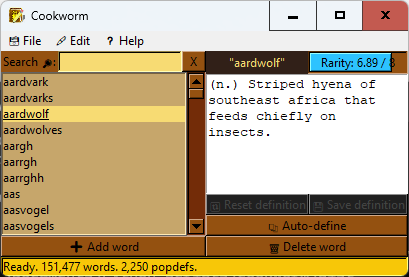
Once the program loads the files, you should see a list of words in the left pane. The bottom of the window shows the current number of words and popdefs in memory when idle, and status information on any currently running threaded operations.
- Click on a word to see its usage rarity according to wordfreq (8.00 / 8 for no wordfreq entry), and its current popdef (blank for no popdef). The usage rarity meter has a color changing function as well: If the usage frequency is below an arbitrary value where I think it might need a popdef, the meter will be sapphire blue. Otherwise, it will be paper brown. While a word is selected, you can:
- Edit the popdef and save it. Note that if you select a different word before saving the definition, it will reset.
- Reset the popdef to what it was the last time you saved it.
- Auto-create a popdef using the NLTK wordnet English dictionary.
- Delete the word from the wordlist.
- Use the search box to find a particular word, using the X button to clear the search query.
- Click the "Add word" button to add a new word to the wordlist. Once added, it will become selected.
- The File menu provides the following operations:
- Open (Ctrl + O): Open a different word list and popdefs file pair.
- Reload (Ctrl + R): Reload the current word list and popdefs file pair, reversing all your changes.
- Save (Ctrl + S): Save your changes. Automatically asks if you would like to do a backup if the original files are older than my program.
- Backup existing (Ctrl + B): Copy the existing files to a backup named version in the same directory.
- The Edit menu provides the following operations:
- Add several words: Select a text file of new words and add them all.
- Auto-define undefined rare words: Find all words below my arbitrary usage threshold and attempt to auto-define them.
- Delete several words: Select a text file of words and delete them all.
- Delete words of invalid length: Removes words that BookWorm Deluxe will not allow as moves because of their length.
- Delete duplicate word listings: Make sure that none of the entries in the word list are redundant.
- Delete orphaned definitions: Removes definitions from the popdefs that do not have a word in the wordlist.
- Delete unencodable definitions: Removes definitions that cannot be encoded to ISO 8859-15 (what the original files use).
The Cookworm app has a fully CLI mode, activated by passing any of the CLI flags not labeled as also affecting the GUI. Here is the help printout for all of them:
usage: cookworm [-h] [-a [ADD ...]] [-A ADD_FILE [ADD_FILE ...]] [-x [DELETE ...]] [-X DELETE_FILE [DELETE_FILE ...]] [-d [DEFINE ...]] [-D [AUTO_DEFINE ...]] [-k REMOVE_DEF] [-o] [-l]
                                [-e] [-P GAME_PATH] [-b] [-p [PARSER]] [-u [UNPARSER]]
                                [outfile]

The BookWorm Deluxe wordlist and popdefs editor. Version 5.0.0, licensed under Apache License version 2.0. Project homepage: https://github.com/thelabcat/cookworm

positional arguments:
  outfile               (CLI) Output file for raw (un)parser mode. Defaults to stdout

options:
  -h, --help            show this help message and exit
  -a, --add [ADD ...]   (CLI) Add the given words to the list
  -A, --add-file ADD_FILE [ADD_FILE ...]
                        (CLI) Add the given file(s) of words to the list, '-' for stdin
  -x, --delete [DELETE ...]
                        (CLI) Remove the given words from the list
  -X, --delete-file DELETE_FILE [DELETE_FILE ...]
                        (CLI) Remove the given file(s) of words from the list, '-' for stdin
  -d, --define [DEFINE ...]
                        (CLI) Define a word. Pass no arguments to print the existing definition
  -D, --auto-define [AUTO_DEFINE ...]
                        (CLI) Automatically define specified words. Pass no arguments to define all rare ones
  -k, --remove-def REMOVE_DEF
                        (CLI) Remove the popup definition for the given word, because it is widely known
  -o, --orphan-fix      (CLI) Find and delete all orphaned definitions
  -l, --length-limit    (CLI) Find and delete all words of invalid length
  -e, --encoding-check  (CLI) Find and delete all unencodable definitions
  -P, --game-path GAME_PATH
                        Manually specify game program folder location
  -b, --backup          (CLI) Create backup of game files, defaults to yes if they are older than the program
  -p, --parser [PARSER]
                        (CLI) Work directly from a wordlist file, and parse it to an output. No argument to read stdin
  -u, --unparser [UNPARSER]
                        (CLI) Work directly from a plain words file, and unparse it to a wordlist output. No argument to read stdin

NOTE: CLI options are run in documented order, not provided order. S.D.G.
This is more for nerds trying to automate stuff, as in even bigger nerds than the average user of this app, so IDK what else to document here. I will say that parser and unparser basically make this function as minimally as possible. You pass them a file, they (un)parse it and spit it out. Useful for extremely manual editing. I call this mode "raw parser mode" everywhere else.
Various antivirus services occasionally flag any and all Windows executables packaged with PyInstaller. This is a false positive: While malware could certainly be written in Python and subsequently packaged with PyInstaller into an exe, the exe would be malicious because of the packaged Python code, not because of PyInstaller. I've reported the problem to the antivirus services that I found false positive reporting forms for, but often only the specific app version was whitelisted, if anything at all. It turns out that this is a known issue with, or rather limitation of, PyInstaller, and therefore there isn't anything its devs can permanently do about it. Long story short, a PyInstaller executable works by extracting from itself the Python interpreter, supporting libraries, and the script to run. What's more, it's doing this all in temporary storage. That looks rather suspicious to some antimalware heuristics, and understandably so. Since then, Malwarebytes in particular has tried to remedy the issue on their end, assumably by whitelisting the PyInstaller bootloader hash, but a new bootloader update for PyInstaller could change that. I'd like to thank Malwarebytes for their effort, in any case. They in particular were very quick to fix the false positive for my apps individually, even before the PyInstaller master fix. I don't use them personally, but that is good service.
If you wish to bundle the application yourself with PyInstaller, you can run pyinstaller_build.sh in Windows Git Bash or Linux (or possibly MacOS). It requires that:
- You have an internet connection.
- The
pythonandpipcommand point to Python 3.10 or newer and it's respective Pip tool (may point to Python 2.7 on some systems). - The venv package for that Python is installed. It will automatically set up a clean virtual environment with the program's dependencies and PyInstaller, update the word frequency list, then package the application. If bundling on Linux, be warned of issue #18.
Hope this helps!
Copyright 2025 Wilbur Jaywright d.b.a. Marswide BGL.
Licensed under the Apache License, Version 2.0 (the "License"); you may not use this file except in compliance with the License. You may obtain a copy of the License at
http://www.apache.org/licenses/LICENSE-2.0
Unless required by applicable law or agreed to in writing, software distributed under the License is distributed on an "AS IS" BASIS, WITHOUT WARRANTIES OR CONDITIONS OF ANY KIND, either express or implied. See the License for the specific language governing permissions and limitations under the License.
S.D.G.