Jornada 7xx Devuan-Linux configuration scripts and localized keyboard / button handler services
- Burn your ARM Devuan Distribution for the Jornada 720 to a storage card
- Download the latest image from here: Jovals Sugarsync site
- Then insert your memory card and find its device, under Linux do
lsblkto find it - Burn the image, under Linux:
unzip -p ~/Downloads/DevJ7_31Gb_AutoIceWM_WPA_VNC_RS.zip | sudo dd of=/dev/sdd bs=1M status=progresswhere /dev/sdd is your memory card device
- Mount the storage card on your desktop Linux-PC under a QEMU container:
- Install supporting packages if you don't have yet:
sudo apt install qemu binfmt-support qemu-user-static systemd-container- Mount the card:
sudo systemd-nspawn -D /media/user/cardname- where user is your username and cardname is the particular mountpoint of the storage card
- Then, install this package in the QEMU environment by runnig the below script (save it as a file to your card to run conveniently):
mv /etc/resolv.conf /etc/resolv.bak

# replace 192.168.178.1 with your routers IP
echo "nameserver 192.168.178.1" > /etc/resolv.conf

apt-get install whiptail gparted git kbd pcmciautils busybox build-essential manpages-dev libevdev-dev rcconf
git clone https://github.com/timob0/jornada-config.git /opt/jornada-config

cp -f /opt/jornada-config/scripts/inittab.noauto /etc/inittab

/opt/jornada-config/jornada-config --install

rm /etc/resolv.conf
mv /etc/resolv.bak /etc/resolv.conf
- Restart and login as root
You will automatically be presented the
jornada-configprogram to do the baseline setup of your Jornada under Linux: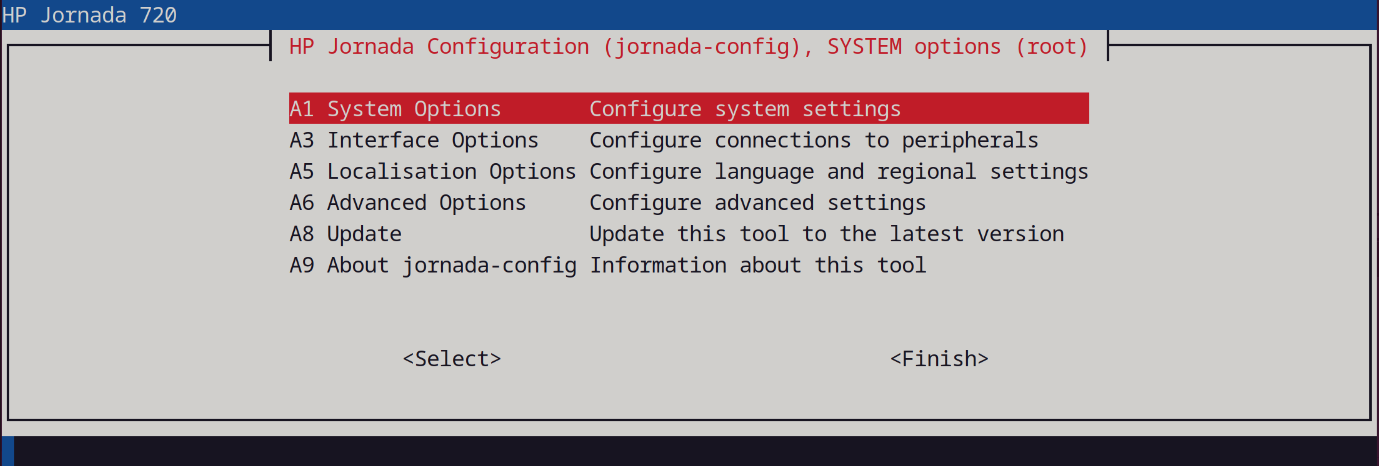
Start with resizing the disk so you can use its full capacity, then set localization options (language, timezone and keyboard), then continue with creating a new user for regular work (it will get sudo access) and setup the WiFi. note: locale and timezone take quite some time due to background package configuration, the machine is not stuck!
When you finish, select the option to disable the config program after next reboot, otherwise it will show up on each login.
You can run it later at any time with /opt/jornada-config/jornada-config
The program has a user mode too which exposes functions to turn on / off the WiFi, connect to different networks, configure startup behavior (automatic console login, automatic X11 startup) and a bit more.
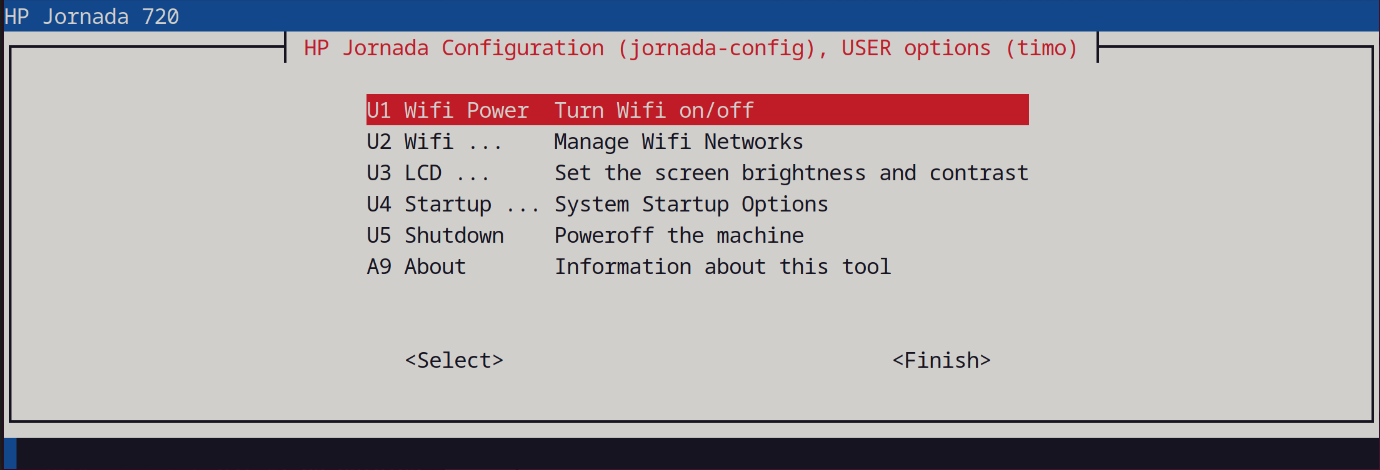
It does not run automatically, to call it use: jconf (this is an alias to sudo /opt/jornada-config/jornada-config).
Included is a background program which runs as a services and listens for certain keystrokes (Power, Mute, Vol+, Vol-). For each of these keystrokes, actions can be configured by placing a shell script with a certain name in the /etc folder:
- j720b_power.sh -- Runs when the power key is pressed
- 720b_mute.sh -- Runs when the mute button is pressed
- j720_volup.sh -- Runs when the volume + button is pressed
- j720b_voldn.sh -- you guess it, right?
The program along with configuration examples is in the /opt/jornada-config/buttons folder. You can install it by running:
./install.sh in that folder. The script will compile the .c file, move the binary to /usr/bin/jbuttons and create an init.d/j720-buttons.sh init script.
Also it will setup the Vol- button to "Sleep" the jornada (power off the Wifi Card and the display) and Vol+ to "unsleep"
Note: This program is not 100% tested yet and it still has the issue of spewing log output to the console and passing through the keys as keystrokes (i.e. tildes on the commandline).