Click this screenshot to watch the explainer video:
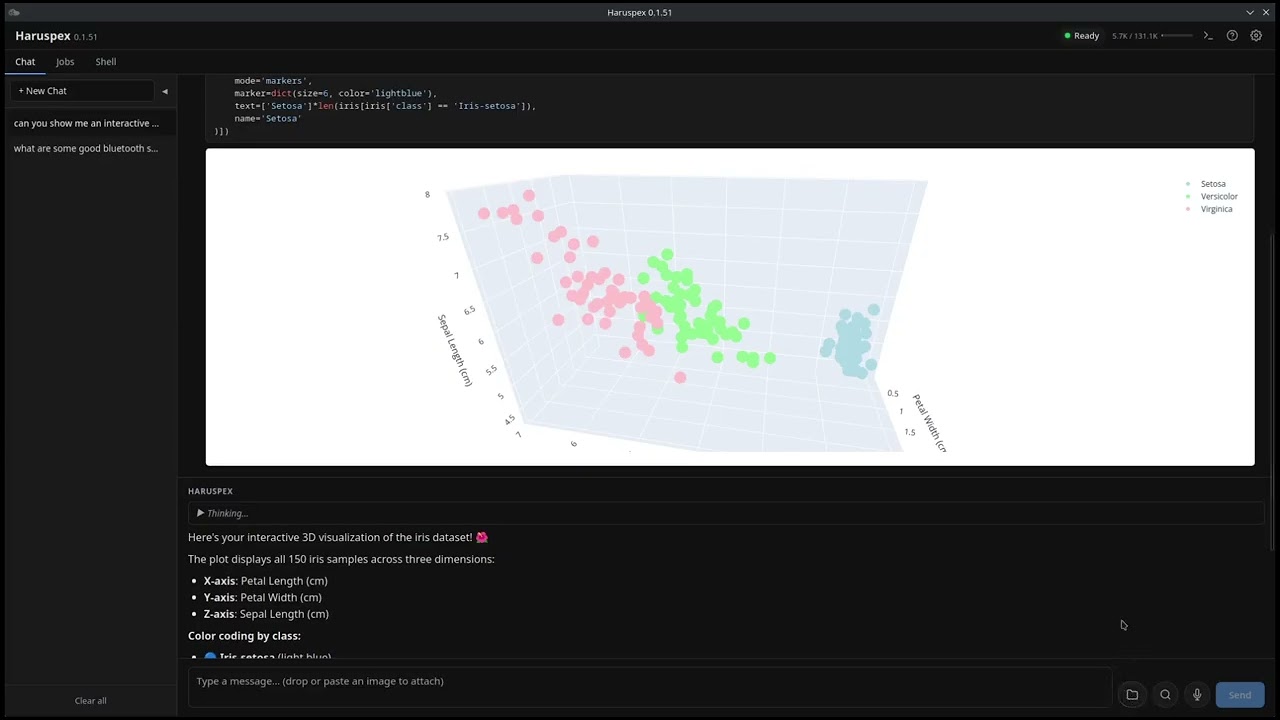
A cross-platform desktop AI web researcher and agent that runs entirely on your computer. No accounts, no telemetry — your conversations and AI responses stay on your device. Web research sends search queries to the web, and the optional cloud backend (OpenRouter) is off by default and clearly labeled.
Haruspex excels at researching information. Ask it a question and it will search the web and compile an answer. Turn on deep research mode for a more thorough job. Enable a working directory and ask it to produce a PDF, spreadsheet, or Word document from its results. It will even write and execute python in the UI in pursuit of your goals.
The primary goals of this project are:
- Privacy - Conversations and inference stay local. Searches themselves hit the web but web proxies and SearXNG are supported to anonymize your web searches.
- Open Source/Open Weight - Use of open weight local models means no monthly bill.
- Minimal Hardware Requirements - This project targets 8GB of Unified RAM/VRAM for LLM+Context. Currently the model used is Qwen-3.5-9B (though we do offer Qwen-3.5-4B if you are tight on memory). All project features are built with this target (and the inherit limitations of a small model) in mind.
- Human Enablement, Not Human Replacement - There are many projects that are building fully autonomous agents, this isn't one of them. This project aims to use AI to assist humans in learning, creation, and troubleshooting; not replace the human element completely.
- Private by design — inference runs on your hardware by default; the optional cloud backend (OpenRouter) is off by default and clearly labeled
- Web research — searches the web and reads pages to answer questions about anything, with an optional deep research mode for multi-source synthesis
- Shell tab (Linux, macOS & Windows — PowerShell and WSL2 on Windows) — a real interactive terminal with a one-click "Submit to LLM" path: ask the assistant to analyze the last command's output or a selected range. By default the assistant is a read-only troubleshooting advisor: it can read config files / logs anywhere on the system and suggest fix commands as click-to-paste cards (with red chips on risky patterns like
sudo,rm -rf,dd of=,curl | sh,Remove-Item -Recurse -Force), but it never runs anything — every command lands at the prompt for you to review and press Enter. Flip on Code mode (per session, off by default) to turn it into a coding agent that edits files and executes commands in your live terminal; commands the risk classifier flags pause for your approval first, anything it considers safe runs automatically.⚠️ Read the AI safety disclaimer before enabling Code mode or running anything the model proposes. - Jobs tab — author, save, and schedule reusable prompts that run unattended. Three kinds: a research pipeline of sequential steps, an audit that samples a prompt many times and source-verifies the findings into a single report, and guided planning that turns a rough idea into a phased implementation plan through interactive Q&A. Each job can run against its own remote model. (details)
- Local file access (opt-in) — pick a working directory and the model can read and write text, PDF, docx, xlsx, odt/ods/odp, pptx, and images, sandboxed to that directory (details)
- Python sandbox — the model can write and execute Python in a sandboxed Pyodide environment running in the webview, with on-demand package installs (
install_package) and HTTP viapyfetch; approval-gated with a per-call time limit. Off by default — enable it under Settings → Agent → Python Sandbox. - Vision — analyze images and form PDFs via the model's built-in mmproj projector
- Voice input / output — speak your questions (whisper.cpp) and hear responses read aloud (Kokoros)
- GPU accelerated — Vulkan (Linux/Windows) and Metal (macOS)
- First-run wizard — detects your hardware and downloads an appropriately sized model
- Remote inference (optional) — connect to your own self-hosted OpenAI-compatible server instead of using the bundled sidecar (details)
- Email integration (optional, read-only) — connect IMAP accounts (Gmail, Fastmail, iCloud, Yahoo, or custom) so the model can summarize and search recent messages (details)
- Persistent conversations — SQLite-backed chat history survives restarts
- Log viewer — toolbar modal with copyable per-sidecar logs for easy bug reports
- Dark mode — system-aware with manual override
Warning
Haruspex is an AI assistant, and AI models hallucinate. Verify before you act.
The language model can be confidently wrong. It may invent facts, misread a file or command output, and — especially relevant now that Haruspex has a Shell tab — suggest commands that are mistaken, dangerous, or destructive (deleting data, changing system configuration, exposing secrets, etc.). The smaller local models this project targets are more prone to these mistakes than large cloud models.
Haruspex is built around human enablement, not human replacement. By default the Shell assistant is read-only and never runs anything: every suggested command lands at your prompt for you to read and run yourself, with risky patterns (sudo, rm -rf, dd of=, curl | sh, …) flagged. But if you enable the Shell tab's Code mode, the agent executes commands itself in your live terminal — commands the risk classifier flags pause for your approval, but anything it considers safe runs automatically (and even the approval prompt can be turned off in Settings). Code mode is off by default and opt-in per session; only turn it on for machines and projects you're willing to let the model act on. These flags and prompts are aids, not guarantees. You are the last line of defense.
Before running anything the model suggests:
- Read and understand the command. If you don't, don't run it.
- Be especially careful with commands that delete files, modify system settings, pipe downloads into a shell, or touch credentials.
- Keep backups of anything you can't afford to lose.
Haruspex is provided "as is", without warranty of any kind. You use it — and any commands or output it produces — at your own risk. The authors and contributors are not liable for any damage, data loss, or other harm resulting from its use. See the License for the full disclaimer.
Download the latest release for your platform from the Releases page.
Note on code signing: Haruspex binaries are not code-signed on macOS or Windows. macOS Gatekeeper will refuse to open the app directly, and Windows SmartScreen will warn before running the installer. See the per-platform notes below for how to bypass these warnings.
# The .deb package handles most dependencies automatically
sudo apt install libwebkit2gtk-4.1-0 libayatana-appindicator3-1# The .rpm package handles most dependencies automatically
sudo dnf install webkit2gtk4.1 libappindicator-gtk3# Use the .AppImage — no package manager dependencies needed
chmod +x Haruspex_*.AppImage
./Haruspex_*.AppImageRun the .msi or .exe installer. The MSVC runtime is bundled — no additional dependencies required.
Because the installer is not code-signed, Windows SmartScreen will show a "Windows protected your PC" warning. Click More info → Run anyway to proceed.
Open the .dmg and drag Haruspex to Applications. Because the app is not code-signed, on first launch right-click the app and choose Open to bypass Gatekeeper.
Recommended: a discrete AMD or NVIDIA GPU with 8 GB+ of VRAM.
Minimum: any system with a Vulkan-capable GPU and 8 GB of system RAM. Haruspex includes a smaller 4B-parameter model for systems with limited VRAM, and the first-run wizard picks an appropriate model automatically.
Integrated graphics (Intel HD/UHD/Iris, AMD Vega/Radeon Graphics) will work but inference will be significantly slower. Recent AMD APUs perform better than older Intel iGPUs but still fall well short of a discrete card.
Apple Silicon Macs use unified memory and Metal acceleration, so even the base M1 with 8 GB provides a good experience.
Warning
Haruspex uses your GPU for inference. While it is running, other GPU-intensive applications like games may experience reduced performance. Close Haruspex before launching games or other GPU-heavy programs.
Press F1 (or click the ? in the header) to see this list in the app anytime.
| Shortcut | Action | Where |
|---|---|---|
F1 |
Show the keyboard-shortcuts help | Everywhere |
F2 (hold) |
Push-to-talk voice input — release to send | Main window |
F3 |
Read the last reply aloud (toggle) | Main window |
F4 |
Submit recent shell commands & output to the assistant (no prompt) | Shell tab |
Ctrl/Cmd + N |
New conversation | Chat tab |
Enter / Shift+Enter |
Send message / new line | Chat & Shell composers |
Esc |
Stop generating · close dialogs | Everywhere |
Ctrl+Shift+A |
Toggle the assistant sidebar | Shell tab |
Ctrl+` |
Switch focus: terminal ↔ assistant | Shell tab |
Ctrl+Shift+C / V |
Copy selection / paste | Shell tab |
Ctrl+Shift+I (Cmd+Opt+I on macOS) |
Open the web inspector (devtools) | Everywhere |
Each block below installs everything needed to build Haruspex on that platform — system libraries, the Vulkan shader toolchain, Rust (stable), and Node.js (22+). Copy and run the whole block.
# System libraries + Vulkan shader toolchain
sudo apt update && sudo apt install -y build-essential cmake pkg-config curl \
  libwebkit2gtk-4.1-dev libappindicator3-dev librsvg2-dev libasound2-dev \
  libvulkan-dev glslc spirv-headers libsonic-dev libpcaudio-dev libssl-dev libfuse2

# Node.js 22 (distro packages are usually too old)
curl -fsSL https://deb.nodesource.com/setup_22.x | sudo -E bash - && sudo apt install -y nodejs

# Rust (stable, via rustup)
curl --proto '=https' --tlsv1.2 -sSf https://sh.rustup.rs | sh -s -- -y# System libraries + Vulkan shader toolchain + Node.js
sudo dnf install -y @development-tools cmake pkg-config \
webkit2gtk4.1-devel libappindicator-gtk3-devel librsvg2-devel alsa-lib-devel \
vulkan-headers spirv-headers glslc sonic-devel pcaudiolib-devel openssl-devel nodejs npm
# Rust (stable, via rustup)
curl --proto '=https' --tlsv1.2 -sSf https://sh.rustup.rs | sh -s -- -y# Everything in one command. spirv-headers is required by llama.cpp's Vulkan
# backend and is NOT pulled in by shaderc, so it must be listed explicitly.
sudo pacman -S --needed base-devel cmake pkg-config \
webkit2gtk-4.1 libappindicator-gtk3 librsvg alsa-lib \
vulkan-headers shaderc spirv-headers fuse2 libsonic pcaudiolib rust nodejs npmOn a fresh Windows 11 install, run the bundled PowerShell setup script from a regular PowerShell window. It installs Git, Node.js LTS, the Rust MSVC toolchain, VS 2022 Build Tools, CMake, the Vulkan SDK, and the WebView2 runtime via winget, skipping anything already present:
Set-ExecutionPolicy -Scope Process -ExecutionPolicy Bypass
.\scripts\windows-setup.ps1
After it finishes, open a new terminal so PATH updates take effect. Sidecar builds run from Git Bash via ./scripts/dev-setup.sh.
If you'd rather install prerequisites yourself: Visual Studio Build Tools (C++ workload), CMake, Vulkan SDK, Git for Windows.
# Command Line Tools, then system libraries + Rust + Node via Homebrew
xcode-select --install
brew install cmake pkg-config opus rust node
Prefer to manage Rust yourself? Skip
rustabove and use rustup instead.
git clone https://github.com/tmac1973/haruspex.git
cd haruspex

# Required first run: builds the sidecars and downloads the rest of the
# resources the app needs — ruff, PDFium, and the Pyodide runtime. `make dev`
# only checks the sidecars, so it is NOT a substitute for this step.
./scripts/dev-setup.sh

# Run the app (on subsequent runs this is all you need)
make devRun make help to see all targets:
| Target | Description |
|---|---|
make dev |
Run the app in dev mode (auto-checks sidecars; run dev-setup.sh first) |
make check |
Run all checks (lint, format, typecheck, test) |
make fmt |
Auto-format all code (Prettier + cargo fmt) |
make sidecars |
Build sidecar binaries (llama-server, whisper-server, koko) |
make app |
Build the Tauri app packages (requires sidecars) |
make release-local |
Build everything: sidecars + app packages |
make clean |
Remove built sidecars, forcing rebuild |
make clean-all |
Remove sidecars + Rust/frontend build artifacts |
make reset-data |
Remove all app data (models, db) for a fresh start |
| Platform | Path |
|---|---|
| Linux | ~/.local/share/com.haruspex.app/ |
| macOS | ~/Library/Application Support/com.haruspex.app/ |
| Windows | %APPDATA%\com.haruspex.app\ |
Use make reset-data to wipe this directory for a fresh start (Linux/macOS).
The Jobs tab runs reusable prompts unattended — on a schedule or on demand. Each run streams live in a dedicated view, halts on the first error, and stays browsable in per-job run history. Runs queue serially behind the active job.
There are three job types:
- Research — an ordered pipeline of single-objective steps. Each step runs as a fresh conversation with the previous step's output prepended, so you can chain "search → summarize → write a report" into one unattended run. A per-step toggle enables deep multi-source research for that step.
- Audit — runs one prompt independently many times (sampling), then deterministically clusters the findings, re-checks each cluster against the source, and writes a single meta-report grouped by verdict (confirmed / refuted / uncertain). Sampling averages out the single-run noise a small model produces. Configurable: number of runs, per-sample turn budget, a read-only tool restriction, custom sample/verification instructions, and an optional output file.
- Guided planning — interactively turns a rough idea into a written project overview and a dependency-ordered, phased implementation plan, asking one question at a time and grounding itself in your codebase. It writes an
overview.mdandphase-NN-*.mdfiles, pausing at checkpoints for you to review or revise before continuing, and an independent verifier pass flags ordering gaps or unresolved decisions. Planning only — it never writes code. Long runs resume from the last milestone if the app restarts.
Scheduling. Run a job manually, or on a preset (hourly / daily / weekly) or a fixed interval while the app is open.
Per-job model. By default a job uses your global inference backend (Settings → Inference backend). Any job can instead point at its own remote OpenAI-compatible server — base URL, optional API key, model ID, context size, and vision capability — handy for routing a heavy audit or planning job to a larger-context or faster model. Because a remote job and the local llama-server are independent providers, a job running against a remote model doesn't block the Chat or Shell tabs from using your local model at the same time.
Audit and guided-planning jobs need a working directory (the model reads your code and writes its reports there); research jobs can run with or without one.
When you select a working directory from the folder icon in the chat input, Haruspex exposes filesystem tools to the model — scoped strictly to that directory. Without a working directory set, the model has no filesystem access at all.
Read: plain text / markdown / CSV / JSON / YAML / TOML (fs_read_text), PDFs via PDFium with position-aware layout (fs_read_pdf), PDFs as images via PDF.js for scanned docs (fs_read_pdf_pages), Word .docx (fs_read_docx), Excel .xlsx as CSV (fs_read_xlsx), images via the vision model (fs_read_image), directory listings (fs_list_dir).
Write: plain text (fs_write_text), targeted find-and-replace edits (fs_edit_text), Word .docx and OpenDocument .odt (fs_write_docx / fs_write_odt), Excel .xlsx and OpenDocument .ods (fs_write_xlsx / fs_write_ods), PowerPoint .pptx and OpenDocument .odp (fs_write_pptx / fs_write_odp — experimental), PDFs from markdown-style input (fs_write_pdf).
Download: any HTTP(S) binary into the sandbox (fs_download_url) with SSRF protection, a 50 MB ceiling, and executable formats blocked. Freely-licensed images from Wikimedia Commons (image_search — experimental). Image URLs discovered on web pages (fetch_url_images — experimental, typically copyrighted).
Cannot: delete or move files, execute scripts, or touch anything outside the working directory.
Overwrite protection: write tools refuse to silently clobber existing files. If a write target already exists from a previous turn or user action, Haruspex pauses and prompts you with Overwrite / Keep both / Cancel. In-turn rework (write → read → correct → write) is handled implicitly and does not trigger the prompt.
Working directory selection is per-conversation and is not persisted across app restarts.
Haruspex normally manages its own llama-server sidecar with a downloaded model. If you already run an OpenAI-compatible inference server, you can point Haruspex at it instead — the local sidecar will not spawn and every chat request routes to your configured URL. This is exposed in two places:
- First-run wizard — pick "Connect to an existing server" instead of "Download a model".
- Settings → Inference backend — switch between Local and Remote at any time. Toggling to Remote stops the local sidecar immediately (no VRAM consumption); toggling back spawns it again with your previously-selected model.
This is the global backend used by Chat and Shell. Individual jobs can override it with their own remote server. If your server serves concurrent requests (vLLM, llama-server -np N, hosted APIs), enable Allow parallel inference here to let chat and job turns against it run at the same time instead of queuing.
Detection. Haruspex probes the base URL you enter in this order, and the richest backend that responds wins:
| Order | Endpoint | Matches |
|---|---|---|
| 1 | GET /api/service/status |
llama-toolchest — rich per-model metadata |
| 2 | GET /props |
Stock llama.cpp llama-server — exposes n_ctx and loaded-model info |
| 3 | GET /v1/models |
Generic OpenAI-compat (LM Studio, Lemonade, Ollama, vLLM, TGI, llamafile, koboldcpp, text-gen-webui …) |
| 4 | GET /api/tags |
Ollama native fallback when its OpenAI-compat endpoint is disabled |
What gets populated. Model list is always pulled. Context size and vision capability are auto-detected when the backend exposes them (llama-toolchest and stock llama-server do; generic OpenAI-compat backends usually don't, so you'll see editable fields).
Auth. Every probe and chat request can send an optional Authorization: Bearer <key> header. Leave blank for self-hosted servers that don't require auth.
OpenRouter (cloud). In addition to self-hosted remote servers, Haruspex has a first-class OpenRouter option in Settings → Inference. Enter your API key and pick from the automatically populated model catalog (~300 models with context length, vision, tool support, and reasoning-effort metadata pulled from OpenRouter's /v1/models endpoint).
Haruspex can optionally connect to your email over IMAP so the model can summarize recent messages, find email from a specific person, or read the full body of a single message on request. The integration is off by default, read-only, and multi-provider.
Every preset requires 2-factor authentication on the provider account plus an app password (a 16-character token the provider generates specifically for Haruspex — not your login password).
| Provider | IMAP host | Where to get an app password |
|---|---|---|
| Gmail | imap.gmail.com:993 |
https://myaccount.google.com/apppasswords |
| Fastmail | imap.fastmail.com:993 |
https://app.fastmail.com/settings/security/tokens |
| iCloud Mail | imap.mail.me.com:993 |
https://account.apple.com/account/manage |
| Yahoo Mail | imap.mail.yahoo.com:993 |
https://login.yahoo.com/account/security |
| Custom | user-provided | whatever your provider says |
Microsoft 365 / Outlook.com is not supported — Microsoft disabled basic authentication for those accounts, so there's no app-password path. OAuth support is planned for a later phase.
Setup. Settings → Integrations → Email, click "Add email account", pick a provider, paste your email + app password, click "Test connection", then flip the account's "Enabled" toggle.
Tools. When at least one account is enabled, the model sees three new tools:
email_list_recent— cheap listing (subject + sender + date + snippet). Always the first call.email_summarize_message— sub-agent that compresses one full message body through a separate chat completion. Mirrors howresearch_urlalready compresses web pages.email_read_full— escape hatch that returns the full normalized body verbatim.
All three are hidden from the model entirely unless at least one account is enabled. Credentials are stored in the same local settings blob as other secrets (no keyring). BODY.PEEK[] is used for every fetch, so reading a message never marks it as seen. There is no sending — this phase is strictly read-only.
| Component | Technology |
|---|---|
| App framework | Tauri 2.x (Rust backend, system webview) |
| Frontend | SvelteKit 5 (TypeScript, static SPA, Svelte 5 runes) |
| LLM inference | llama.cpp sidecar (Vulkan/Metal, multimodal with mmproj) |
| Speech-to-text | whisper.cpp sidecar (Vulkan/Metal) |
| Text-to-speech | Kokoros sidecar (CPU) |
| Default models | Qwen 3.5 9B and Qwen 3.5 4B (both vision-language) |
| PDF text extraction | PDFium with custom position-aware layout reconstruction |
| PDF rendering (vision fallback) | PDF.js running in the Tauri webview |
| PDF creation | printpdf (pure Rust) |
| docx / xlsx | Custom zip+XML for docx reads/writes, calamine for xlsx reads, rust_xlsxwriter for xlsx writes |
| odt / ods / odp / pptx | Hand-rolled zip+XML following the OASIS OpenDocument and OOXML specs |
| Database | SQLite (via rusqlite) |
| Web search | Auto-rotation (Brave HTML / DuckDuckGo / Mojeek), Brave Search API, or SearXNG |
| Provider | Setup | Notes |
|---|---|---|
| Auto (default) | None | Rotates between Brave HTML scrape, DuckDuckGo, and Mojeek with round-robin scheduling, per-engine health tracking, and failover |
| DuckDuckGo | None | Single engine, may get rate limited |
| Brave Search API | API key in Settings | 2,000 free queries/month, most reliable |
| SearXNG | Instance URL in Settings | Unlimited (self-hosted) |
When deep research mode is on, the Auto provider is selected, and no Brave API key is configured, the search proxy switches to slow mode (longer per-engine pacing, shorter cooldowns) so engines can recover within the same research turn. Configuring a Brave API key or a SearXNG instance bypasses slow mode entirely.
Releases are automated via release-please:
- Commits on
mainmust use Conventional Commits (feat:,fix:,chore:,feat!:for breaking, etc). - release-please keeps an open PR titled "chore(main): release X.Y.Z" that bumps versions, updates
CHANGELOG.md, and accumulates notes from each new commit. - Merge that PR to cut a release. That creates the
vX.Y.Ztag and a draft GitHub release prefilled with the changelog. - The tag push triggers the
Releaseworkflow, which builds sidecars + app for all platforms and attaches installers (Linux AppImage/deb/rpm, Windows NSIS/MSI, macOS DMG) to the draft. - Review the draft and click Publish when satisfied.
To build locally: make release-local.
When you ask the model to create a file in a single prompt — e.g. "Create a PDF report on X" — it will typically do the research and write a detailed answer to the chat, but not actually call fs_write_pdf. Sometimes it will even claim it created the file when it didn't.
This is a model-behavior issue with small local models: after a multi-step research turn, the model strongly prefers ending with a natural-language synthesis instead of a final tool call. Haruspex mitigates this with imperative tool descriptions, per-turn reminders, and a recovery pass that nudges the model when a turn ends without the expected write — but the mitigations aren't complete.
Workaround: if the model didn't create the file on the first try, just ask again ("write that to a PDF"). The second turn almost always succeeds because the report content is already in the conversation history.
The presentation tools (fs_write_pptx, fs_write_odp) and image discovery tools (image_search, fetch_url_images) work end-to-end but are best treated as experimental:
- Single-turn "research + create presentation with images" prompts are unreliable. Split into two or three turns: research first, then ask for the presentation explicitly.
image_searchhits Wikimedia Commons, which has great coverage of landmarks, animals, and generic subjects but very little for specific consumer-tech products.- Slides are limited to a title + bullet list (up to 2 levels of nesting) + an optional image. No tables, charts, speaker notes, or custom layouts.
These limitations are model-behavior side and will improve as local models get better at tool use.
The Haruspex application icon is derived from a photograph of the Piacenza Bronze Liver by Lokilech, sourced from Wikimedia Commons and used under the Creative Commons Attribution-ShareAlike 3.0 Unported license. See NOTICE.md for details.

MIT (source code). See NOTICE.md for the icon's separate CC BY-SA 3.0 license.