AlternateUI mainly replaces the male and female morphs UI, but also has several tweaks that can be enabled.
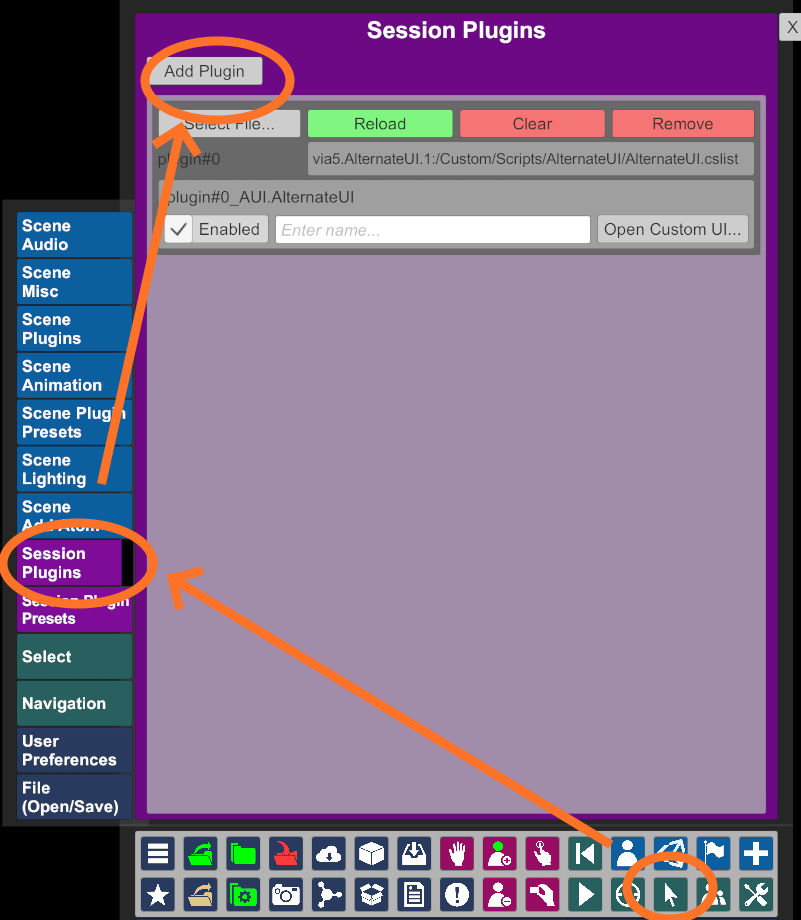
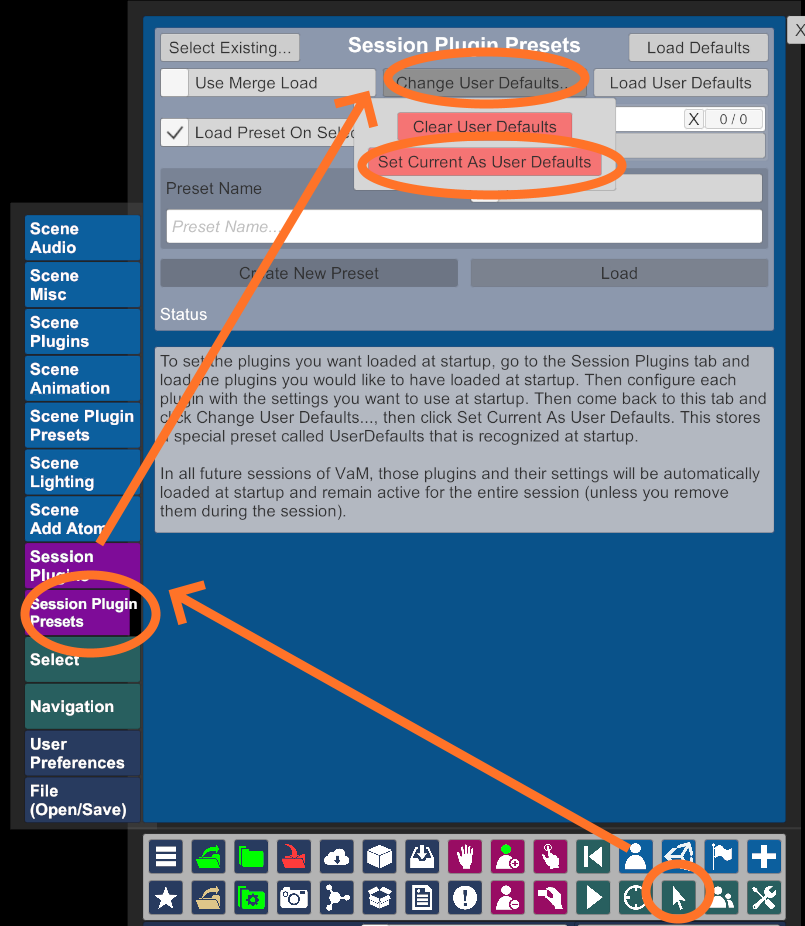
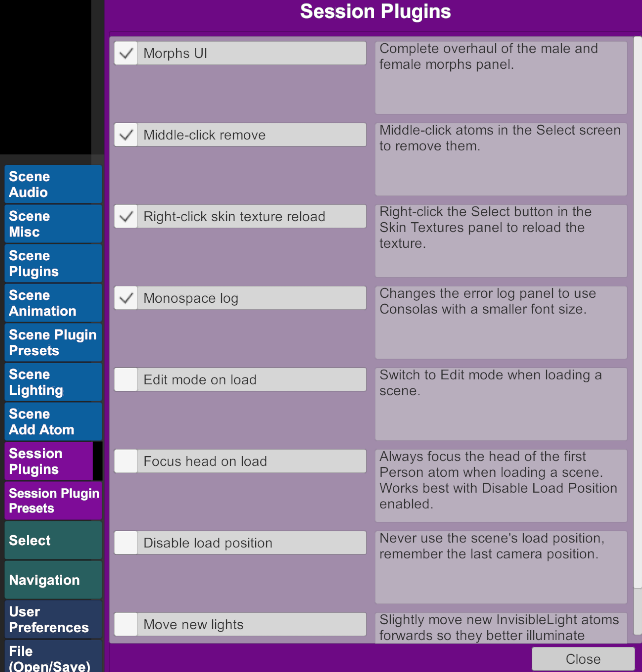
Add AlternateUI.cslist from via5.AlternateUI.x as a session plugin. To load the plugin every time VaM starts, save it as the default session plugin preset. The plugin UI contains toggles for every feature.
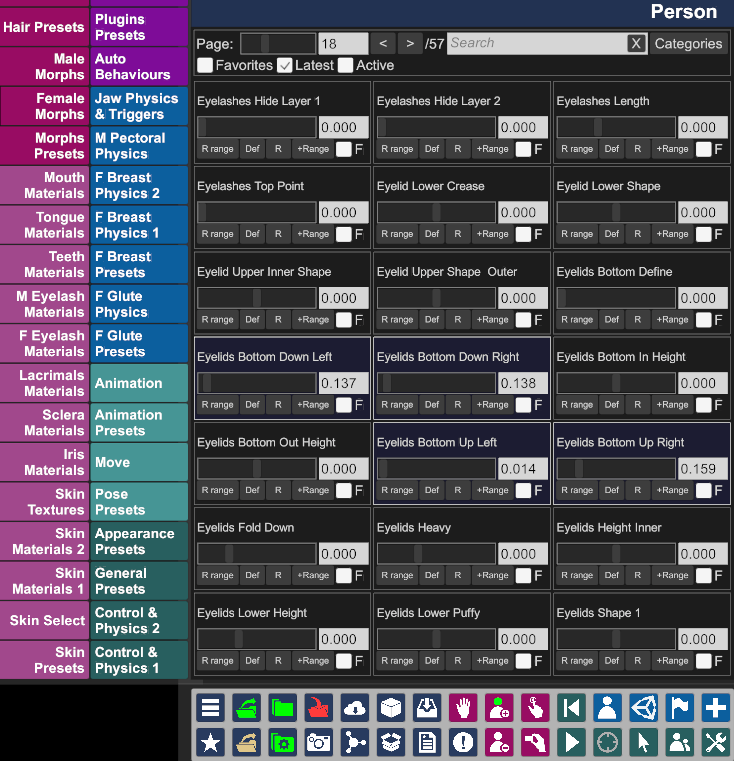
This alternate Morphs UI is much faster than the default one. It has a slider for pages, fast search that supports regular expressions and a tree for the categories. Some features are missing from the default UI. If you need them, disable the Morphs UI feature in the AlternateUI Plugin UI (or the whole plugin) to revert to the default UI.
- All sliders supports the mouse wheel.
- The search box supports regexes if the text begins and ends with a forward slash, such as
/cheek .* size/. - Right-click the categories button to revert to
All. - There are three filter checkboxes: Favorites, Latest and Active.
- There's a tooltip with a lot of information when hovering the morph name with the mouse.
- Buttons:
R range: resets the range to the default, clamping the value if necessary.Def: resets the value to the default.R: resets both the range and value to the default.+Range: doubles the range.F: set as favorite.
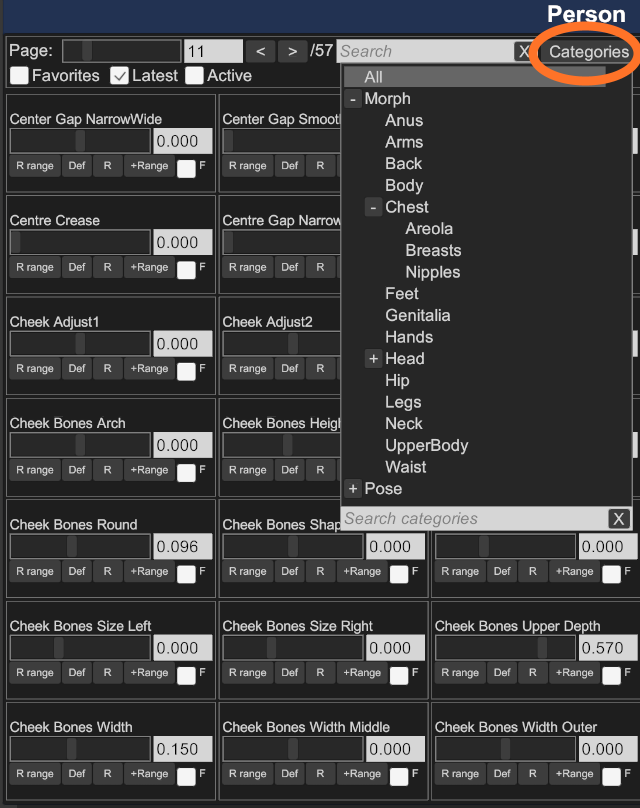
The Categories button will open a tree where the category can be selected. All morphs belonging to this category or any of its children will be displayed. The first two items will always be Morph and Pose. Other top-level categories will be displayed below these two.
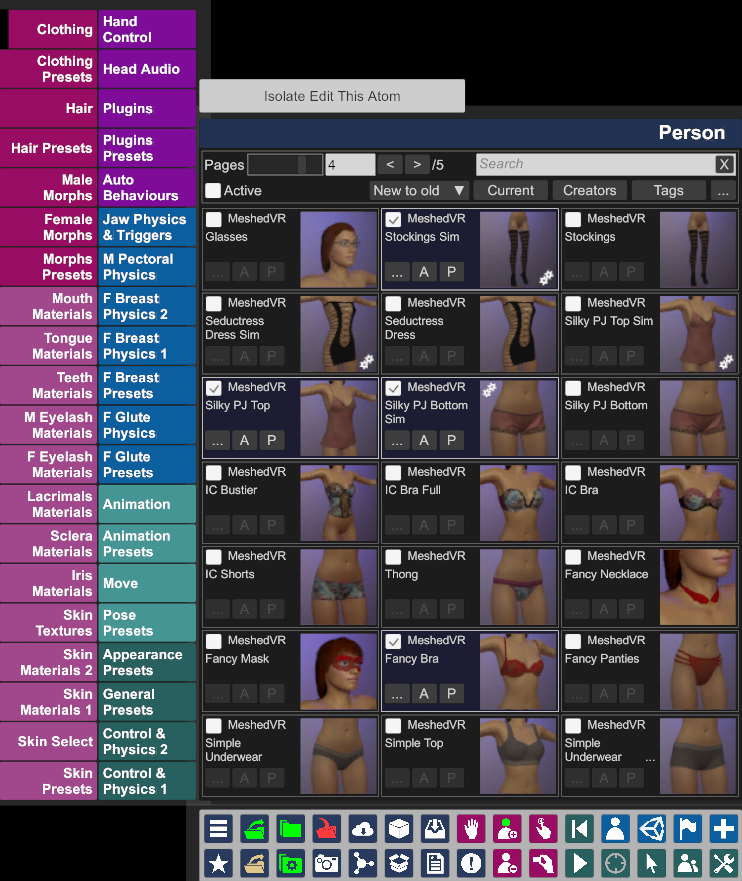
This alternate Clothing UI is much faster than the default one. It has a slider for pages, fast search that supports regular expressions, trees for creators and tags, as well as a quick way to view the active clothing items and hide them. Some features are missing from the default UI. If you need them, disable the Clothing UI feature in the AlternateUI Plugin UI (or the whole plugin) to revert to the default UI.
- The search box supports regexes if the text begins and ends with a forward slash, such as
/(skirt|dress)/. - Right-click the Creators and Tags buttons to reset them.
- The
...button in the top-right allows for changing the number of columns and rows. Some combinations will break the UI. - Every clothing item has three buttons. These buttons are disabled when the item is not active.
...: Opens theCustomizepanel.A: Opens theCustomizepanel and selects theAdjustmentstab.P: Opens theCustomizepanel and selects thePhysicstab, if available.
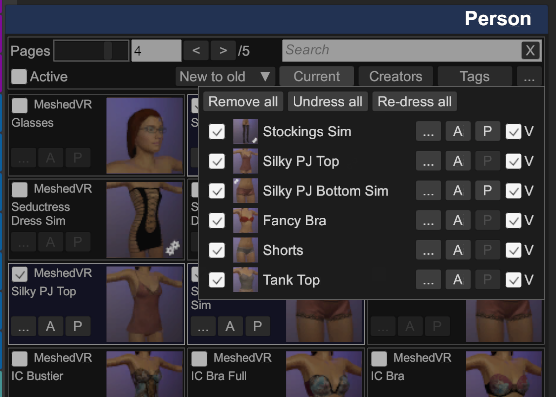 There's an additional
 Current button below the search box. It opens a small panel with a list of all the currently active clothing items.
- The first checkbox toggles the item. It will be removed from the list once the panel is re-opened.
- Next is a small thumbnail and the name of the item.
- The three buttons are the same as in the main screen: Customize, Adjustments and Physics.
- The last
Vcheckbox toggles the "Hide Material" option for all the materials in the clothing item. Useful for quickly hiding clothes without having to search and re-enable the item again.
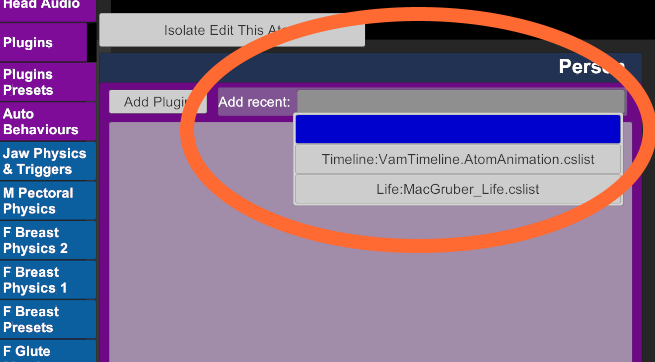
Adds a most recently used list to all Plugins panel (except the session plugins).
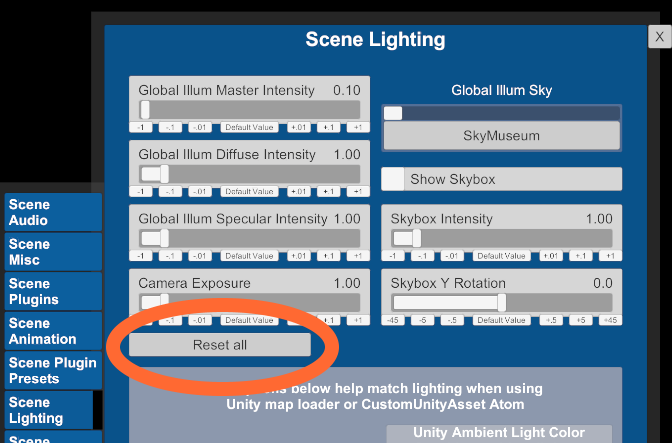
Adds a reset button to the Scene Lighting panel.
Middle-click atoms in the selection list to remove them.
In the Skin Textures tab, right-click the Select button to reload this texture. Useful when editing textures.
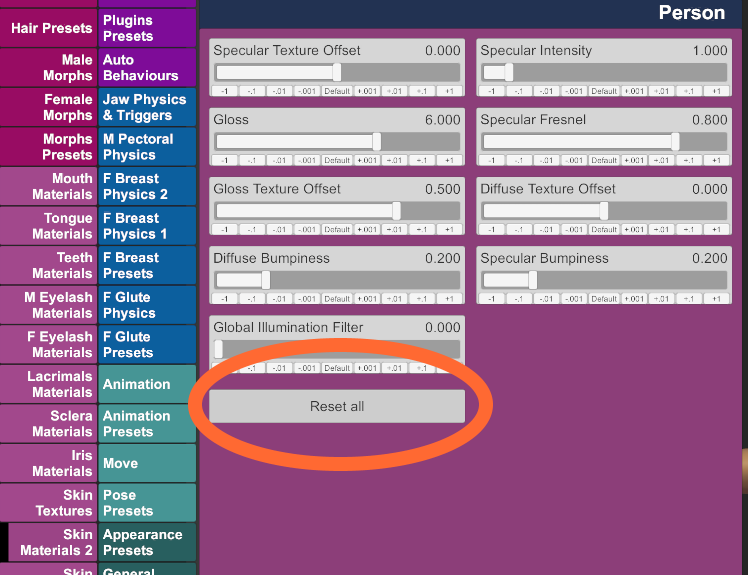
Adds a reset button to the Skin Materials 2 panel.
Use the Consolas font for the error log.
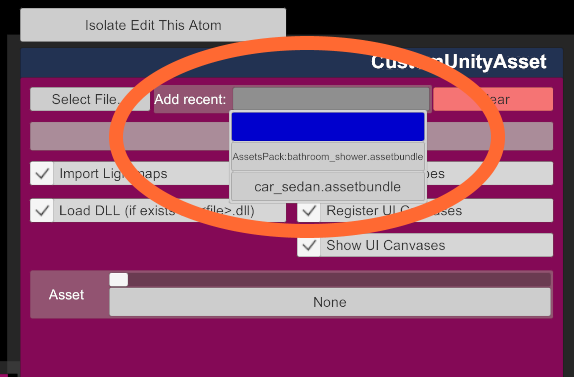
Adds a most recently used list to the Asset panel for CustomUnityAsset atoms.
Pressing the Escape key will close most dialogs.
Newly added CustomUnityAsset atoms will have their collision setting set to off.
Toggles the Freeze Motion/Sound with the spacebar.
Right-clicking the Open Package Manager button will rescan packages.
Shift+F2 will save the current scene without confirmation but with a new screenshot.
Shift+F3 will save the current scene without confirmation and with the old screenshot.
Disable selecting hidden targets
If an atom is set as Hidden and not Interactable in Play, it will be impossible to select using the mouse or VR controller. The only to select it will be to either change its hidden/interactable setting or go in the Select screen. This is useful for things like hair CUAs that are often positioned over the head, which makes it easy to move them inadvertently.
Switch to Edit mode every time a scene is loaded. Disabled by default.
When a scene is loaded, center the camera to the head of the first atom in the scene. Works best with Disable load position enabled. Disabled by default.
Some scenes will move the camera to a specific location when they load. This disables the load position for all scenes and keeps the camera where it was. Disabled by default.
The InvisibleLight's initial position is a bit too close to the center for characters that are in the default position. This will move new InvisibleLight atoms slightly forwards for better illumination. Disabled by default.
AlternateUI is released under Creative Commons Zero. This project is in the public domain.