
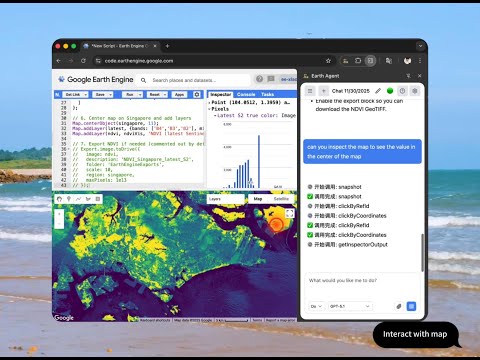
Earth Agent is a Cursor-like AI agent for Google Earth Engine. It can be used right in your browser as a Chrome extension or through MCP server support. It helps you do anything related to Google Earth Engine automatically through chatting (write code, run analysis, debug errors, explain maps, and manage your environment). Hatched from sundai.club.
Tip
Quick Start: Install from Chrome Web Store, set up your API key (OpenAI/Anthropic/Google) or MCP server with Claude Code/Cursor/Zed/OpenCode, and say "Help me map NDVI for California".
Table of Contents
- Chat interface for Earth Engine assistance
- Knows Earth Engine Data Catalog as well as community dataset
- Knows Earth Engine APIs
- Help you write code, and run the code
- Help debug the code
- Help you explain the map
- Planning and reasoning
- Environment management tools (reset map/console, clear code)
- Comprehensive agent testing framework with automated testing capabilities
- Custom Instructions: Tailor the AI's behavior and responses to your specific needs. Work like AGENTS.MD.
- Agent Profiles: Create and switch between different agent configurations for different tasks
- MCP Server Support: Use Earth Agent tools directly from Claude Code, Cursor, or Zed via the Model Context Protocol.
Best for: Standard users who want to use OpenAI, Anthropic, or Google Gemini.
- Visit the Earth Agent page on the Chrome Web Store.
- Click "Add to Chrome".
- The extension will be added to your browser and will appear in your Chrome toolbar.
Note
The Web Store version does not support local connections (MCP Server or Ollama) due to store policies. For those features, use Option 2.
Option 2: Download from GitHub Releases
- Go to the Releases page
- Download the latest
earth-agent-extension.zip - Extract the zip file to a folder on your computer
- Open Chrome and navigate to
chrome://extensions/ - Enable "Developer mode" (toggle in the top right)
- Click "Load unpacked" and select the extracted folder
- The extension will appear in your Chrome toolbar
Option 3: Install from Source
- Clone the repository
- Install dependencies with
npm install - Build the extension with
npm run build - Load the unpacked extension from the
distdirectory in Chrome
Tip
You do not have to do this if you only want to use Earth Agent as MCP server. If you want to use it directly in your browser without external agents tools, you need to do this.
- Click the Earth Agent extension icon in Chrome
- Go to Settings
- Configure your AI providers keys. we support OpenAI, Anthropic, Google, Z.AI, and Custom OpenAI-Compatible Providers. You need input at least one of them to use Earth Agent.
- Go back to the chat page, select your preferred model
- Start chatting with Earth Engine!
Custom Instructions (AGENTS.md)
Just as software developers use files like CLAUDE.md, GEMINI.md or AGENTS.md to define project-specific rules for their AI coding assistants, Earth Agent allows you to set Custom Instructions to align the AI with your scientific or policy goals. Think of it as giving the agent a "Standard Operating Procedure" for your research. This is powerful for:
- Scientific Rigor: e.g., "Always use the 'Cloud Score+' dataset for cloud masking in Sentinel-2 images."
- Policy & Communication: e.g., "Draft all explanations as policy briefs suitable for decision-makers, avoiding jargon."
- Methodology Standardization: e.g., "Always use median compositing instead of mean for annual composites."
- Coding Conventions: e.g., "Use functional programming styles in GEE (e.g.,
map()) over client-side loops."
To configure:
- Open Extension Settings
- Use Custom Instructions to set global preferences
Agent Profiles (Custom Agents)
This allows you to create your own agent with specific system prompts and tool access for specific workflows or use cases. Each agent profile can have its own:
- Custom System Prompt: Define exactly how the agent should behave
- Tool Access: Enable or disable specific tools for focused tasks
Example Profiles:
- "Strict Coder": Focused purely on writing optimized code, with no chit-chat.
- "Tutor": Explains every step in detail for learning.
- "Analyst": Specialized in statistical analysis and visualization.
To configure:
- Open Extension Settings
- Scroll to Profiles to create new agent personas
You can use this extension in two ways: through the MCP Server or inside the Earth Agent side panel. MCP servers expose the same tools as the Earth Agent assistant. Check MCP Server Support for details on using it as an MCP server. The following section will show you how to use it inside the Earth Agent side panel.
After configuration:
- Open Google Earth Engine Code Editor in a Chrome tab: https://code.earthengine.google.com/
- Click the Earth Agent extension icon in your Chrome toolbar
- Start chatting! The agent can see your Earth Engine environment and help with any GEE-related tasks
Note
The agent can only see the code in temp/new scripts in the Google Earth Engine Code Editor for now. You should save it once you think the script is ready.
Ask Mode vs Do Mode
The agent operates in two modes that you can switch between:
Analysis and guidance mode - the agent can observe but not modify:
- ✅ Read current code from the editor
- ✅ Search documentation (geeDocs)
- ✅ Take screenshots and inspect the page
- ✅ Read console output and map state
- ❌ Cannot insert or modify code
- ❌ Cannot execute code
- ❌ Cannot clear or reset the environment
Best for: Learning, understanding code, exploring datasets, getting explanations
Full execution mode - the agent can take action:
- ✅ All Ask Mode capabilities
- ✅ Write and edit code in the editor
- ✅ Execute code and monitor results
- ✅ Clear map, console, and inspector
- ✅ Complete end-to-end workflows
Best for: Building scripts, debugging, automated analysis, multi-step tasks
Tip: Start in Ask Mode when exploring new concepts, switch to Do Mode when ready to implement

Earth Agent can work as a local Model Context Protocol (MCP) server, allowing you to control Google Earth Engine directly from Claude Code, Cursor, Zed, or other AI editors.
Warning
Availability Note: The Chrome Web Store version of Earth Agent supports Cloud AI only (OpenAI, Anthropic, Google) due to browser security restrictions on localhost connections.
To use the MCP Server (or local Ollama models), you must install the Developer Version from GitHub.
-
Install the Developer Version:
- Download
earth-agent-extension.zipfrom GitHub Releases. - Unzip and install via
chrome://extensions/> "Load unpacked".
- Download
-
Enable in Settings:
- Open Earth Agent settings.
- Find "External Integrations" and enable "MCP Server".
-
Configure your Editor:
- Add the following to your MCP configuration (e.g.,
~/.claude/settings.json):
{ "mcpServers": { "earth-agent": { "command": "npx", "args": ["-y", "earth-agent-mcp"] } } } - Add the following to your MCP configuration (e.g.,
👉 Full MCP Server Documentation
🌍 Getting Started
Help me create a simple map showing NDVI for California using Landsat data
🛰️ Satellite Data Analysis
Find and display the latest Sentinel-2 image over New York City with less than 10% cloud cover
📊 Data Processing (⚡ Requires Do Mode)
Calculate zonal statistics for land use categories within protected areas and export the results to Drive
🚀 Complex Workflow (⚡ Requires Do Mode)
I want to analyze deforestation in the Brazilian Amazon from 2000 to 2023.
Please create a complete workflow that:
1. Loads appropriate satellite imagery
2. Calculates forest loss over time
3. Creates visualizations showing the changes
4. Generates statistics by state/region
5. Exports the results for further analysis
🔧 Debugging
This code is running slowly, check my code for best practices and suggest improvements
Earth Agent provides a comprehensive set of tools available both in the Chrome Extension and via MCP.
| Category | Agent Tool Name | MCP Tool Name | Description |
|---|---|---|---|
| Code Editing | readCode |
read_gee_code |
Read current code from editor |
editCode |
edit_gee_code |
Edit code using search & replace | |
writeCode |
write_gee_code |
Overwrite entire editor content | |
undoEdit |
undo_gee_edit |
Revert last edit | |
insertAtLine |
N/A | Insert text at specific line | |
| Execution | runCurrentCode |
run_gee_code |
Run the script in editor |
wait |
wait |
Wait for execution/loading | |
| Analysis | getConsoleOutput |
gee_console |
Read console logs & errors |
getMapScreenPosition |
gee_map_position |
Get map bounds & zoom | |
getInspectorOutput |
gee_inspector |
Read inspector panel data | |
screenshot |
gee_screenshot |
Take screenshot of interface | |
snapshot |
gee_snapshot |
Get accessibility DOM tree | |
| Knowledge | geeDocs |
gee_docs |
Search datasets & API docs |
weather |
weather |
Get weather data | |
dateTime |
date_time |
Get current date/time | |
| Control | clearMapInspectorAndConsole |
clear_gee |
Reset workspace |
clickByRefId |
click_element |
Click element by ID | |
clickAtScreenPosition |
click_position |
Click at coordinates |
Note
Z.AI currently does not support multimodal inputs yet, so screenshot analysis features are unavailable when using Z.AI models. For the best Earth Engine integration experience with visual analysis capabilities, use OpenAI, Anthropic, or Google providers.
- Use tool-compatible models when you need automated code execution
- Be specific in your requests for better results
- Ask for explanations to learn Earth Engine concepts
- Use workspace management tools to keep your environment clean
- Take screenshots to document your work and results
- Exploratory Analysis: Ask questions → Get code → Run and iterate
- Data Processing: Define requirements → Generate pipeline → Execute and export
- Visualization: Create map → Style layers → Add legends → Capture results
- Debugging: Describe problem → Analyze code → Apply fixes → Test solution
See Troubleshooting Guide for solutions to common issues (API keys, connectivity, tools, screenshots) and help resources.
We take your privacy seriously. Your API keys are stored securely in your browser using Chrome Sync and never share to our serever (even if we have one). Chat history and code remain local, it will sent to the LLM provider you choose. For full details on data handling and security practices, please read our Privacy Policy.
See roadmap.md for our planned features and future development.
See CHANGELOG.md for a detailed history of changes.
We welcome contributions! Please see our Contributing Guidelines for details on how to set up your development environment, build the project, and submit pull requests.
- Sundai Club
- React
- Vercel AI SDK