Repository navigation
Customizing Style and Colors
To customize the colors you need to override the values contained in the Samplers Framework colors.xml and put your desired values into your app colors.xml.
This example changes the colors of the Action bar and the Activity bar:
<item name="actionBar_background" type="color">#E91E63</item>
<item name="actionBar_text" type="color">@color/white</item>

<item name="activityBar_background" type="color">#F50057</item>
<item name="activityBar_text" type="color">@color/white</item>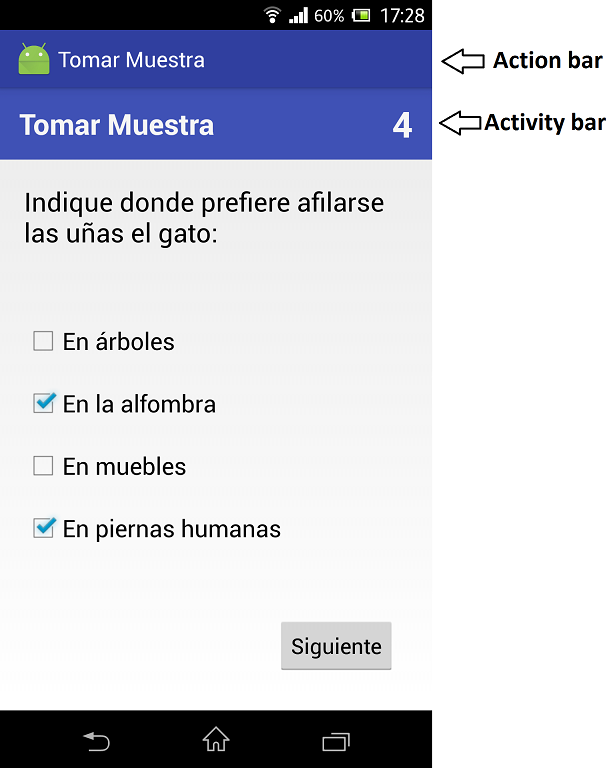
To customize the Styles and Themes you need to override the values contained in the Samplers Framework styles.xml and put your desired values into your app styles.xml.
The activities generated by the framework use the SamplersFrameworkAppTheme Theme wich is based on the android:Theme.Holo.Light.DarkActionBar Theme. You can override this by redefining it in your app styles.xml like this:
<style name="SamplersFrameworkAppTheme" parent="android:Theme.AppCompat.DayNight.DarkActionBar">
  <!-- Customize your theme here. -->
  <!--
    NOTE: you will need to add com.android.support:appcompat dependency to use this example
  -->
</style>
See the Android documentation for more information of Styles and Themes