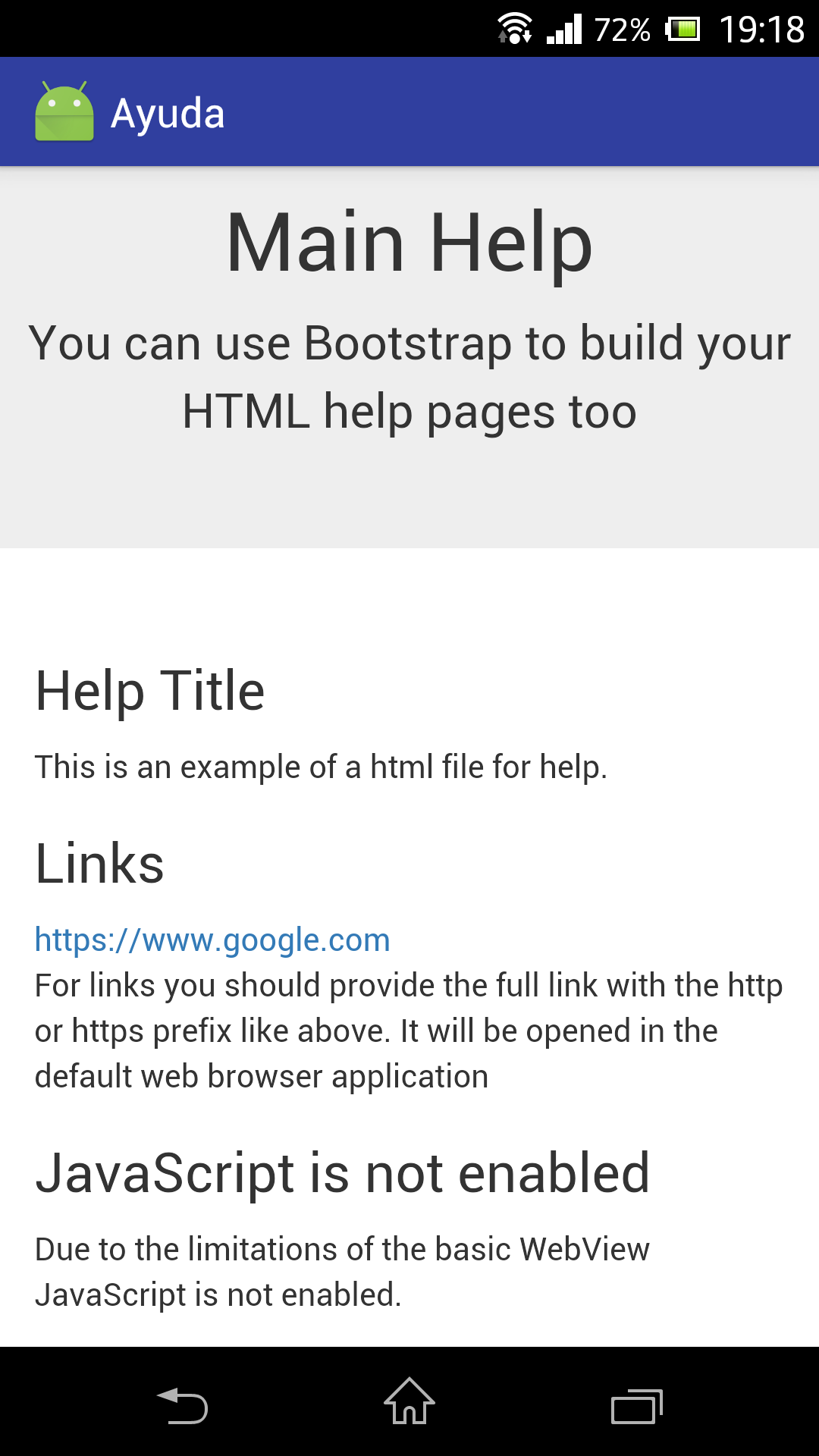
Showing Help
You can show help with Samplers by providing html files containing the help to show. The files must be located with the SamplersConfig.json file.
JavaScript is not enabled: Due to the limitations of the basic WebView JavaScript is not enabled. See the Android documentation of the WebView for details.
Samplers provide two ways for showing help:
- a main help
- an individual help for each step
You need to configure the mainHelpFileName in the application object Example:
{
  "application": {
    "title" : "Samplers Hello World App",
    "welcomeMessage" : "Welcome to your first Samplers App!",
    "networkConfiguration" : {
      "url" : "http://192.168.1.10/samplers/upload.php",
      "paramName" : "sample"
    },
    "googleMaps_API_KEY" : "your_google_maps_API_KEY",
    "mainHelpFileName" : "mainhelp.html"
  }
}
You need to configure the helpFileName in each step object Example:
{
  "id" : 1,
  "type" : "Photo",
  "text" : "Take a photo of your cat",
  "helpFileName" : "help.html",
  "nextStepId" : 2
}
<!DOCTYPE html>
<html lang="en">
<head>
    <title>Main Help</title>
    <meta charset="utf-8">
    <meta name="viewport" content="width=device-width, initial-scale=1">
    <link rel="stylesheet" href="https://maxcdn.bootstrapcdn.com/bootstrap/3.3.7/css/bootstrap.min.css">

</head>
<body>

<div class="jumbotron text-center">
    <h1>Main Help</h1>
    <p>You can use Bootstrap to build your HTML help pages too</p>
</div>

<div class="container">
    <div class="row">
        <div class="col-sm-4">
            <h3>Help Title</h3>
            <p>This is an example of a html file for help.</p>
        </div>
        <div class="col-sm-4">
            <h3>Links</h3>
            <a href="https://www.google.com">https://www.google.com</a>
            <p>For links you should provide the full link with the http or https prefix like above. It will be opened in the default web browser application</p>
        </div>
        <div class="col-sm-4">
            <h3>JavaScript is not enabled</h3>
            <p>Due to the limitations of the basic WebView JavaScript is not enabled.</p>
            <p>See the <a href="https://developer.android.com/reference/android/webkit/WebView.html">Android documentation of the WebView</a> for details.</p>
        </div>
    </div>
</div>

</body>
</html>