Repository navigation
Features Mail
Everything that happens between a message arriving and you being done with it: reading it, finding it later, putting it away, and writing back.
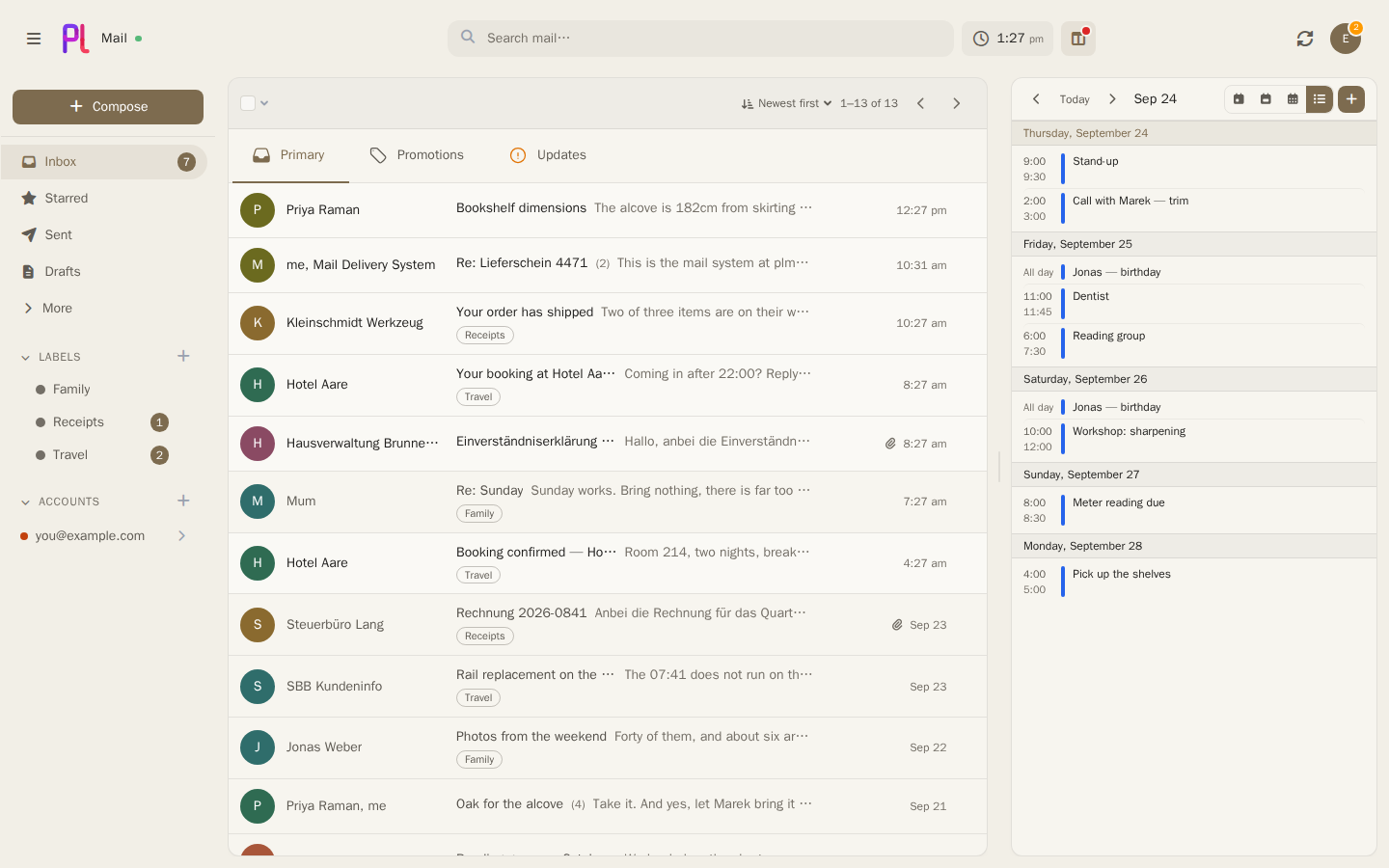
The left-hand rail is organised around labels rather than folders, because one label spans every account you have connected. Clicking Inbox shows the inbox of all of them at once; clicking a label you made shows everything carrying it, wherever it arrived.
| Entry | What it lists |
|---|---|
| Inbox | Everything still in the inbox, across every account, newest conversation first |
| Unread | Every unread conversation in one list, whatever it is filed under — off until you switch it on |
| Starred | Conversations with at least one starred message |
| Snoozed | Conversations waiting for their wake time |
| Sent, Drafts, Trash | The corresponding system label, across accounts |
| Archive | Conversations you archived |
| All Mail | Every conversation outside Spam and the bin, archived mail, sent mail and drafts included — off until you switch it on |
| Accounts | One row per account; clicking it opens that account's inbox |
Every system entry — Inbox, Unread, Sent, Drafts, Snoozed, Archive, All Mail, Trash, and Spam where an account has a junk folder — has an eye in Settings → Labels: switch one off and its row leaves the sidebar, switch it back on and it returns, both straight away. Unread and All Mail are the ones that start off.
Unread gathers unread mail from everywhere — archived and labelled conversations included, with no category tabs — and leaves out only what you have put away: the bin, spam and anything snoozed. Dropping a conversation on it marks the conversation unread and leaves it where it is, which is the quickest way to keep something for later without moving it. Starred takes a drop the same way: the conversation is starred where it lies, and one that already was stays starred.
Clicking an account opens its inbox — the same question the top-level Inbox asks, about one mailbox instead of all of them. Its Sent, Drafts, Spam and Trash are folder rows underneath it, one click further; the account row is not an archive of everything the account has ever held.
All Mail is everything you have, in one list: what arrived, what you sent, your drafts, and above all what you archived, which otherwise has no list to be browsed in. Only Spam and the bin are left out. It is Gmail's All Mail, and like Gmail's it holds your own mail too. Switched on, it is a row beside Drafts for all your accounts together, and a row at the top of each account's folders for that account alone; the account row itself still opens the account's inbox. One eye in Settings → Labels shows or hides both. Archiving or snoozing a conversation from All Mail leaves it in the list, where it still belongs; moving it to Spam or the bin takes it out. A conversation carrying several labels is listed once, and the unread filter counts the same list. Nothing can be dropped on it — there is nothing to move into a list that already holds everything.
Under Accounts, expanding an account shows the labels that actually exist on it. That list is narrower than the sidebar's own label list on purpose: the sidebar means "across every account", and the per-account list answers "what does this mailbox actually have". Which account you left expanded is remembered on the server rather than in the browser, so the sidebar renders already expanded instead of blinking open after the page has drawn.
The Labels and Accounts headings fold away. Collapsing one is remembered against your account rather than the browser, so it follows you to your phone, and it is rendered already folded rather than opening and snapping shut a moment after the page draws. What folds is the whole section — a wall of labels is what pushes the accounts off the bottom of a short window — though a nested label tree still collapses on its own for anyone who nests them.
An unread badge is a link. Clicking one opens that same view with everything already read filtered out — the inbox, Starred, Archive, Spam, Snoozed, or a label, under one account or across all of them — so the number on the pill is the number of rows you land on. That is the point of it being a count of conversations rather than of unread messages: a conversation holding three unread replies is one row, and a badge you click has to say how many rows it will give you.
While a list is narrowed it says Unread only, with Show all beside it, because a filtered list and a genuinely quiet one look identical otherwise. Everything else about the view survives the filter — the account it was narrowed to, the sort order, the tab — so Show all puts you back where you were rather than somewhere adjacent.
Trash and Drafts are not links, and neither is the Labels roll-up. The first two carry a total rather than an unread count, so there is no unread question being asked there; the roll-up stands in for several lists at once and has no single one to open. Unread's badge is not a link either: every row in that list is unread already.
A collapsed Labels heading carries the unread hidden underneath it, as a count of conversations. It is deliberately not the sum of the per-label numbers: a conversation filed under two labels would be counted twice, and the heading would promise more than expanding it could show. Accounts gets no such number, because there is no honest one to give — those counts are per account, and only the account you have expanded is loaded.
Every list pages at fifty conversations. Newer and Older in the toolbar move between pages.
The inbox is split into the five Gmail categories — Primary, Social, Promotions,
Updates and Forums. For a Gmail account plMail trusts Gmail's own CATEGORY_* labels.
For everything else it works the category out from headers that were already stored, which is why
re-categorisation never needs a resync.
The tabs are on the top-level Inbox, and you can have them on an account's own inbox too (click the account in the sidebar): Settings → Mail → Categories, Tabs on each account. It is off until you turn it on, and then an Outlook or any other account has them, tabs of your own included; off, an account's page is its whole inbox in one list. The switch is there only while Inbox tabs is on, and a config backup carries it. A tab is there while it holds mail, and on an account's page it counts only that account's mail — so a tab of yours that holds mail only in another account is not on this one. The account page's tabs are plainer: no "new" pills, sender hints or unread tint, because those add up every account and would describe the wrong mailbox there. Dragging a conversation onto a tab is on the top-level Inbox only.
Switching tabs replaces the entry in the browser's history rather than adding one, as Gmail does, so the browser's Back leaves the inbox instead of stepping back through the tabs you looked at. The same goes for the tabs on an account's page.
If you would rather have one list, switch Inbox tabs to One list under Settings → Categories. The inbox then shows everything in it, newest first, and the tabs are gone along with what belongs to them: the "new" pills, dragging a conversation onto a tab, and the panel that explains why a message was filed where it was.
Nothing is re-filed and nothing is lost. Mail is still given a category as it arrives, so the tabs are right the moment you switch them back on. That also means the assistant keeps reading new mail if you have chosen it below, for tabs you are not shown — the card says so when both are true, and choosing Rules stops it.
Both of those defaults are yours to change, under Settings → Categories.
Sorted by picks what decides. Rules reads headers — a mailing-list header, an unsubscribe link, a sender you have written to before — and answers the same way every time for the same message, without asking a model anything. The assistant has the model read each message and decide what it is for: better at mail that does not announce itself, and occasionally confidently wrong. Anything the assistant has not reached yet falls back to the rules, so a tab fills in as it works rather than being wrong until it does. The assistant option needs mail sorting switched on for the installation and for you, and says so when it is not.
One thing the assistant never overrules: a sender you correspond with stays in Primary. That rule is not a guess about the mail, it is a fact about you, and a model above it would file a colleague under Promotions on one bad afternoon.
It has one limit, and it is there because the rule was too generous without it. Mail that is plainly
a mailing — it carries an unsubscribe link, a mailing-list id, or says outright that it is bulk —
is sorted as one even when you have written to the address it came from. Otherwise a single enquiry
to a shop's info@ about a broken part pins every sale that shop ever sends into Primary, for ever.
A person you correspond with does not send you mail with an unsubscribe link in it; their marketing
platform does, from the same address.
On Gmail accounts decides whether any of that is allowed to disagree with Google. The default keeps Google's categories, because they are already there and two systems sorting one mailbox is worse than either — but if Google sorts your mail in a way you have never liked, this is the switch that lets plMail answer for itself.
Changing either one re-files the mail you already have. It happens in the background — a large mailbox takes a few minutes, so give the tabs a moment to settle — and it costs nothing outside plMail: the category is worked out from data already stored on each message, so nothing is re-downloaded and no model is asked anything. Conversations you moved to a tab by hand are left exactly where you put them.
(app:backfill category still exists and does the same work for every mailbox at once, which is
what an administrator wants after changing the rules themselves.)
Sort recent mail again is a different button, and only appears when the assistant is available. The assistant answers once per message, when it arrives, and keeps the answer — right, because the message does not change. What changes is the question: the prompt is editable, the model is a setting, and what plMail sends the model alongside a message changes between releases. This asks again about your newest 100, 200 or 500 messages.
It is bounded because it costs a model call each — a few hundred is minutes on a warm host, a whole mailbox is hours. Recent mail is where a wrong tab gets noticed anyway. Nothing asks again on its own, and nothing should.
The Tabs card on the same page lists every tab in the order the inbox shows them. Drag one to move it, or use the arrows beside it from a keyboard or on a phone. Primary is always first and always on: it is where the inbox opens and where mail from a tab you switch off goes.
Any of the other four built-in tabs can be switched Off. Forums is the usual candidate — Gmail itself rarely puts anything there. A tab that is off is not just hidden: nothing sorts into it any more, not the rules, not Google's labels and not the assistant, and the mail that would have gone there is in Primary. The Details panel says so on such a message ("it would be Forums, which you switched off"). Switching a tab off or back on re-files the mail you already have, in the background, the same way changing what sorts your mail does; switching it back on brings its mail back, because the category is worked out again from what is stored on each message. A conversation you had dragged into a tab you switch off goes back to being sorted like any other.
The five are what plMail knows how to recognise. If you want a tab for something it cannot — parcels, receipts, one client's mail — add it at the bottom of the Tabs card under Settings → Categories: a name, and nothing else. It goes to the end of the strip until you move it. A tab of your own holds nothing until a filter whose action is File in category puts mail into it, and like the others it only shows in the inbox while it holds mail. A filter files Gmail mail too: Google's categories outrank plMail's own sorting unless you say otherwise, but a filter is something you wrote, and it outranks both.
Mail stays in your tab when the filter that put it there is changed or deleted, as a label stays on mail when its filter goes. Dragging the conversation out, or deleting the tab, is how it leaves.
A conversation is in exactly one tab, so mail filed into yours leaves the built-in tab it would otherwise have been in — a carrier's notice that used to sit in Promotions is in Shipping now, and Promotions counts, shows and badges only what is left. You can also drag a conversation onto a tab of your own, or off one onto a built-in tab, exactly as between the five; a conversation you moved by hand stays where you put it.
The message's Details panel names your tab when that is where the conversation is, and says it was filed there by one of your filters (or, after a drag, that you moved it). Renaming a tab renames it everywhere at once. Deleting one puts its mail back in the tab it would otherwise be in; nothing is deleted.
The Android app shows your tabs as the browser does — in your order, without the ones you switched off — and moves mail between them. Other mail apps that connect over JMAP see what they always did: the five built-in categories, with a conversation in your Shipping tab under the built-in tab it would otherwise be in. Gmail itself knows nothing of your tabs.
Open a message's to … dropdown and the bottom row asks whether it is in the wrong tab. Pick where it belongs and press Report. Nothing moves — this is not a way to file a message by hand, which is what dragging a conversation onto a tab is for — it records the DECISION so somebody can work out what needs changing.
What is kept is the evidence: what Gmail, the rules and the assistant each said, which bulk headers the message carries, who sent it and the subject. Not the body — it is the most sensitive part of a message and the least useful here, since most marketing mail has no plain-text part at all.
An administrator finds the collected reports in Admin → AI, with a button that copies them as text. That text is the point: it is what you hand to whoever is going to change a rule, the prompt or the model.
Watch it in the topbar. The run appears in the background-work indicator beside the search box, with a count as it goes and a note if it fails — the same place a "mark all read" over five thousand messages reports from. You can close the settings page; it carries on.
Upgrading from before 0.2: the assistant's verdict used to be consulted as a silent tie-break — used only where the rules found nothing, with no way to see it, prefer it, or switch it off. That is now what choosing The assistant means, and Rules means what it says. If you had mail sorting switched on and liked what it did, pick the assistant.
Each tab reads the way Gmail's do: an icon — filled in on the tab you are on — and, while a category holds mail you have never been shown, a "3 new" pill in that category's colour with a second line naming who that new mail is from, newest arrival first. "New" and "unread" are different questions, so a tab carries two numbers: the pill says what arrived that you have never been shown, and a plain unread count beside the tab's name says how many conversations in that category hold unread mail. The count is the sidebar's Inbox badge split by tab, so the tabs add up to it; it shows on every tab including the one you are on, and is hidden at zero. It can be switched off under Settings → Appearance → Message list. (Earlier versions kept this number off the tabs, on the argument that the badge and the bold rows already say unread. They cannot say where: with the Inbox badge reading 1 and Primary open and empty, nothing on the strip pointed at the tab holding the mail.) The strip is live — pills, counts and sender names update in place when mail arrives, without waiting for a reload, and a hint is retired the moment you look at its tab.
A tab holding unread mail also wears its category's colour on the icon. Not the tab you are on — its mail is already in the list underneath it, and the tint is there to point at what you cannot see. The colour says there is something here; the count beside the name says how much.
It matters most under Unread only, where the strip is otherwise mute — every row on screen is unread, so boldness no longer separates anything, and the sidebar's Inbox badge is a single total that cannot name the tab its mail is sitting in. Without the colour a full tab looks exactly like an empty one and the only way to find the mail is to click each tab in turn. It is drawn on the ordinary inbox too, so the strip means the same thing wherever you meet it.
A conversation you have moved to the bin stops counting towards it, the same way it stops appearing in the list, so a coloured tab always opens on mail.
Open a message's Details panel to see why it is where it is. The first row is the tab the conversation is actually in; below it, what each of Gmail, the rules and the assistant said, with the one that decided marked — the three disagree more often than you would think, and seeing which one won is the difference between changing a setting and changing nothing.
Two things the panel will tell you that are easy to mistake for bugs. A conversation takes one category, from its newest message, so a reply can carry the whole thread out of the tab an earlier message belongs in; the panel says so when that has happened. And a category you set by dragging the conversation onto a tab holds against everything else, which the panel also says.
If it is simply wrong, Report at the bottom of the panel says where it should have gone. That goes to your administrator under Reported mail, with the three verdicts and the evidence behind them — which is what a rule or a prompt gets changed on the strength of. It sends the sender, the subject and the decision; it does not send the message.
A conversation is new until its row has been shown to you. Not opened — shown. Scroll past something in the inbox and never click it and the badge goes, because you have stopped being surprised by it; the conversation is still unread, because you still have not read it. The two are different questions and plMail keeps both answers.
It shows as a filled New pill beside the sender on the row, as a "3 new" count pill on the inbox category tabs — the Gmail hint — and as a quiet dot, no number, on the sidebar's labels and roles and on Starred. Pill and dot both mean "something arrived here", which is what an unread count does not say.
Nothing stays new for longer than 24 hours after its last message, whether or not you ever saw the row. A marker you can only clear by looking at every row is a debt rather than a marker, so it expires on its own.
Search results retire the badge too: a row whose sender and subject you have just read in a result list has been shown, whichever list it was.
plMail reads certain facts out of mail as it arrives: parcel tracking numbers from shipping confirmations, flights from airline bookings and check-in mail, event tickets, issue and pull-request activity from GitHub notifications, one-time login codes, invoices with an amount and a due date, and subscriptions about to renew or trials about to run out. Each find becomes a small card. Dated ones queue up in the calendar's Happening Soon panel, under On your radar; a conversation that yielded something also shows its cards in a Found in this conversation strip above the messages.
A shop that never names a carrier still yields a parcel. Amazon states an order number and a link into its own tracker and no tracking number anywhere, so that is what the card carries — and a delivery day promised in words rather than digits ("arriving today", "Arriving Monday") is resolved against the mail's own arrival, never against the clock, so re-reading an old mail lands on the day it always did. "Today" is the day it was on your calendar when the mail came in, in the timezone from Settings → General (or the install's default if you never picked one), so a mail that arrives early in the morning in Sydney or in the evening in Los Angeles is not put a day off. The Amazon shops read are amazon.de, amazon.com, amazon.fr, amazon.co.uk, amazon.ca, amazon.com.au, amazon.in and amazon.sg, and a card's button opens the shop that sent the mail. A date written with slashes, such as "23/10/2026", is read day first from the shops of countries that write it that way, and only with the year; from amazon.com and amazon.ca it is not read at all, because the month may come first.
The French carriers are read too — Colissimo, Chronopost, Mondial Relay, Colis Privé, DPD France, GLS France (the eight-character code under "Numéro de colis") and Cainiao, with Amazon.fr treated like the other Amazon shops. A parcel waiting at a relay point or a locker is its own stage, Ready for pickup, neither on its way nor delivered, and once its recipient has collected it ("Votre colis a été retiré", "récupéré par son destinataire") it is Delivered. The Pickup relay network (network1.pickup.fr, network2.pickup.fr) is read too, but it hands over the parcels of several carriers, so its address names none of them: a card takes its carrier from the sender's name when that starts with Chronopost or Colissimo, and is headed Pickup with no carrier and no tracking link otherwise. Not read yet: the "returned to sender" and "delivery attempt failed" stages. The satisfaction survey a carrier sends after delivery is ignored, so it cannot turn a Delivered card back into something else. A parcel is only Delivered when the mail says it happened: "will be delivered", "scheduled to be delivered" or "when it's delivered" are about a delivery still to come. And a number labelled as something else, such as "Order number", "Reference" or "Bestellnummer", is not taken for a tracking number even when it has the same shape.
Dated insights also appear as a band directly above the mail list — up to three of them, soonest first, each with what it is, when it is, and the one button worth having (Track package, or the thing on GitHub). It is the same set the radar panel holds, said where you already are: the panel answers "what is coming up?" for someone who went looking, the strip tells you a parcel is out for delivery when you did not.
The band updates itself. A sync that finds something new refreshes it in place, with no reload and no page you have to be on.
The ✕ on the band means "not now", not "never". Dismissing it hides the strip until an insight
it has never shown you is extracted — a parcel that ships tomorrow brings it back, while the one
you just waved away stays gone. Dismissing a single card through its ⋮ menu is the permanent
one, and when the last card goes the band goes with it. To be rid of it altogether there is a
switch under Settings → Insights; switching it off hides the band only — the facts are still
read, and still reach the radar panel and the conversation strip.
The band takes height and never width: no pane gives up a pixel for it, it is only fetched after the mail is on screen, and on the ordinary day when there is nothing to say it is not there at all.
Extraction is deterministic and local. It runs on your own server against sender domains, headers
and regular shapes — tracking numbers, flight codes, #123 — with no cloud service and no model:
nothing guesses, and a mail that matches no known shape simply yields nothing. That is a deliberate
trade — the radar would rather miss a parcel than invent one.
Every source has its own switch under Settings → Insights. Switching one off stops new cards from that source; what it already found stays until dismissed. The set of sources is extendable by design — an extractor added to a build lists itself on that settings page and starts running, without anything else changing.
New extractors do not re-read old mail on their own. app:backfill insights hands mail already in
the database to every enabled extractor. It reads the last 24 hours unless told otherwise:
--since=7d, --since=2026-09-01 or --since=all go further back.
One-time codes are the one source with an expiry rather than an occurrence. A code's card carries the moment the mail says the code stops working — "valid for 10 minutes", "gültig bis 09:30" — so it drops off the radar when it goes dead instead of sitting there looking usable. When the mail states no lifetime, the card carries no time at all: guessing ten minutes would either retire a code that still works or, worse, keep a dead one looking fresh. The radar still offers such a code, but only for fifteen minutes after its mail arrived; the card above the mail itself keeps it.
Because nothing guesses, a mail in a shape nobody has written a parser for yields nothing at all,
and it looks exactly like a mail with nothing in it. Report a missed insight, in a message's
⋮ menu, is how you say which of the two it was. A short dialog asks what plMail should have
spotted — "this is an invoice, due on the 3rd" — and files the report.
Reporting passes the mail on. The report carries a copy of the mail: sender, subject, arrival time and the first stretch of its text, along with your note. That copy lands in an area your administrator can read and download, and the dialog says so before you send it, because a parser can only be written from the shape of a real mail. Report the mail whose shape you want recognised, and not one whose contents you would not hand over.
Reporting the same mail again does not file a second report — it corrects the first, with your note as it stands ready to edit. What the administrator does with the pile is under Admin → Reported mail.
Replies collapse into one conversation, ordered oldest to newest with the latest message expanded. Each message has its own menu: Star, Archive, Mark as unread, Delete this message, Print, and Show original.
Show original reconstructs the message from the stored header map and the decoded body — no
raw RFC 822 blob is kept — and prints the SPF, DKIM and DMARC verdicts alongside it where the
provider recorded an Authentication-Results header. Both it and Print open in their own tab.
HTML bodies are rendered inline rather than in an iframe. Before that happens the body is put
through a sanitiser once, at ingest: cid: references are rewritten to plMail's own attachment
route, <style> blocks are flattened onto the elements they applied to, and scripts, forms,
iframes and classes are dropped. Links are forced to open away from the app.
Where the assistant is switched on — by an administrator, and by you in Settings → Assistant — a conversation of two or more messages carries a Summarise this conversation button at the right-hand end of its subject line. Nothing is summarised until you press it, and until you do there is no summary to look at: the card appears above the messages when you ask for one, and not before. A summary is the most expensive thing plMail asks of a model: expect around a minute the first time after a quiet spell, and around half that afterwards, with the text arriving a few words at a time so you can see it working. Stop ends it and keeps nothing.
The summary is written from the messages themselves and nothing else — not from your notes in Settings → Assistant, which are for how you want to be written for and have no business shaping a description of somebody else's mail. A German conversation gets a German summary.
There is a limit on how much of a conversation goes to the model at once, and it is not plMail's choice: a model can only hold so much text at a time, and anything past that is dropped without a word — so a summary of a conversation that overran would quietly describe whichever end happened to survive. Rather than let that happen silently, plMail trims first and says that it did.
Two kinds of trimming, and the card names either:
- A long conversation is summarised from its opening and its most recent messages, and the middle is left out with a note saying how many messages it was.
- A single enormous message — a chain that has been forwarded and quoted a dozen times is one message, not a dozen — is cut short.
When either happens, the card says "This conversation was too long to send in full, so the summary was written from part of it", with Summarise the whole conversation instead underneath.
That second button does what it says: it sends everything and asks the model host to make room for it. Expect it to take noticeably longer — minutes rather than seconds on a long thread — and expect it to ask more of the machine running the model. Nothing is remembered, so it applies to the one summary you asked for and no others. If the conversation is so long that even this cannot hold it, you still get a summary, the note stays, and the button withdraws rather than inviting the same wait twice.
It runs in the background, and you do not have to wait for it. The card says it is queued and then you are free: close the conversation, go to another one, close the tab entirely. The summary is written by a worker and stored when it is finished, and it will be on the card the next time you open the thread — or it will appear there by itself if you are still looking at it.
That is not a convenience, it is the only way it works reliably. An ordinary summary is quick enough to watch arrive, so it streams. A full one is silent for minutes while the model reads, and a browser connection held open across that silence has a proxy, a network and a sleeping laptop in it — any of which can end it without telling anyone. Handing the work to a worker removes the dependency rather than trying to outlast it.
If the connection drops while it is being written, it is finished anyway. Reload the conversation and the summary is there. That covers a laptop closing, a network dropping and a reverse proxy giving up on a slow response — none of which plMail can see, and all of which used to throw the work away at whatever point they happened. Opening another conversation or closing the tab counts as leaving, not as saying no, so that summary is finished and waiting too. Only Stop ends the run and keeps nothing.
Once written, it is kept and shown the next time the conversation is opened, at no cost. If a reply arrives afterwards, the summary is shown greyed with a note that the conversation has changed and a button to write a new one — reading, starring or labelling the conversation does not do that, only the messages themselves changing.
It is a model's account of the mail, not the mail. The line under it says so, and the messages are directly below.
Labels are yours to create, from Create label in the sidebar or Settings → Labels. A label has a name, one of nine colours — gray, red, orange, amber, green, teal, blue, violet or pink — and optionally a parent, which is how nesting works. A label can be hidden from the sidebar without being deleted.
Creating a label does nothing at the provider. Gmail gets it the first time the label is actually applied to a message; plain IMAP never gets a folder created for it, because a folder only matters when a message physically moves. Mirroring structural changes — renames and deletions — outward is off unless you switch it on per account; see Accounts and aliases.
Deleting a label removes it from every account, and takes any nested labels with it. Messages are not deleted; they keep their other labels. You can delete one from the sidebar's own label dialog as well as from Settings → Labels, and the dialog says plainly that the label goes from every account and how many nested labels are going with it — rather than asking you to agree to something whose reach it has not mentioned.
When the label is a folder on your mail server — any folder on a plain IMAP account, or a mail folder on Outlook — the folder is deleted there as well, so the next sync does not bring the label back. A folder cannot be deleted with mail still in it, so if there is any, the dialog asks where it goes first: Inbox, Archive, Trash, or one of your other folders. The mail is moved, the folder is deleted once the server says it is empty, and only then does the label go. This runs in the background and shows in the activity indicator, which says which folder it is waiting for. If the server still holds mail plMail never imported, nothing is deleted: the folder and the label stay, and the indicator says which folder it was. If the server refuses to delete the folder, the job stops at once with the server's reason, and the label stays. A folder whose mail plMail is still importing cannot be deleted until the import has finished; the dialog says so. A Gmail label or an Outlook category is a tag rather than a place, so deleting one asks nothing and moves nothing.
The folder button — beside Delete in the toolbar above a selection, and beside the label button in an open conversation — files mail under one label in a single step: the label you pick goes on, and the label of the list you were looking at comes off. Every other label stays.
| Where you are | What "Move to Receipts" does |
|---|---|
| Inbox | Adds Receipts and archives the conversation |
| A label | Swaps that label for Receipts |
| Trash or Spam | Adds Receipts and takes the conversation out of the bin and out of spam — without putting it back in the inbox |
| Anywhere else — search, Starred, Sent | Adds Receipts, and takes the conversation out of the inbox if it was in it |
The picker offers the Inbox, your labels, Spam and Trash. Picking one applies it at once; there is nothing to confirm. Inbox brings a conversation back and removes the label you were in; Spam and Trash do what their own buttons do. The list you are already in, any label the conversation already has, and Trash or Spam for mail that is already there, are left off the picker.
This is not the same as dragging a conversation onto a folder under an account, which puts it in that folder and takes it out of every other one. Use the label button when you want to add a label and leave the mail where it is.
Moving, labelling and archiving each show an Undo for a few seconds. It puts back exactly the labels each conversation had before, which for a mixed selection is not the same as reversing the action: an already-archived conversation that was ticked along with the rest stays archived. Undo is not offered when the action ran over a whole view in the background.
The search box is at the top of every page and answers at /mail/search. Free text runs as a real
full-text query against Postgres — stemmed and ranked, not a substring scan — and combines with
any operators you type. Hostnames and addresses are indexed by their parts, so wirhub finds a mail
whose body only ever says help.wirhub.de.
| Operator | Takes | Matches |
|---|---|---|
from: |
a name or address | sender address or display name |
to: |
an address | the To list |
cc: |
an address | the Cc list |
subject: |
words | the subject line |
label: |
a label name | a label you made |
has:attachment |
— | also accepts has:attachments
|
is:unread, is:read, is:starred
|
— | read state and stars |
in: |
a mailbox name | see below |
after: |
a date | received on or after |
before: |
a date | received before |
in: accepts inbox, sent, drafts (or draft), trash (or deleted, or bin), junk (or
spam), archive (or archived) and snoozed. Quoted values are kept together, so
from:"Ada Lovelace" works.
Suggestions appear as you type, and so do actual results — the ten most recent matching conversations, under the operator suggestions, from about the third character. They are a preview rather than the answer: they run only the passes that are fast enough to spend on every keystroke, so a match that exists only as a fragment in the middle of a word in a long body will not be among them. Pressing Enter runs the complete search, which is where those live.
The preview steps aside entirely once your query carries an operator. It cannot honour is:unread
or label:, and ten unfiltered rows under a filtered query look exactly like ten honoured ones,
which would be worse than showing nothing.
Operators are completed from the list above; from:, to: and
cc: complete against your own harvested contacts, because remembering how a sender spells their
name is usually the reason you opened the search box. Enter takes the highlighted suggestion when
the list is open and submits otherwise, Tab takes it, arrow keys move through it, and the first
Escape dismisses the list while a second clears the box. The last eight searches are kept in the
browser and offered when the box is focused and empty.
An operator plMail cannot honour — is:important, in:nowhere, a date that is not a date —
becomes plain text rather than being dropped. That is deliberate: a dropped filter is a filter you
asked for and did not get, and the result would be a page of everything that reads as though the
search had been ignored. As free text it finds little or nothing, which is at least the truth.
A query that is nothing but a half-typed operator — from: with no value — returns an empty page
rather than the whole mailbox.
A result row shows you why it is there. Every occurrence of your words is marked in the subject
and in the preview, and the preview is a window of the message around the match rather than its
opening line — which is usually somewhere else entirely, and is what the row used to show. The
marking follows the same stemming the search does, so a search for running marks run.
A row that matched on something the preview cannot show — the sender's name, a word only in the
subject, or a meaning match with none of your words in it — keeps the ordinary preview. So does
every row when your query is only operators: is:unread has no word to mark.
Results are Most recent first. The switch beside the pagination changes that to Most relevant, which is full-text rank — the best match leads, whenever it arrived. Whichever you pick is remembered for your next search, and paging keeps it. Switching orders starts again at the first page, because page four of one order is page four of nothing in the other.
If an administrator has switched Search by meaning on, one more pass runs beside the words: your query is turned into a vector and compared against the mail that has been indexed. It only ever adds results — the ordinary search is unchanged, and nothing it finds displaces anything the words found.
Rows it brought in on its own carry a small meaning badge. That badge is the answer to "why is this in my results when it does not contain what I typed" — a row the words found is never badged, even when the meaning pass would have found it too.
Under the box, one quiet line says what that pass actually did, and it is worth reading before judging the results:
| What it says | What it means |
|---|---|
| Searching meaning across 4,120 of 48,900 messages — 8% complete | The index is still being built. Anything it has not reached cannot be found by meaning yet, so the answer will get better on its own. |
| The search model changed… | Every vector stored before the change belongs to a different model and cannot be compared with the new one. Nothing is searched by meaning until the mailbox has been indexed again. |
| The model took too long… / the model host did not answer… / does not have the search model… / no model host is set up… | The pass never got a vector, and the sentence names which of those it was. All four are about the model host; the search itself was never asked to run. |
| Searching by meaning took too long here… | The vector arrived, and the database gave up scoring it inside its five-second budget. Nothing is wrong with the model host — this one is about the mailbox being larger or the machine busier than the budget allows. |
| Searching by meaning could not be completed… | The scoring query failed outright rather than running out of time, so it will fail on every search until somebody looks. The reason is in the server log, at error level, with its SQLSTATE. |
| …so this search used words only (any of the above) | Whatever the reason, your results are the ordinary search, complete and correct. Only the extra pass is missing. |
| found nothing the words had not already | It ran, over a finished index, and had nothing to add. |
The difference between the first and the last is the one that matters: "not yet" and "there was nothing" produce the same list and mean opposite things. Nothing is said at all while the feature is switched off, because then the ordinary search is not missing anything.
Building that index is one pass over the mailbox and an administrator starts it — see Administration.
Search only covers mail that has been synced. plMail syncs everything an account holds and there is no setting that bounds it, so a large mailbox is searchable in full a few sync runs after it is added rather than immediately; see Accounts and aliases.
Row buttons and the toolbar do the same things, the toolbar over everything selected. Above a selection it shows Archive, Delete and Move to; star, mark as read or unread, snooze, label and spam are behind More beside them. Select all has a menu beside it offering All, None, Read, Unread and Starred.
A selection belongs to the list, not to the page: what you tick stays ticked when you go to the next page, and the number beside the actions counts all of it. On a list longer than a page the menu also offers All … in this view, which selects every conversation in it. None clears every page, and going to a different list starts with nothing selected.
Star, Archive, Delete, Label as, Mark as read / Mark as unread and Snooze all apply to a whole conversation or to a single message, and all of them travel outward to the provider as well as changing what you see here. Archiving is modelled as removing the Inbox label and nothing else — where the message lands afterwards is the provider's business.
Refresh in the toolbar queues a sync for every active account you own and spins until those jobs have drained.
On a phone the same sync is a pull: drag the list down from its top, past the indicator's Release to sync, and let go. The sync button at the top of the screen spins while it runs, and the indicator spins with it. Without touch, the sync button is the equivalent: it is a named button for a keyboard or a screen reader, and the sync toast says when the run starts and when it ends.
The single keys Gmail uses work here too. Press ? anywhere for the full list, or the keyboard button above a mail list; the ones worth knowing first:
| Key | Does |
|---|---|
j / k
|
Move down and up a list. With a conversation open, open the next or previous one. |
o or Enter
|
Open the highlighted conversation. u goes back to the list. |
x |
Select the highlighted conversation. * then a selects the page, * then n clears. |
e · # · !
|
Archive · delete · mark as spam. |
s · Shift+i · Shift+u
|
Star · mark as read · mark as unread. |
l · v · b
|
Label as · move to · snooze. |
r · a · f
|
Reply · reply to all · forward, in an open conversation. |
c · /
|
Write a new message · search. |
g then i s t d a
|
Go to the Inbox, Starred, Sent, Drafts, Archive. |
z |
Undo the last action, while its notice is still showing. |
What a key acts on: whatever is selected; if nothing is, the conversation that is open; if none
is, the highlighted row. So e with three conversations ticked archives those three, wherever the
highlight happens to be.
A key does exactly what the button it stands for does, including the Undo that follows, and does
nothing where that button is not offered — there is no Archive in the bin, so e is silent there.
Keys are left alone while you are typing into anything, while a dialog or a menu is open, and
whenever Ctrl, Alt or ⌘ is held.
They are on for everyone. Settings → Keyboard shortcuts switches them off for you.
The spam button sits beside Delete: among a row's buttons, in the toolbar of an open conversation, and under More above a selection. On one conversation it opens a short menu:
| Choice | What it does |
|---|---|
| Move to Spam | Moves this conversation to the account's spam folder, and nothing else |
| Always move this sender to Spam | The same, and creates a filter for the sender's address |
| Always move this whole domain to Spam | The same, and creates a filter for everything after the @
|
The first two act at once. The domain filter asks once more before it does anything, because it catches addresses that have never written to you. Where the domain belongs to a mail provider — gmail.com, gmx.de, outlook.com and the like — that choice is not on the menu until you press More options, and then still asks: a filter on such a domain sends a good part of anybody's address book to spam.
The sender is whoever else wrote most recently in the conversation; your own replies are skipped. A conversation that holds only your own mail offers the move and no filter.
The filter is an ordinary one. It appears under Settings → Filters, named after what it matches, and can be edited, switched off or deleted there like any other — see Filters. It applies to mail that arrives from now on, in every account; pressing the button again on the same sender does not create a second one. Undo in the toast puts the conversation back and takes away a filter the same click created.
Above a selection the button moves everything selected to Spam and offers no filter: a selection has no one sender. The button is not shown for mail that is already in Spam or in the bin.
Moving mail to spam tells plMail nothing about the next message. plMail has no spam filter of its own that learns; whether your provider treats the move as a signal is up to the provider. A filter is how you make it stick here.
Mail in Spam, and in the bin, can be deleted for good — the only deletion in plMail that is not a move. There is no Undo, so the buttons that do it are off until you turn them on: Settings → Mail → Disposal, Delete-now buttons. It is a choice you make for your own account, and a config backup carries it.
With it on, each row in Spam and the bin has a Delete forever button (the flame) beside Move to inbox, and it asks first. Nothing else can be deleted for good: a conversation in the inbox or the archive has to be thrown away once before this is offered, because there is no Undo to catch a slip.
In Spam and in the bin, the toolbar above a selection has the same Delete forever in place of Delete. In Spam that makes a page of spam one click and one question rather than a trip to the bin and a second deletion there; in the bin a Delete could only trash mail that was already trashed, so it would take the rows off the list and leave the mail where it was. The question says how many conversations it is about. It is removed from the mail server too, not only from plMail, and it cannot be brought back — Move to inbox is the way out beforehand.
With it off, Spam keeps its ordinary Delete, which moves the mail to the bin, and the bin has no Delete above a selection at all: mail already in the bin cannot be trashed again, and Move to inbox is the way out of it. Switching it off again takes the buttons away at once. The server refuses a request to delete for good while it is off as well, so it is the choice that decides, not only what is drawn.
To empty Spam or the bin, tick All, take the Select all N it offers, and press Delete forever. The question then names the whole count, not the rows on the page. A folder is emptied in the background, with the same progress indicator as any other action over a whole view, and a conversation moved back to the inbox before the job reaches it is left alone. Only Spam and the bin can be emptied this way; a search or a label cannot.
# presses Delete. With the switch on, that button is not there above a selection in Spam or the
bin, so # does nothing in those places; the flame, with its question, is the one way to delete a
selection there. With it off, # works in Spam as it does elsewhere, and does nothing in the bin,
which has no Delete.
Settings → Reading pane decides where the message you open goes: Off or Right. Off is how plMail has always worked — the list and the open message take turns on the same space, and the back arrow returns you to the list. Right puts the message beside the list, so you can read one conversation and see the rest of the mailbox at the same time. Off is the default, and nothing about your mailbox changes until you pick Right.
With the pane on the right, the list stays where it is when you open something. The open row is marked with a tint and a bar on its leading edge, and the area beside the list says Select a conversation to read it here until you open one. The back arrow closes the message and leaves the list as it was.
The open message also stays put while you move around the list. Choosing another folder, switching a category tab, turning the page, sorting or searching changes what the list shows and leaves the conversation you were reading where it is, so you can look for the next one without losing this one. No row is marked while the list shows a folder the message is not in, and the mark comes back when you return to its folder. The back arrow then closes the message and leaves you on the folder you switched to. With one pane at a time (see below) the message has covered the list, so choosing a folder closes it and shows the new list, as it always did.
The divider between the two is dragged with the mouse, or moved with the arrow keys once it has focus (two percent a step; Home and End go to the ends). A double-click puts it back to the default. What is stored is the message's share of the mail card — the list and the message together, without the sidebar or a docked calendar — as a percentage between 25 and 75, 55 to begin with. It is a percentage rather than a width in pixels because the card changes size whenever the calendar pane opens, closes or is dragged, and a share keeps its meaning across all of those. It is remembered for your account, not for the browser. It is set on the mailbox itself, against real mail, and there is no slider for it in Settings.
It steps aside when there is no room. Right is a preference, not a promise: it is drawn only while the mail card is at least 52rem (832 pixels at the default text size) wide. A narrow window, a phone, or a wide window with the calendar docked beside the mail all fall back to one pane at a time, with no setting to change. Each pane also keeps a minimum width, so a share of 75% on a card only just wide enough gives way before the list becomes a sliver.
The reading pane is not part of an exported theme, although it changes how the mailbox looks: where a message is drawn is a decision about the mailbox, not part of a look somebody might share, and importing a colour scheme does not rearrange the mail it lands in. Reset to defaults on the Appearance page leaves it alone for the same reason. A config backup does carry it, so a restore puts the mailbox back the way you had it.
Keys and ticked rows. Beside the list a selection and an open conversation can be on screen
together. A key still goes to the selection first: e with two rows ticked archives those two and
leaves the conversation you are reading open.
Pictures that a message loads from the sender's servers are blocked until you ask for them: a picture fetched when you open a message tells its sender that, and when, you read it. The message says how many it held back, with two ways to show them — Show images for this message only, and Always show images from the sender, which remembers that sender for your account. A trusted sender's messages say so under the body, with Stop showing to take it back. Mail you sent yourself shows its pictures without asking.
Settings → Mail → Images, Always show remote images, turns the question off for every sender. It is off until you turn it on. Senders can then tell that you opened their mail, but not your address: the pictures are fetched by plMail and passed on to you, never by your browser. The senders you trusted one by one are kept either way, so switching it off again brings back exactly the list you had. A config backup carries the choice.
Mail in Spam stays blocked whatever you choose, trusted senders included: a message filed as spam is your provider doubting it comes from who it says, and Show images is still there to load one message's pictures by hand.
Snoozing is archiving with a timer. The conversation leaves the Inbox now — at the provider too, not only in plMail's view of it — gains the Snoozed label, and comes back when its time is up. The clock button is on every row and in the toolbar of an open conversation; above a selection it is under More.
The menu offers Later today, Tomorrow, This weekend, Next week, Pick a date and time, and Unsnooze on something already snoozed. Later today is 18:00 and is offered only while that is still ahead; the other three land at 08:00 on the next day, the coming Saturday and the coming Monday. All four are computed in your browser, because the server never sees a timezone for the session and would otherwise resolve "tomorrow morning" to wherever the container thinks it is.
app:mail:wake-snoozed runs every minute and is what brings conversations back. A woken
conversation is marked unread — that is the point of the feature, since a thread returning in
the state you left it in is one you have already learned to scroll past. The read state it had is
genuinely lost.
The Snoozed list is ordered by the conversation's last message, like every other list, rather than by wake time.
Attachments show as chips under the message, with a preview for images. Clicking one downloads it; only images are ever served inline, so email-supplied HTML can never run on plMail's own origin.
A PDF opens in a reader instead of downloading — pages, zoom, and the download button still there in the toolbar. The document is drawn by plMail's own code in your browser rather than handed to the browser's PDF plugin, which is what keeps the rule above intact: the file is still served as an attachment, and nothing in it gets to run on plMail's origin. Nothing is sent anywhere to make this work; the reading happens on your machine.
Sign in the reader's toolbar opens a pad. Draw your signature with a mouse, a trackpad or a finger, press Place on page, and drag it where it belongs — the corner handle resizes it. Then either Reply with signed copy, which opens a reply with the signed file already attached, or Download signed copy.
Two things are worth being plain about.
This is a visual signature. It is a picture of your name drawn onto the page, exactly as if you had printed the document, signed it and scanned it back in — and it is worth precisely as much as that is. It is not a digital signature in the cryptographic sense: there is no certificate, nothing is registered anywhere, and it does not prove the document was unaltered afterwards. If you have been asked for a qualified electronic signature, this is not it.
The document never leaves your browser to be signed. The stamping happens on your machine, and plMail's server only sees the result if you choose to reply with it. Nothing is uploaded to a signing service, because there is no signing service.
Save it once instead of drawing it every time. Settings → Profile has a pad beside your picture; draw your signature there and the reader gains a Use saved signature button that places it without asking you to draw again. It is stored as an image belonging to you, served only to you, and you can remove it from the same place. It changes nothing about what the signature means — it is the same picture of a name either way.
A PDF that is password-protected cannot be signed here — the reader says so, and reading it still works. Editing one would mean stripping the protection it was given, which is not a decision plMail should make quietly on your behalf.
Save to on an attachment pushes it out to a connected service — see Files and integrations. This works for Gmail and Microsoft messages whose attachment has never touched plMail's disk; it is materialised on first access.
Compose opens a window docked at the bottom right. Replying from inside a thread opens the editor at the foot of the conversation instead, on a wide screen; below that it falls back to the dock. Either way the window offers rich text, contact autocomplete on the address fields, and a From selector listing every active account and every sending alias on it. A reply opens on the address the mail was sent to; see Accounts and aliases.
Autocomplete only ever offers your own harvested contacts. On an install with more than one person, nobody's correspondents are visible to anybody else, and an address belonging to another account cannot be put on your draft by any route.
Attach files takes files from your machine, capped at 25 MB per file. Attach from a service opens the file picker for any connected service plMail can download from.
Drafts save themselves two seconds after you stop typing, and a draft is created once there are at least five characters of body or a subject — a subject typed on its own is worth keeping. Closing the window, popping it out, or attaching a file all force a save first. Below that threshold, leaving the page interrupts rather than losing what you typed. The trash button in the compose window genuinely deletes the draft rather than closing the window on top of it.
On a phone the toolbar wraps rather than scrolling out of reach, and the send pill moves up into the window's header, where the old button used to be.
The smiley opens the full Unicode set, with categories, search, skin tones and the ones you have used recently. Picking one inserts it where the caret was.
It only ever inserts on a pick. Typing :) or :smile: leaves :) and :smile: in the
message, byte for byte — plMail does not rewrite what you type into pictures.
Search is in the language the window is in, because the emoji data is shipped per locale rather than fetched. Both the data and the colour emoji font are served by plMail itself; nothing is loaded from a CDN at runtime, so the picker works on an install with no outbound internet access at all.
The image button, a paste, and a drag-and-drop onto the editor all do the same thing: the picture goes into the body, where you placed it, rather than beside the message as an attachment. Same 25 MB ceiling as an attachment, and only images — anything else is refused with a reason on the status line.
Inline images travel as cid: parts of the message, which is what every mail client can resolve, so
the recipient sees the picture rather than a broken link back into plMail. They are not attachments
and are not counted as any: a message whose only picture is one you placed in the body carries no
paperclip.
The link button opens a small panel with a URL field and a text field, the text prefilled
from whatever you had selected. A bare example.com is understood and stored as https:// — it is
not a path inside plMail. Only web, mail and telephone addresses can be linked; anything else is
refused there and then rather than being quietly dropped when the draft saves.
Clicking a link already in the editor shows the panel's other face: the address, and Open, Change and Remove. It dismisses on Escape, on a click outside, and as soon as the caret moves off the link.
Signatures live in Settings → Signatures. Each account has one, and any of its sending addresses can override it. Three states matter, and they are not the same:
| State | What that address signs with |
|---|---|
| Inherits | The account's signature. This is what an address does until you say otherwise. |
| Its own | Whatever you wrote for that address, instead of the account's. |
| Deliberately nothing | Its own signature, left empty. The address signs with nothing even though the account has one. |
The last two are both "an override"; the difference is whether the override is empty. That is why an empty box is not read as "inherit" — a personal alias that signs with nothing on a work mailbox that signs with a block is the whole reason the setting exists.
In the compose window the signature is inserted for you, above the quoted text, on a new message and a reply, with an empty paragraph in front of it so the caret starts in the writing space rather than inside the sign-off. A forward is deliberately unsigned — its content is the mail being passed on, and the caret starts in the To row, since the recipient is the one thing a forward cannot leave without; Insert signature adds the block when you want it. That button replaces the block in place instead of adding a second one, and so does changing the From account: the signature block is swapped and a paragraph you have already typed survives the change.
A signature you already have as HTML — from a generator, a brand guide, another mail client —
goes in through the HTML view of the editor. Rendered and HTML above the field switch
between the two: HTML is the signature as source, to paste or edit; Rendered is the signature as it
will be stored. Switching to Rendered is not the browser drawing what you pasted. The source goes to
the server, through the same clean-up every signature is saved through, and what comes back is what
you see — so the rendered view cannot look better than what recipients get. A line under the editor
names anything that was taken out: typically a <style> block and the class attributes that
pointed into it, since most mail clients ignore both. Put the styling on the elements themselves
(style="…"), which is kept. Saving from either view stores the same thing.
Images in a signature are stored in the signature. A picture referenced by address
(<img src="https://…">) is fetched when you render or save and kept inside the signature
itself. It then travels with every mail as an attached inline image — the recipient sees your logo
without being asked to load remote content, and it keeps working after the web address stops. An
image stays a plain reference instead when it cannot be fetched over https, is not a PNG, JPEG, GIF
or WebP, or is larger than 256 KB (768 KB for one signature in all); the line under the editor
counts those, and they do not show in the editor, which loads no images from elsewhere.
Writing inside a conversation gets a reduced header: the To field itself, typable, with From, Cc, Bcc and the subject folded away behind the chevron beside it. Replying rarely means retargeting — but forwarding always does, and the recipient is the one thing a forward is missing, so the field is the first thing under the caret rather than a line of text describing it.
A forward opens with the original folded behind the show quoted text pill. If you would rather see it spread out from the start, Settings → General → Composing has the switch — folded stays the default, and either way the quote counts as the message's content: sending a forward without a word of your own above it is not questioned as an empty mail.
The chevron beside Send opens Send later: Tomorrow morning (08:00), Tomorrow afternoon (13:00), Monday morning, and Pick date & time for anything else. Tomorrow-is-Monday drops the third, because a menu offering one instant under two names is a menu you have to check.
Every time is read on your clock — the timezone and the 12-or-24-hour format from Settings → General, not the browser's — and the menu says which zone it means. A laptop still on another continent's time does not move your morning.
The floor is one minute: below that, "schedule" is "send" with a worse undo, and the picker refuses it in the window without a round trip. The ceiling is 30 days, the same limit JMAP clients are told about, so the web window and a phone cannot disagree about what was allowed.
A scheduled message is a draft that is being held. It says so on its row in Drafts and on the draft's row inside a thread — Scheduled … — and Cancel scheduled send is on that row's menu. The toast has faded long before anybody goes looking, which is the point of putting it there. A cancel is visible on every other device too, not just the one that made it.
More options — the ⋮ beside the toolbar — carries the three things that change what the message is rather than how it looks:
- Priority — No priority, Low, Normal or High. "No priority" is distinct from "Normal": an untouched message says nothing about its urgency and carries no priority headers at all.
- Request read receipt — see below.
- Plain text mode — drops the formatting and sends a plain-text message. It warns first, and only when there is formatting to lose. It is reversible while the window is open; once the draft has been saved as plain text the formatting is gone for good.
Encrypt sits in the same menu, disabled, and says why: there is no encryption yet. It is named rather than hidden because a lock icon that does nothing is the one lie a mail client must not tell.
A read receipt is a message that goes back to the sender saying their mail was displayed. plMail does both directions, and the receiving direction is the one worth reading carefully — it is a privacy setting, not a convenience.
Request read receipt in the compose window's more-options menu. The request names the address you are sending from, alias included, rather than the account: a receipt has to come back to the address that asked, or nothing on the way in can match it to the message.
When one comes back, the message in Sent gains Read at …. The receipt itself is marked read and taken off the Inbox rather than being deleted, so it is there if you want it and not in your way if you do not.
Settings → Aliases → Compose defaults, per address. Three modes:
| Mode | What your mailbox does |
|---|---|
| Never send | Nothing is sent, and the sender is told nothing. This is the default. |
| Ask each time | The message shows … asked to be told when you read this message, with Send receipt and No thanks. |
| Always send | A receipt goes automatically when you mark the message read. |
Never is the default and stays the default until you change it, deliberately. A receipt confirms that a specific address is live, is monitored, and was reading at a specific minute — which is exactly what somebody fishing for that gets by setting one header. Someone who never opens this setting emits nothing.
Two things narrow it further, both in the same direction:
- A receipt is only ever sent when you mark a message read yourself. A sync discovering that the message was already read in another client sends nothing: a receipt claims a person displayed the message, and a sync pass learning about last Tuesday cannot make that claim.
- A request pointing somewhere other than the sender is downgraded to "ask", however the address is set. If the return address disagrees with who the mail came from, plMail will not answer it automatically — it asks you, and says what the mismatch was. Not silence, because the legitimate version of that shape is a bulk sender collecting at its bounce address.
A message that is refused comes back as a delivery status notification — a machine-generated
mail from MAILER-DAEMON whose body is an SMTP transcript. On its own that is easy to miss and hard
to read, and the message it is about goes on sitting in Sent looking like it worked.
plMail attaches the report to the message it concerns. The failed message gains a red Not delivered panel naming the recipient that failed, the reporting server's own words, and the time and status code:
Not delivered to versand@nordwind-logistik.exmaple. smtp; 550 5.4.4 [Host not found] the domain nordwind-logistik.exmaple does not exist 26 Aug, 14:12 · 5.4.4
Three things it deliberately does not do:
- The bounce is not filed away. Unlike a read receipt, it stays unread in the Inbox. Its body is frequently the only readable statement of what went wrong, and a failure you may have to act on is not something to tidy up on your behalf.
- Nothing is retried and no address is disabled. plMail records what one server said about one attempt. Whether the address was a typo, a mailbox that is full, or a server having a bad morning is not something it can tell from the report — so it shows you the report and leaves the decision where it belongs.
- A delay notice is not a bounce. Mail servers send one of these after a few hours and keep trying for days. A message still in flight is not marked as failed, because the panel would then be wrong at exactly the moment it mattered and nothing would clear it when the mail went through.
A bounce for a message this mailbox never sent — which arrives constantly, as forged mail bounces back at the address it was forged from — is ignored. The report has to name a message you actually sent before anything is attached to anything.
Pressing send queues the message with a ten-second delay and leaves the composer exactly where it is. The Send button becomes the way back: it reads Sending… with click to cancel under it, and a second click on that same button calls the send off. That is the only cancel there is — no toast, no bar at the foot of the thread — and it works the same in the floating composer and in a reply written inside a conversation.
While the send is out the message itself is out of reach: the window is showing a copy of mail that has left, so the fields are frozen rather than editable. When the window expires the composer closes on its own, a Message sent toast confirms it, and the message takes its place in the conversation — unless it was a forward, which starts a conversation of its own and is therefore found in Sent rather than under the mail it was forwarded from.
Cancelling says nothing. The draft coming back with everything in it — recipients, subject, body, attachments — is the confirmation, and it is the same in both composers.
Undo does not race the mail out of the door in the sense that matters: the cancellation and the send job settle it between them in one step, so the database decides who won and only one of them proceeds. Win, and the message goes back to being the draft it was, with the editor reopened where it was.
Lose — press Undo in the last moments, after the job has already claimed the message — and you are told so plainly: Too late — that message had already been sent. You are not handed an editable copy of mail that has gone out. Because the window offered is eight seconds against a ten-second hold, losing is rare rather than routine.
A send that fails for a passing reason is tried again on its own, for up to two minutes: a rate limit (Gmail and Outlook say how long to wait, and that wait is kept), the provider failing on its side, a mail server that is busy or greylisting, or a connection that never opened. Nothing is said while it is being retried. If it goes through, the Message sent toast says so as usual.
A send that cannot work is not retried: a recipient the server does not know, a message that is too large, a password the server no longer accepts. That is said at once.
When the answer to a send is lost — the connection dropped or timed out after the provider had been handed the mail — the mail may have gone out. It is never sent again without checking. For Gmail and Outlook accounts plMail looks for the message in Sent a few seconds later: found, it is recorded as sent; not found, it is sent again. For other accounts (SMTP) there is nothing to look in, so it is reported straight away as possibly sent: check Sent before sending it again.
When a send finally fails, a toast says why, and the draft is marked: a red warning triangle on its row in Drafts, with the reason when you point at it, and the same triangle on Drafts in the sidebar for as long as any draft has one. That is what is left to find when nobody saw the toast — a scheduled send fails with nobody watching. The mark goes when the draft is sent, or sent again, or deleted. Editing it does not lift the mark, because the mail has still not gone.
- Mail ingest — the pipeline from provider to database, threading and categorisation.
- Accounts and aliases — connecting mailboxes, instant delivery, sending addresses.
- Account health — when mail stops arriving, and the repair that keeps the mailbox.
- Filters — sorting mail as it arrives, and applying a rule to mail you already have.
- JMAP — the same operations as a client sees them.
The cancel disappears two seconds before the message does. The send job is held for ten seconds, but the composer stops offering click to cancel after eight and closes itself. Nothing is wrong when a message goes out after the window has gone — the offer really did expire.
Closing the composer during those seconds does not stop the send. The Send button is the cancel; the close button is still just a close. Shut the window, or the tab, and the mail goes.
An Undo can lose, and losing is told to you. Click the cancel at the very edge of the window and the answer may be Too late — that message had already been sent. That is the honest outcome rather than a failure: the alternative would be handing back an editable draft of mail that is already on its way, which reads as a cancellation that worked.
A thin result from a search by meaning is usually an index that is not finished. The line under the search box says how far it has got, and until it says nothing at all, "meaning found nothing" is "meaning has not got there yet". It is not the feature's verdict on your mail.
Deleting a label from the sidebar is the same delete as the one in settings. It is not a "remove from this view" — the dialog is a shortcut to the same operation, across every account, nested labels included.
Pull to refresh is for a finger at the top of the list, and only there. A mouse, a trackpad and any window at the tablet breakpoint or wider never pull. A pull starts only while the list is scrolled to its very top, and not while the sidebar is open: from further down, the same drag just scrolls. Reduced motion removes the indicator's slide and nothing else, so the release point is the same.
A signature image has to be small to travel with the mail. A picture in a signature is stored inside it and sent as an inline part, up to 256 KB each and 768 KB per signature; see Signature. Anything larger, an SVG, or an image that could not be fetched stays a reference to its web address, which recipients may have to allow before it shows.
"New" is not "unread", and losing the badge is not reading anything. Scrolling past a row in the inbox retires its New badge, because the row was put in front of you. The conversation stays unread until you open it. A thread that is unread and not new is the normal state of everything you have been meaning to get to.
A New badge you never saw expires anyway. Nothing is new for longer than 24 hours after its last message. Coming back from a fortnight away means an inbox with no New badges at all — that is the marker working, not a marker that failed to appear.
Plain-text mode is only reversible until the draft is saved. The warning says so before the switch. Once the draft has been stored as plain text there is no formatting left anywhere to come back to.
A warning triangle on a draft means its send failed, not that the draft is broken. Open it and send it again; the mark goes as soon as the new attempt starts. May have been sent is the one to take care with: look in Sent first, or the recipient may get it twice.
A scheduled send cannot be closer than a minute away. Typing the next whole minute is exactly the time a person picks to try the feature, and it is refused — with a reason, in the window, without a round trip. Anything from a minute to thirty days out is accepted.
Waking a snoozed conversation marks it unread, and the old read state is gone. This is chosen, not accidental, but it does mean snoozing a thread you had read leaves you with an unread thread afterwards.
A snooze time in the past is accepted. It means the next sweep, a minute later, brings the conversation straight back. That is a harmless way to say "bring this back now", not an error.
Deleting a label deletes it everywhere. The sidebar's label list is cross-account, so the
delete is too — including nested labels underneath it. A JMAP client's Mailbox/set destroy is the
per-account operation; the web UI has no equivalent.
Search only covers mail that has arrived. plMail syncs everything an account holds, but a large mailbox takes several runs to come across in full, and mail that is not in yet is not searchable however certain you are that it exists. Give it time rather than a setting.
An oversized attachment can fail with no per-file reason. PHP discards the whole request body
when it exceeds post_max_size, so nothing arrives to report an error about. plMail answers
"Upload too large" for the whole upload rather than staying silent, but it cannot tell you which
file caused it.
Marking a message read in another client does not come back. Flag changes travel outward only; incoming IMAP flag sync over the IDLE stream is not implemented.
Reporting a mail hands over a copy of it. Report a missed insight is not a vote or a thumbs-down: it stores the sender, the subject and the beginning of the message text where an administrator can read and download it. That is what makes a new extractor writable, and it is why the dialog says so before you send. On an installation you do not run yourself, report the mail whose shape you want recognised — not one whose contents you would rather keep.
A one-time code with no stated lifetime gets no expiry. The card shows the code and no time. On the radar it is offered for fifteen minutes after its mail arrived and then goes, so a code from last week is not left there readable; the card above the mail itself keeps it. plMail will not invent ten minutes, so the card cannot tell you whether the code still works — the mail it came from is the only thing that can.
This page is generated from docs/features/mail.md. Edit it there — changes made here are overwritten on the next push to main.