Home
You can add the plugin on a Person or on any atom. Synergy doesn't really care where it's added. Adding it to a Person will automatically use that Person by default anywhere Synergy needs an atom, that's all. All atoms in a scene can be controlled from one plugin instance.
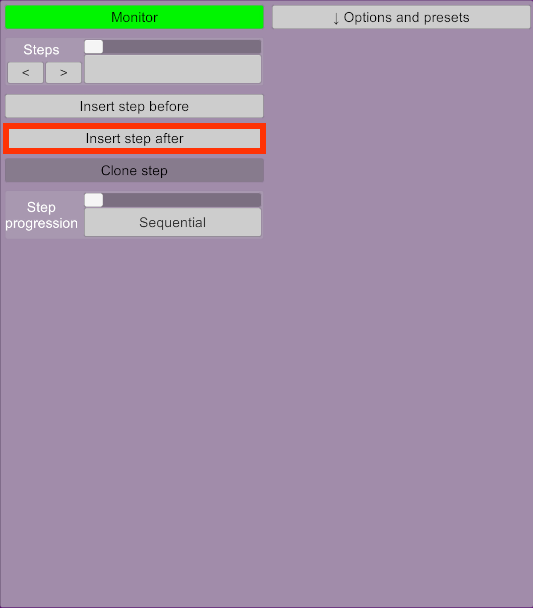
After the plugin has been added, the user interface is empty. Insert step after or before will add a new step. When there are no steps, both are equivalent.
Once a step has been added, Add modifier will add a new modifier in this step.
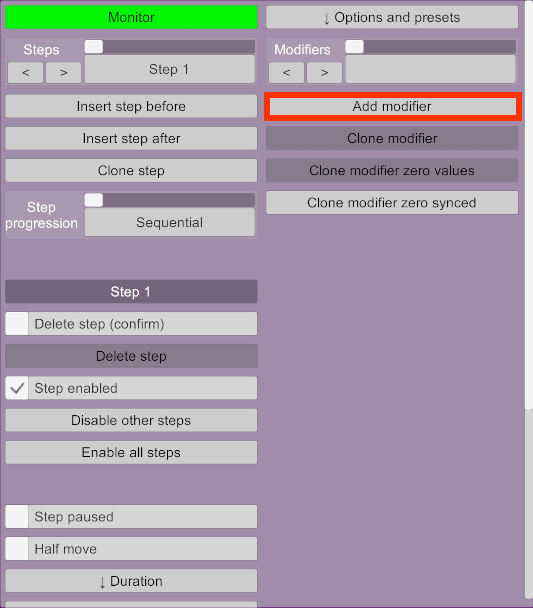
Synergy now has one step and one modifier in this step. When there are more than one step, or more than one modifier in the selected step, the lists at the top can be used to switch between them.
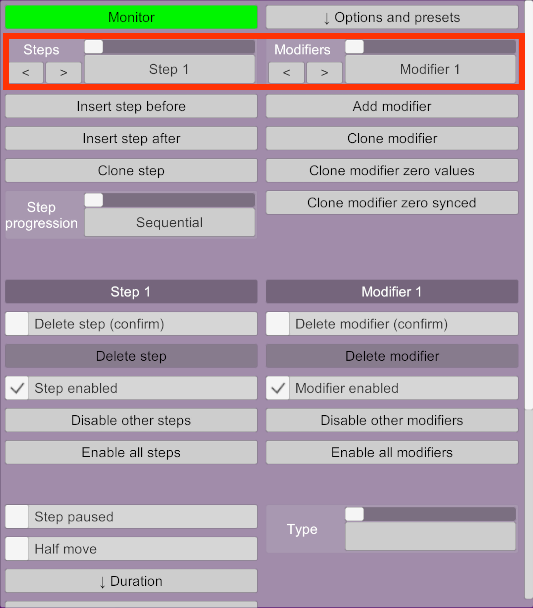
The left side is used to configure the step. The right side configures a modifier. Other steps or modifiers can be added using the buttons below the lists.
Adding steps:
- Insert step before: Adds a new step before the current one.
- Insert step after: Adds a new step after the current one.
- Clone step: Adds a new step after the current one with the same settings and modifiers as the current one.
Note that steps cannot currently be re-ordered.
Adding modifiers:
- Add modifier: Adds a new modifier. Note that the order of modifiers doesn't matter and new modifiers are always added at the end. Modifiers are always executed concurrently.
- Clone modifier: Adds a new modifier that is an exact copy of the current one.
- Clone modifier zero values: Adds a new modifier that is a copy of the current one, except for any value that drives something, such as movements for rigidbodies. This is a useful shortcut when adding modifiers that are similar to the current one, without the character model moving unexpectedly because of compounding modifiers.
- Clone modifier zero synced: Same thing as Clone modifier zero values, but the new modifier will be synced to the current one. This is equivalent to cloning the modifier, setting Sync to Other modifier and selecting the current modifier.
Some widgets are used extensively in Synergy:
-
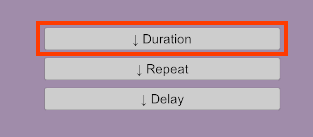
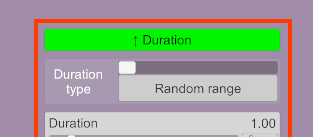
Collapsible: a button with an arrow on it. Clicking the button will expand or collapse this section.
-
Confirm button: a combination of a checkbox and a button. Used to confirm destructive operations, such as deleting steps. Check the checkbox first to make the button available to click.

- Add
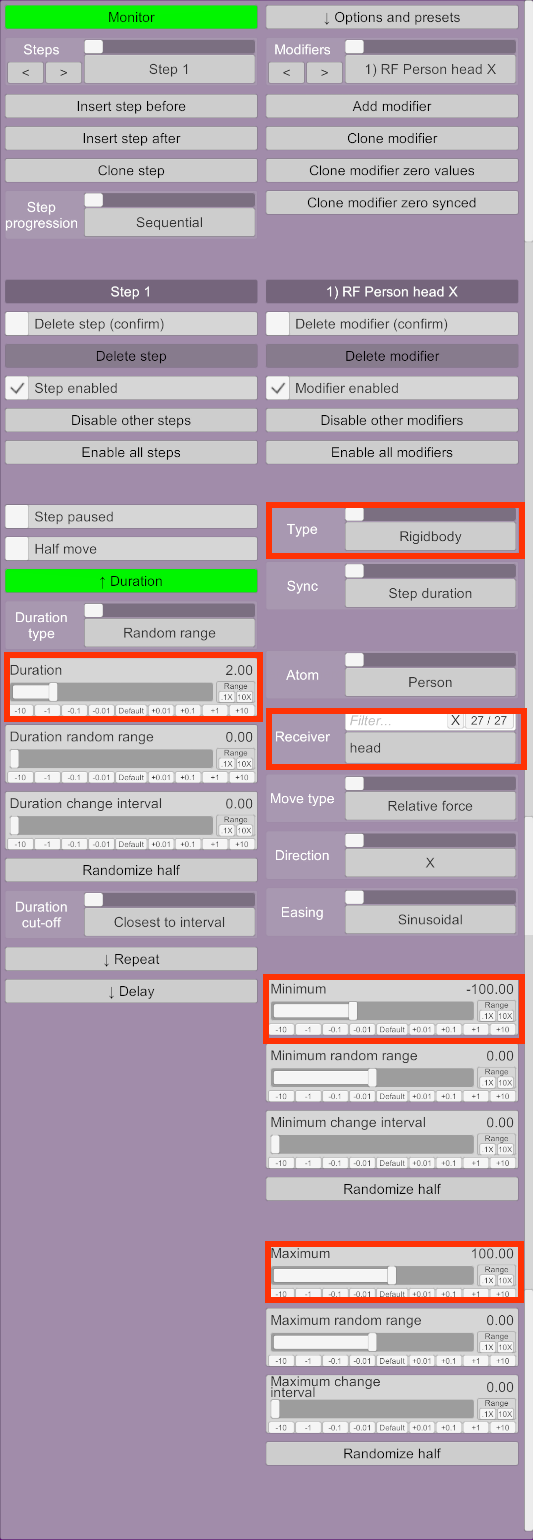
Synergy.cslistto a Person atom. - Insert a new step.
- In this step, add a new modifier.
- Scroll down and click the Duration button on the left to expand it. This controls how long the step will run.
- Change Duration from 1 second to 2 second.
Now to set up the modifier.
- On the right, set the Type of the modifier to Rigidbody. A rigidbody modifier applies forces or torque to body parts.
- Note that the Atom field automatically selects the atom that contains the plugin. If there are other Person atoms in the scene, another one may be selected here.
- Select head as the Receiver. The receiver is the body part that is controlled by the modifier.
- Scroll down. Set Minimum to -100 and Maximum to 100. These are forces applied to the head.
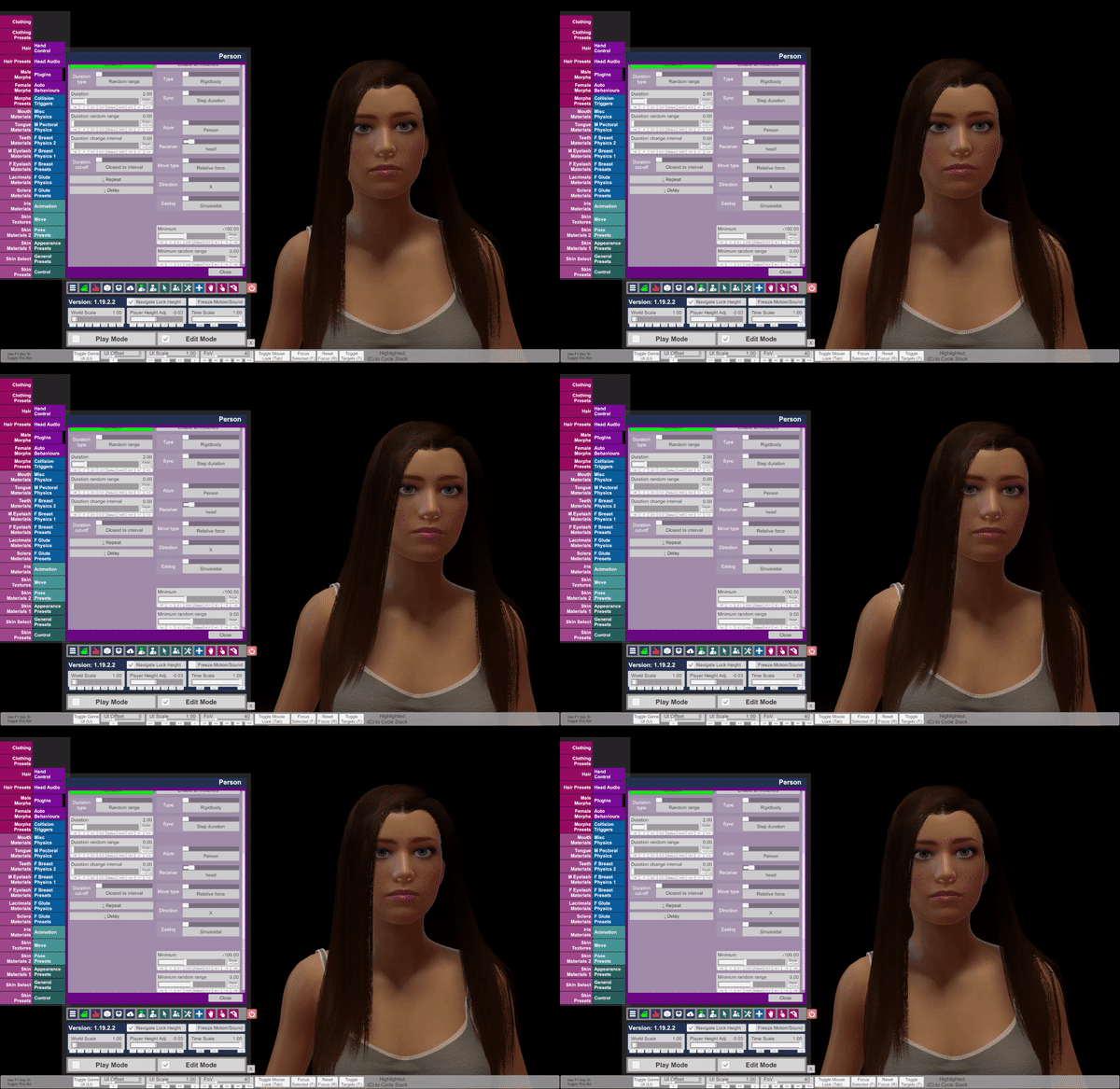
The Person's head should now be moving left to right every two seconds.