Settings
Open via ☰ Menu → File → Settings... or the ⚙ toolbar button.
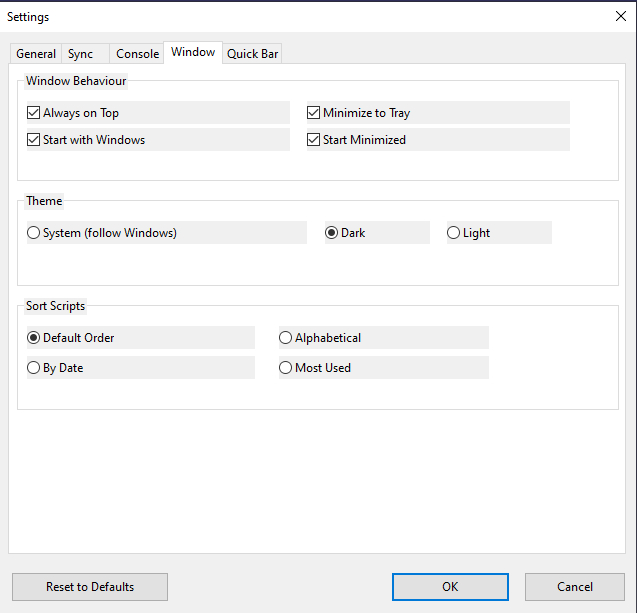
The Settings dialog has five tabs:
Full path to python.exe. Click Browse... to locate it. If left blank the app auto-detects Python from your PATH and common installation locations.
To use a virtual environment, browse to python.exe inside the venv's Scripts folder — for example C:\My_Venv\Scripts\python.exe. The app calls Python directly by full path, so the venv does not need to be activated in a terminal. After pointing to a new environment, click ↓ Deps to install the required packages into it.
Create venv button: Click Create venv to automatically create a virtual environment at %APPDATA%\CatiaMenuWin32\venv using the Python executable currently shown in the path field. On success, the path field is updated to point to the new environment's python.exe. Click OK to save, then click ↓ Deps to install packages into it.
See Installation — Virtual Environment for full setup steps.
Where downloaded scripts are stored locally. Defaults to %APPDATA%\CatiaMenuWin32\scripts. Click Browse... to change it.
Optional Personal Access Token. Increases the GitHub API rate limit from 60 to 5,000 requests/hour and is required for private repositories.
Tick Use token and paste the token into the field. To generate a token: GitHub → Settings → Developer Settings → Personal Access Tokens → Fine-grained tokens. Give it read-only access to public repositories.
| Setting | Default | Description |
|---|---|---|
| Sync on startup | On | Download latest scripts when the app starts |
| Always download latest before running | Off | Always fetch newest script before execution |
| Check for updates on startup | On | Notify when a newer app version is available |
| Auto-install updates | Off | Download and install new versions automatically; also applies when using Help → Check for Updates… manually |
| Auto-refresh every N hours | 6 | Background sync interval (0 = disabled) |
| Show cached scripts when offline | Off | When on, previously synced scripts are displayed if GitHub cannot be reached; an amber status bar warning is shown. When off (default), no buttons appear if the startup sync fails |
| Setting | Default | Description |
|---|---|---|
| Show Python console | Off | Open a visible console when running scripts |
| Keep console open | On | Keep console open after script finishes (cmd /k mode) |
| Keep Deps console open | Off | Keep dependency install window open until manually closed |
| Repeat on double-click (main window) | On | Enable repeat mode for scripts in the main window |
| Setting | Default | Description |
|---|---|---|
| Always on Top | On | Keep main window above other applications |
| Minimize to Tray | On | Hide to system tray instead of taskbar when minimised |
| Start with Windows | On | Launch automatically at login via registry autorun |
| Start Minimized | On | Start hidden in the tray |
| Theme | System | Dark, Light, or follow Windows setting |
| Sort Scripts | Default Order | Default, Alphabetical, By Date, or Most Used |
| Tint local and extra-repo script buttons differently | On | Applies a subtle background tint to buttons based on their source: warm rose for local folders, cool green for extra GitHub repositories, no tint for the built-in repository. When offline with cached scripts enabled, this changes to red (built-in) and dark orange-red (extra repos) to indicate stale data; local scripts are never tinted red. |
Note: Theme, Always on Top, Window behaviour, and Sort Scripts are also accessible via ☰ Menu → View and ☰ Menu → Window without opening Settings.
| Setting | Default | Description |
|---|---|---|
| Enable Quick Launch Bar | On | Show the floating icon toolbar |
| Orientation | Vertical | Vertical (stacked column) or Horizontal (row) |
| Stay on Top with Target App | On | Auto-elevate bar when the target app is in the foreground |
| Target App | CATIA V5 |
Window-title substring to watch; empty = always visible, no topmost |
| Target Exe | CNEXT.exe |
Process executable name to match alongside Target App; click Browse… to pick via file dialog; empty = any process |
| Repeat on double-click (Quick Bar) | On | Enable repeat mode for Quick Bar buttons |
The bar is sourced from your ⭐ Favourites tab. Right-click the bar for its own context menu, or access all options via ☰ Menu → View → Quick Bar.
See User Guide — Quick Launch Bar for full behaviour details.
The Reset to Defaults button resets all settings to their factory defaults. Script sources (extra repos and local folders) are not affected.
The Export... and Import... buttons at the bottom of the dialog let you back up and restore your configuration selectively.
Both buttons open a selection dialog divided into three sections:
General settings — three independent checkboxes:
| Checkbox | What it covers | Shareable? |
|---|---|---|
| Python path | Path to the Python executable | No — machine-specific |
| Cache folder | Path to the script cache directory | No — machine-specific |
| Options, theme, window & Quick Bar | All sync, console, and display options; theme; window behaviour; Quick Bar preferences | Yes — portable |
Extra Repositories and Local Folders — each item listed with its own checkbox so you pick exactly which sources to transfer.
Tokens — one checkbox per available token (GitHub account token + one per repo that has a token). Uncheck any you do not want to include.
Export... — choose what to include, then pick a destination .ini file.
Import... — choose a source .ini file first, then the dialog shows what is available in that file. Repos and local folders are appended to your current sources — nothing is removed or replaced. Duplicate URLs/paths are skipped silently; if a duplicate repo carries a token you are prompted to keep the existing or imported one. Settings take effect immediately and the dialog closes. prefs.ini (favourites, notes, run counts) is never affected.
Tip: To share portable preferences with a colleague, uncheck Python path and Cache folder before exporting. They get your options, theme, and Quick Bar settings without machine-specific paths.