User Guide
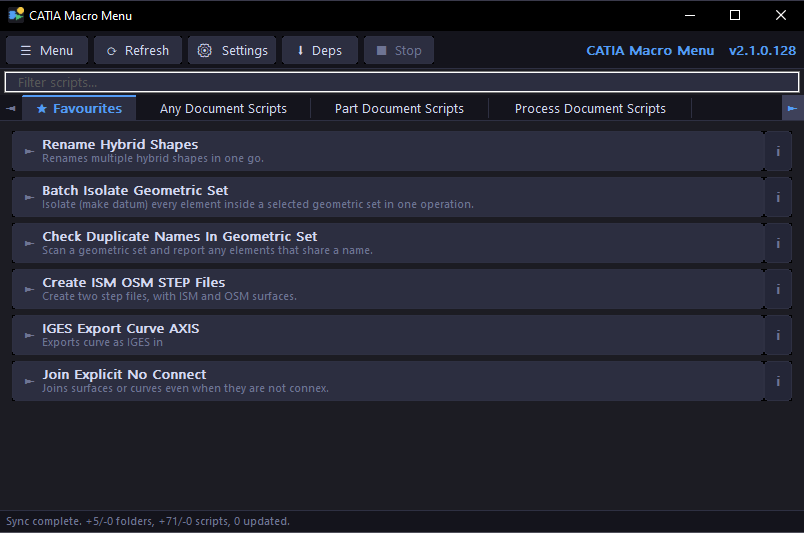
┌──────────────────────────────────────────────────────────────────┐
│  CATIA Macro Menu                                      -  [ ]  x │
├──────────────────────────────────────────────────────────────────┤
│  [Menu] [Refresh] [Settings] [Deps] [Stop] [Log]    v2.2.0.xxx   │
├──────────────────────────────────────────────────────────────────┤
│  Filter scripts...                                               │
├──────────────────────────────────────────────────────────────────┤
│ <  * Favourites  |  Any Document Scripts  |  Part Doc Scripts  > │
├──────────────────────────────────────────────────────────────────┤
│  >  Rename Hybrid Shapes                                    [i]  │
│     Renames multiple hybrid shapes in one go.                    │
│  >  Batch Isolate Geometric Set                             [i]  │
│     Isolate every element in a geometric set as a datum.         │
│  >  Check Duplicate Names In Geometric Set                  [i]  │
│     Scan a geometric set for elements that share a name.         │
│                                                                  │
├──────────────────────────────────────────────────────────────────┤
│  Sync complete. +5/-0 folders, +71/-0 scripts, 0 updated.        │
└──────────────────────────────────────────────────────────────────┘
| Button | Action |
|---|---|
| ☰ Menu | Access all app functions |
| ↻ Refresh | Re-sync scripts from all sources |
| ⚙ Settings | Open the settings dialog |
| ↓ Deps | Install/update Python dependencies |
| ■ Stop | Stop the currently running background script (disabled when idle) |
| ≡ Log | Open the script output log window to view stdout/stderr from background runs |
The top-right of the toolbar shows the current version and an update notification if a newer version is available.
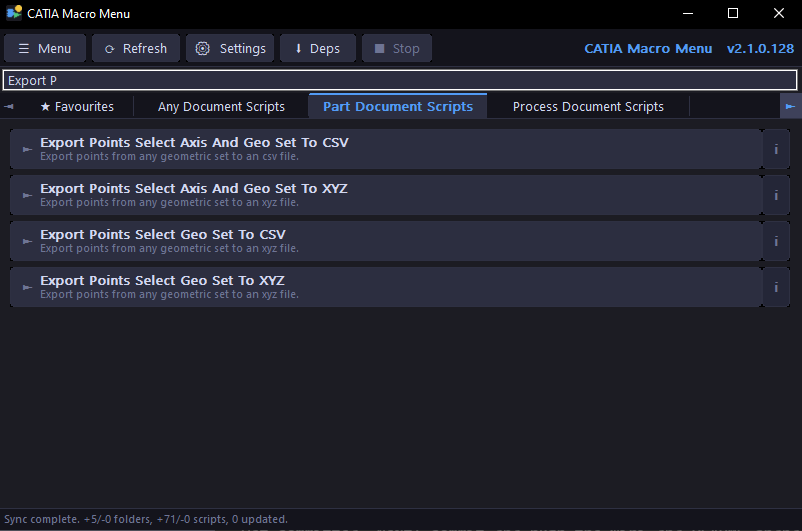
The filter bar below the toolbar filters scripts in the current tab in real time. Type any text to filter by name or purpose. Clear it to show all scripts. Filtering is case-insensitive — searching iges matches IGES Export Curve AXIS.
Each tab corresponds to a script folder from the repository. Click a tab to switch categories. When more tabs exist than fit the window, ◄ ► arrows appear. Use the mouse wheel over the tab bar to scroll.
Tabs with no visible scripts are hidden automatically. If every script in a tab is hidden, the tab disappears from the bar and the app switches to the next available tab. The tab reappears as soon as any script in it is unhidden.
- Left-click the button to run the script
-
Hover the
ibadge on the right to see the script tooltip (Purpose, Author, Version, Date, Description) - Right-click for the full context menu
When Tint local and extra-repo script buttons differently is enabled in Settings → Window (default: On), button backgrounds are tinted based on the script's source:
| Tint | Source |
|---|---|
| Warm rose | Script is from a local folder source |
| Cool green | Script is from an extra GitHub repository |
| No tint | Script is from the built-in KaiUR/Pycatia_Scripts repository |
The same tinting applies to Quick Launch Bar buttons.
When the app is offline and Show cached scripts when offline is enabled, tinting switches to indicate stale data:
| Tint | Source |
|---|---|
| Red | Script is from the built-in KaiUR/Pycatia_Scripts repository |
| Dark orange-red | Script is from an extra GitHub repository |
| Unchanged | Script is from a local folder (always current, never tinted red) |
Shows sync progress, script launch status, and exit codes at the bottom of the window. When the app is offline and Show cached scripts when offline is enabled in Settings → Sync, the status bar displays an amber warning indicating that the scripts shown may be out of date. Script buttons are also tinted red/orange-red to make the offline state visible at a glance.
On first launch the app will:
- Create
%APPDATA%\CatiaMenuWin32\to store settings and cached scripts - Auto-detect your Python installation
- Sync scripts from the built-in
KaiUR/Pycatia_Scriptsrepository - Display scripts as clickable buttons organised by tab
If sync fails with no internet, no script buttons appear by default. Enable Show cached scripts when offline in Settings → Sync to display previously synced scripts with an amber status bar warning instead. On a corporate network, see GitHub Token.
Click any script button to run it. The app will:
- Verify the script SHA hash against GitHub to confirm it has not been tampered with
- Launch Python with the script path
- Show the status in the status bar
Configurable in Settings:
- Show console — opens a visible Python console when the script runs
- Keep console open — window stays open after the script finishes so you can read output and errors
- Without Show console, scripts run silently in the background
When a script is running in background mode (no console), the button turns green — border, left accent bar, and label text — for the duration of the run. The highlight clears automatically when the script exits or is stopped.
Click the ■ Stop button in the toolbar to terminate a script that is currently running in the background. The button is enabled only while a script is running and returns to the disabled (greyed) state once the script exits or is stopped. Use this if a script hangs or runs longer than expected.
Note: Only background (no-console) runs can be stopped this way. If Show console is enabled, close the console window directly or press
Ctrl+Cinside it.
When scripts run in background mode (no console), all stdout and stderr output is captured and shown in the Script Output Log window.
- Click ≡ Log in the toolbar to open the log window at any time — even before a script runs or after it finishes.
- Each run is framed by a header and a completion footer:
The footer reads
=== ScriptName (HH:MM:SS) === ... script output ... --- Finished successfully. ------ Stopped by user. ---if stopped via ■ Stop, or--- Exited with code N. ---for a non-zero exit. -
Syntax highlighting colours output lines automatically:
- Header lines (
===) → accent blue -
--- Finished successfully. ---→ green -
--- Stopped by user. ---→ amber -
--- Exited with code N. ---→ red - Lines containing
Error,Exception,Traceback,Fatal→ red - Lines containing
Warning→ amber
- Header lines (
- Output is buffered internally — nothing is lost if the window is closed during a run.
- The window follows the current dark/light theme and uses a Consolas monospace font.
Log window controls:
-
Right-click anywhere in the log area for a context menu:
- Copy — copies selected text to the clipboard (grayed when nothing is selected)
- Select All — selects all log text
- Clear log — clears the log
- Save log... — saves the full session buffer to a UTF-8 text file via a Save As dialog
- Clear — clears the log from both the window and the internal buffer; new output will still be captured afterwards
Note: Output is only captured in background mode. When Show console is enabled in Settings, output appears in the console window instead.
Favourites give you quick access to the scripts you use most often.
To add a favourite:
- Right-click any script button → Add to Favourites
- Or open Script Details... → tick the Favourite checkbox → click OK
A dedicated ⭐ Favourites tab appears at the far left of the tab bar as soon as you have at least one favourite. It disappears automatically when all favourites are removed.
To remove a favourite:
- Right-click the script → Remove from Favourites
- Or open Script Details... → untick the Favourite checkbox → click OK
Favourites are also the source for the Quick Launch Bar — every favourited script automatically appears as a button on the floating bar.
Favourites are stored in %APPDATA%\CatiaMenuWin32\prefs.ini and persist across restarts and syncs.
A filter bar sits below the toolbar. Type any text to instantly filter the scripts in the current tab by name or purpose. Clear the box to show all scripts again. Filtering is case-insensitive.
Right-click any script → Script Details... to open a full details dialog.
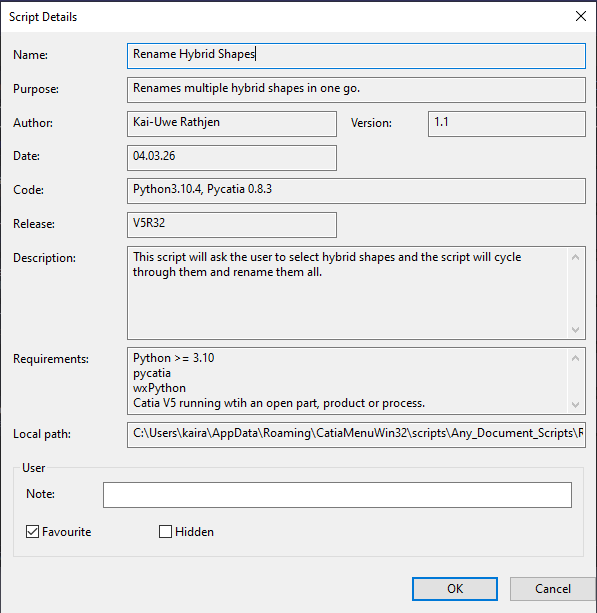
The dialog shows:
- Script name, purpose, author, version, date
- Code environment and CATIA release
- Full description and requirements
- Local cache path
- Your personal note
- Favourite and Hidden toggles
Changes to the note, favourite, and hidden state are saved when you click OK.
Hiding a script removes it from view without deleting it from the cache.
To hide a script:
- Right-click any script → Hide Script
- Or open Script Details... → tick the Hidden checkbox → click OK
Hidden scripts remain in the cache and will not reappear after a sync. If every script in a tab is hidden, the tab itself disappears from the tab bar automatically.
To unhide scripts:
- Go to ☰ Menu → File → Manage Hidden Scripts
- Select one or more scripts from the list
- Click Unhide to restore selected scripts, or Unhide All to restore everything
The tab reappears automatically as soon as any script in it is unhidden.
Right-click any script → Add Note... (or Edit Note...) to attach a personal note. Notes are visible in the Script Details dialog and stored in %APPDATA%\CatiaMenuWin32\prefs.ini.
Right-click any script → Run with Arguments... to pass custom command line arguments when running the script.
The right-click context menu provides three options for opening script files directly:
| Option | Available for | Action |
|---|---|---|
| Open Script Location | All scripts | Opens the folder containing the script in Windows Explorer |
| Open with Default App | All scripts | Opens the script file with the Windows default application for its file type |
| Open in Editor | Local folder scripts only | Opens the script in the registered editor for the file type (e.g. VS Code, Notepad++, IDLE) |
Note: For GitHub-synced scripts, edits made to the cached file will be overwritten on the next sync. Use Open in Editor on local scripts to safely edit your own scripts.
☰ Menu → View → Sort Scripts offers four sort modes:
| Mode | Description |
|---|---|
| Default Order | Order from GitHub API or disk |
| Alphabetical | A–Z by script name |
| By Date | Most recent scripts first (from script header Date field) |
| Most Used | Scripts you run most often appear first |
The sort mode is saved in Settings and applied to all tabs.
Open via ☰ Menu → File → Settings... or the ⚙ toolbar button. See the Settings page for full details.
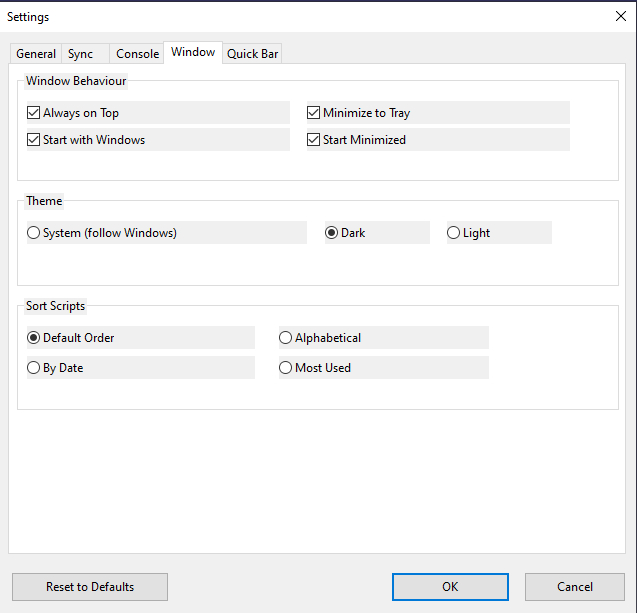
The Settings dialog has five tabs: General, Sync, Console, Window, and Quick Bar.
Open via ☰ Menu → File → Sources.... See the Script Sources page for full details.
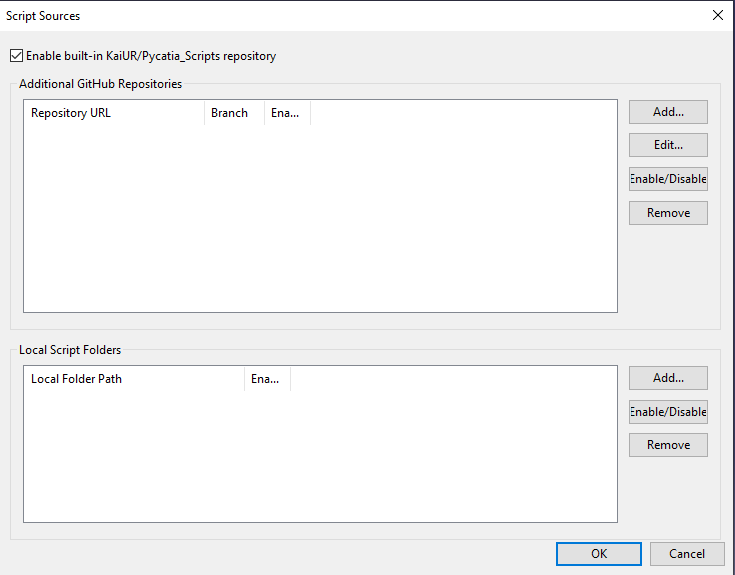
The app can load scripts from three types of sources simultaneously: the built-in KaiUR/Pycatia_Scripts repository, additional GitHub repositories, and local folders on your machine.
Click ↓ Deps (or ☰ Menu → Run → Update Dependencies) to install Python packages required by the scripts.
The app runs pip install --upgrade pip && pip install --upgrade -r requirements.txt for each configured source that has a setup/requirements.txt file. Each source runs in its own console window sequentially.
Enable Keep Update Deps console open in Settings → Console to keep each window visible until you close it manually.
The Quick Launch Bar is a small floating button bar giving one-click access to your favourite scripts without switching to the main window.


Go to ☰ Menu → View → Quick Bar → Enable Quick Bar, or right-click the bar and tick Enable Quick Bar.
Each button represents one script from your ⭐ Favourites tab. The face shows the first two uppercase letters of the script name. Hover to see the full name and Purpose in a tooltip. Click to run.
When favourites exceed the visible area, ▲ ▼ (vertical) or ◄ ► (horizontal) scroll arrows appear. The mouse wheel also scrolls.
Drag any empty area of the bar to reposition it. Position is saved to settings.ini automatically.
Switch between vertical and horizontal layouts via ☰ Menu → View → Quick Bar or the right-click menu.
The bar tracks the state of a configured target application:
| State | Behaviour |
|---|---|
| Target app has a visible window | Bar shown normally |
| All target windows minimised | Bar hides; reappears on restore |
| Target app not running | Bar hides; reappears when the app opens |
| No target configured | Bar always visible when enabled |
When On Top with Target App is enabled, the bar rises to always-on-top while the target app is in the foreground.
The default target is CATIA V5. To change it:
- Right-click the bar → Set Target App…
- Enter any substring that appears in the target window title (e.g.
SolidWorks,Fusion 360) - Optionally enter the Target Exe — the process executable filename (e.g.
CNEXT.exe) — to prevent the bar from responding to other windows whose titles share the same substring. Click Browse… to select the executable with a file picker instead of typing the name manually - Click OK
Clear both fields and click OK to disable target tracking — the bar will remain always visible with no topmost behaviour.
| Option | Description |
|---|---|
| Enable Quick Bar | Toggle the bar on or off |
| Horizontal / Vertical | Switch orientation |
| On Top with Target App | Toggle topmost-with-target (greyed when no target set) |
| Set Target App… | Set the window-title substring and optional process executable to track |
| Reset Position | Move bar back to default position |
| Repeat on Double-Click | Toggle repeat mode for Quick Bar buttons |
Repeat mode re-runs a script automatically after each completion, so you can run a macro repeatedly without clicking each time.
Double-click any script button in the main window, or double-click any button on the Quick Launch Bar.
The button turns amber — amber border, amber left accent bar, amber label text, and a loop symbol ↻ — so you always know which script is looping. The status bar shows:
Repeat: <script name> • Esc or click to stop
| Action | Result |
|---|---|
| Press Escape | Cancels repeat and stops the currently running background script |
| Single-click the same script | Cancels repeat; no extra run triggered |
| Single-click a different script | Cancels repeat and runs the new script once |
| Click ■ Stop | Cancels repeat and terminates the current run |
- Main window: ☰ Menu → Run → Repeat Script on Double-Click, or Settings → Console tab
- Quick Bar: right-click the bar → Repeat on Double-Click, or ☰ Menu → View → Quick Bar → Repeat on Double-Click, or Settings → Quick Bar tab
Both toggles default to On and are independent.
Note: Repeat is not available when Show Python console window is enabled — console-mode scripts run attached to a terminal and completion is not tracked.
When Minimize to Tray is enabled, closing the window hides the app to the system tray. Double-click the tray icon to restore it. Right-click the tray icon for a menu with Restore, Refresh, and Exit options.
Enable Start with Windows to launch the app automatically at login. Combine with Start Minimized to have it start silently in the tray.
Switch between dark, light, and system-default themes via ☰ Menu → View → Theme:
- System (default) — follows your Windows theme setting automatically
- Dark — always dark regardless of Windows setting
- Light — always light regardless of Windows setting
Without a token, GitHub allows 60 requests per hour per IP address. A token raises this to 5,000 req/hr and is required for private repositories.
To add a token: open ☰ Menu → File → Settings... → General tab → tick Use token and paste it in. See Settings for full details.
Office / shared network users: All users behind the same public IP share the 60/hr limit. Each user should set their own token.
Press F1 or go to ☰ Menu → Help → Help Contents to open the built-in help window. The window has a topic list on the left and formatted content on the right. A coloured header strip above the content shows the current topic name at a glance. It is resizable and stays open while you work.
| Shortcut | Action |
|---|---|
F1 |
Open Help |
F5 |
Refresh + Sync |
F9 |
Run last script |
Ctrl+Tab |
Next tab |
Ctrl+Shift+Tab |
Previous tab |
Escape |
Cancel repeat mode and stop running script (when active) |
See the Writing Scripts wiki page for the full guide on creating compatible scripts, including the required header format, folder structure, naming conventions, and persistent data pattern.